
Wholesale Price rules allow you to offer special pricing to wholesale customers based on user roles, products, quantities, and purchase conditions.
Follow the steps below to create a wholesale pricing rule.
Step 1: Create a New Rule
- Navigate to WholesaleX → Wholesale Price.
- Click Create Wholesale Pricing.
- Enter a rule title.
- Select Wholesale Pricing from the Rule Type dropdown.
Step 2: Select Customer Roles
Choose which user roles can see the pricing rule. You can choose all B2B roles or any specific user role.
You can also click Create User Role to create a new B2B role without leaving the page.
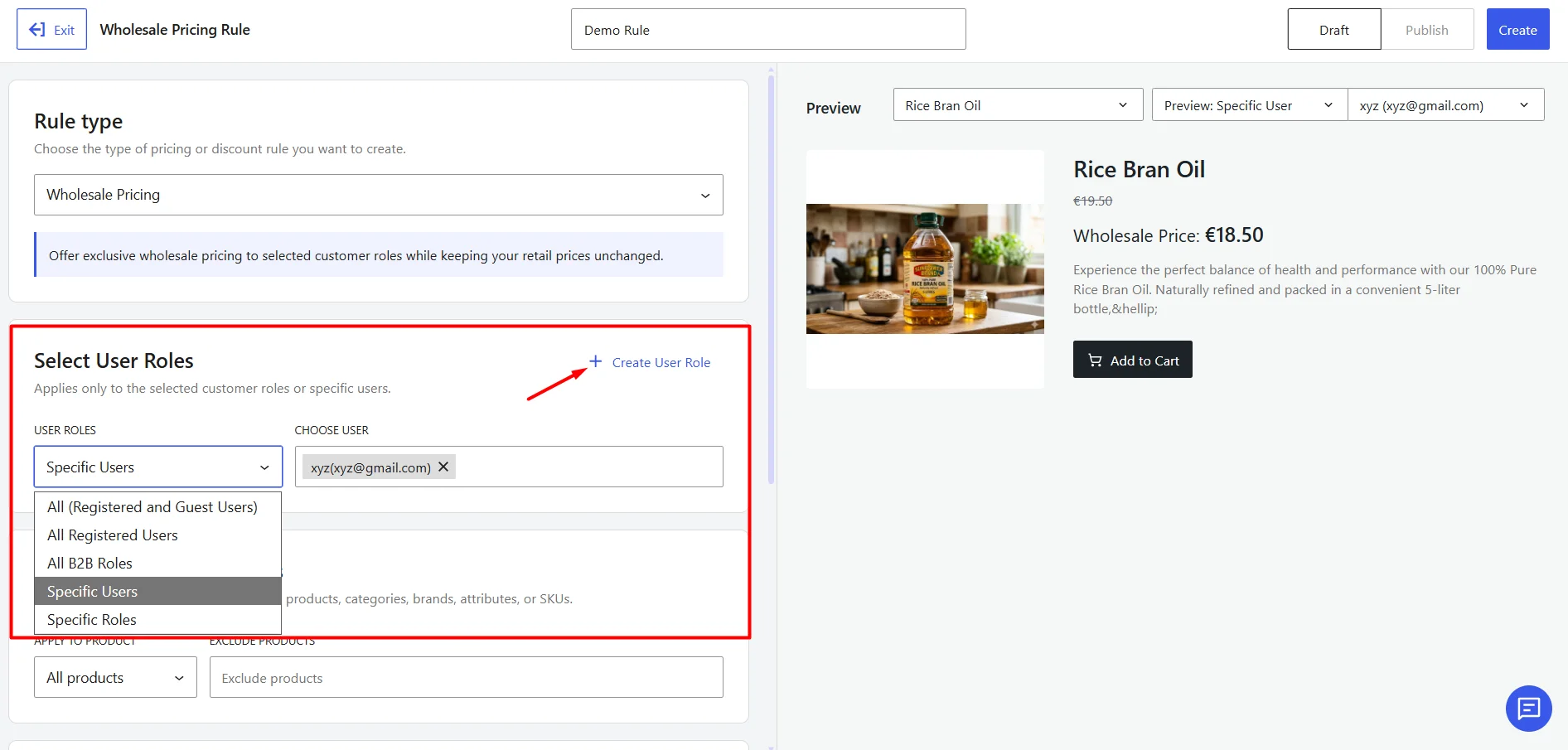
Step 3: Select Applicable Products
Choose the products that will receive wholesale pricing. You can choose
- All products
- Specific products
- Specific category
- Brands
- Attribute
- SKU
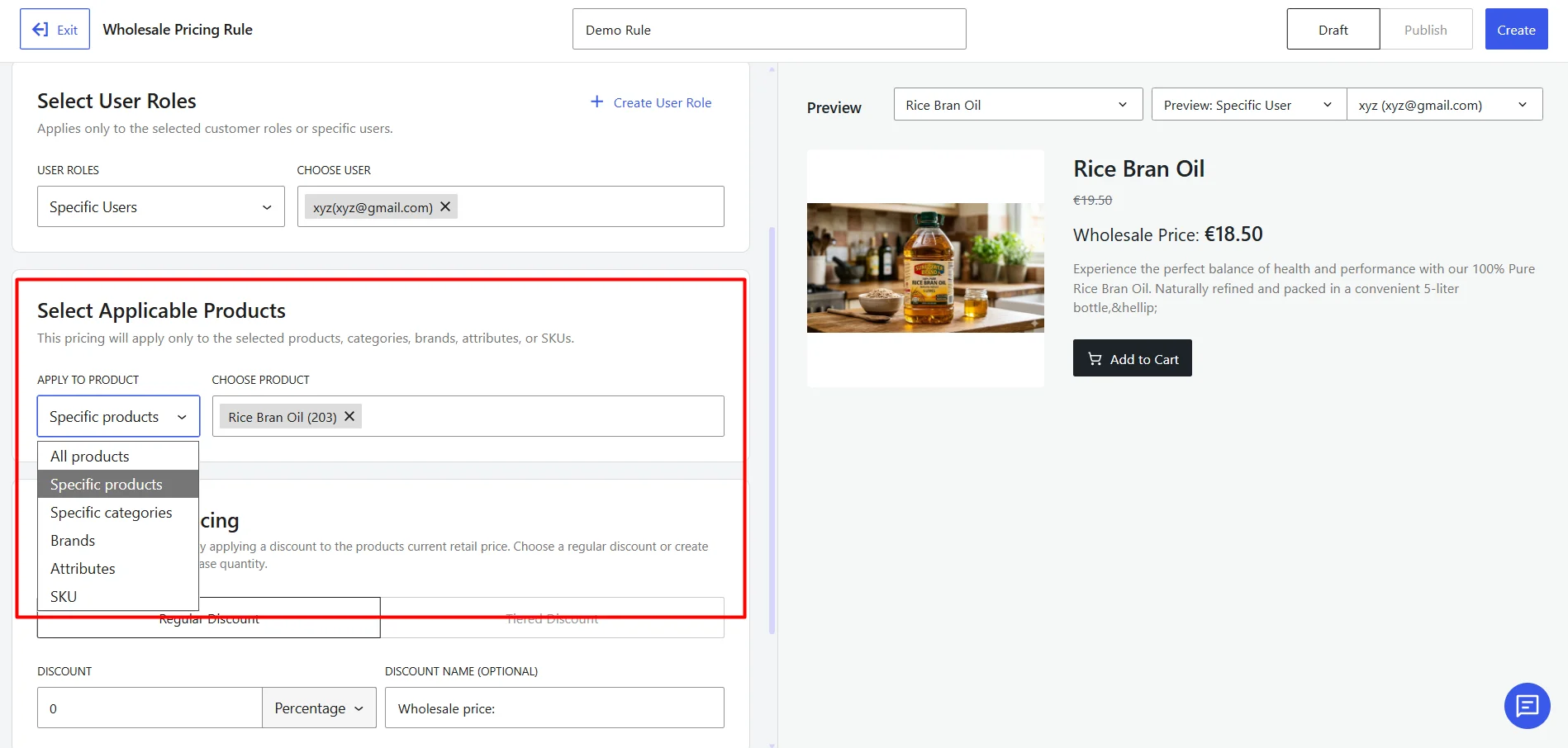
Step 4: Configure the Discount Type
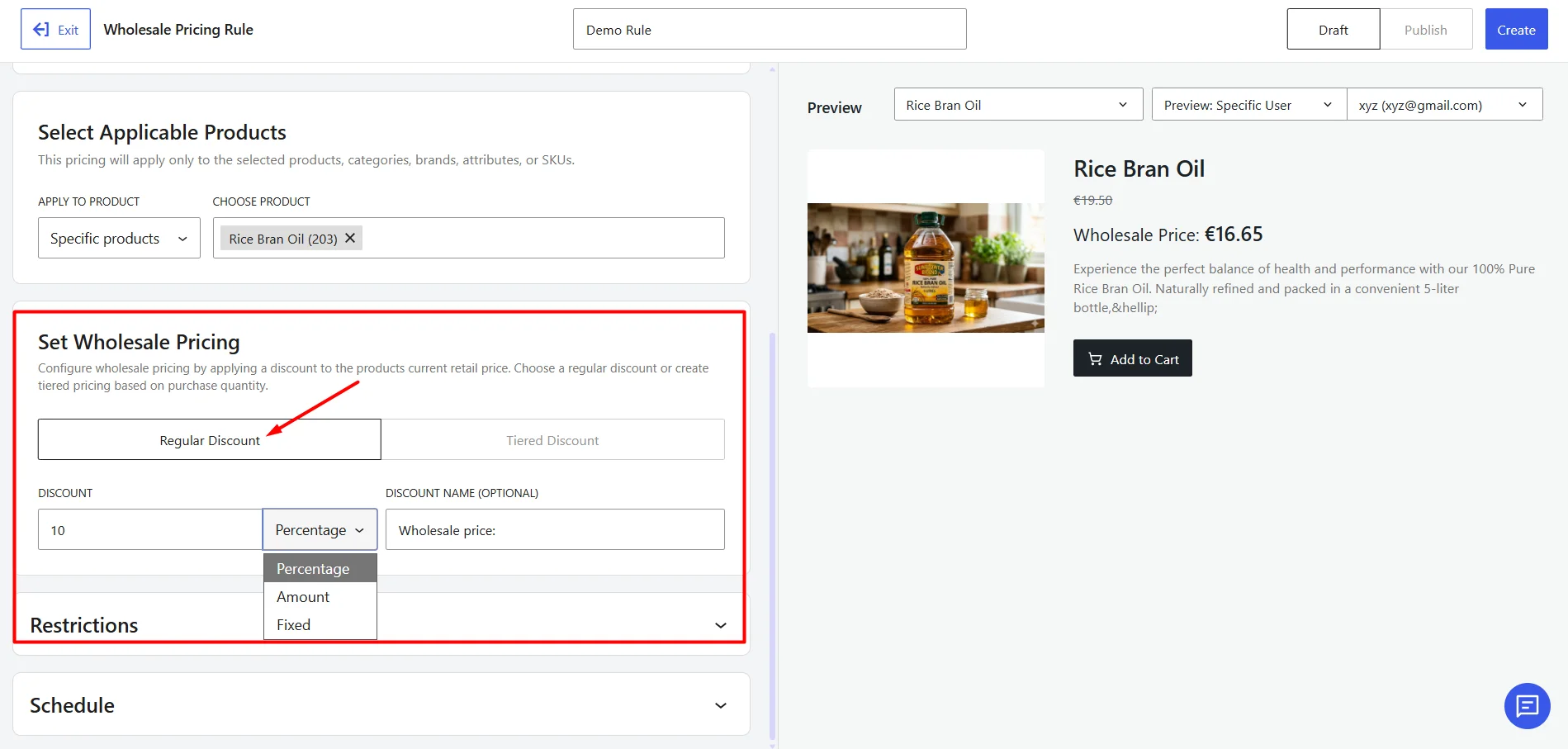
WholesaleX supports two pricing structures: Regular Discount and Tiered Discount.
Option A: Regular Discount
Use this option to apply a single discount to all qualifying purchases. Here you can enter the discount amount that will be applied to qualifying purchases.
Choose any of the discount types available:
- Percentage: Reduces the item’s cost by a specific proportion (e.g., saving 10% off the original price).
- Amount: Deducts a set cash value directly from the total (e.g., a flat $5.00 discount).
- Fixed: Overrides the original price entirely to set a new, permanent cost for the item (e.g., selling a $15.00 item for exactly $10.00).
Optionally, you can edit the label to help identify the discount.
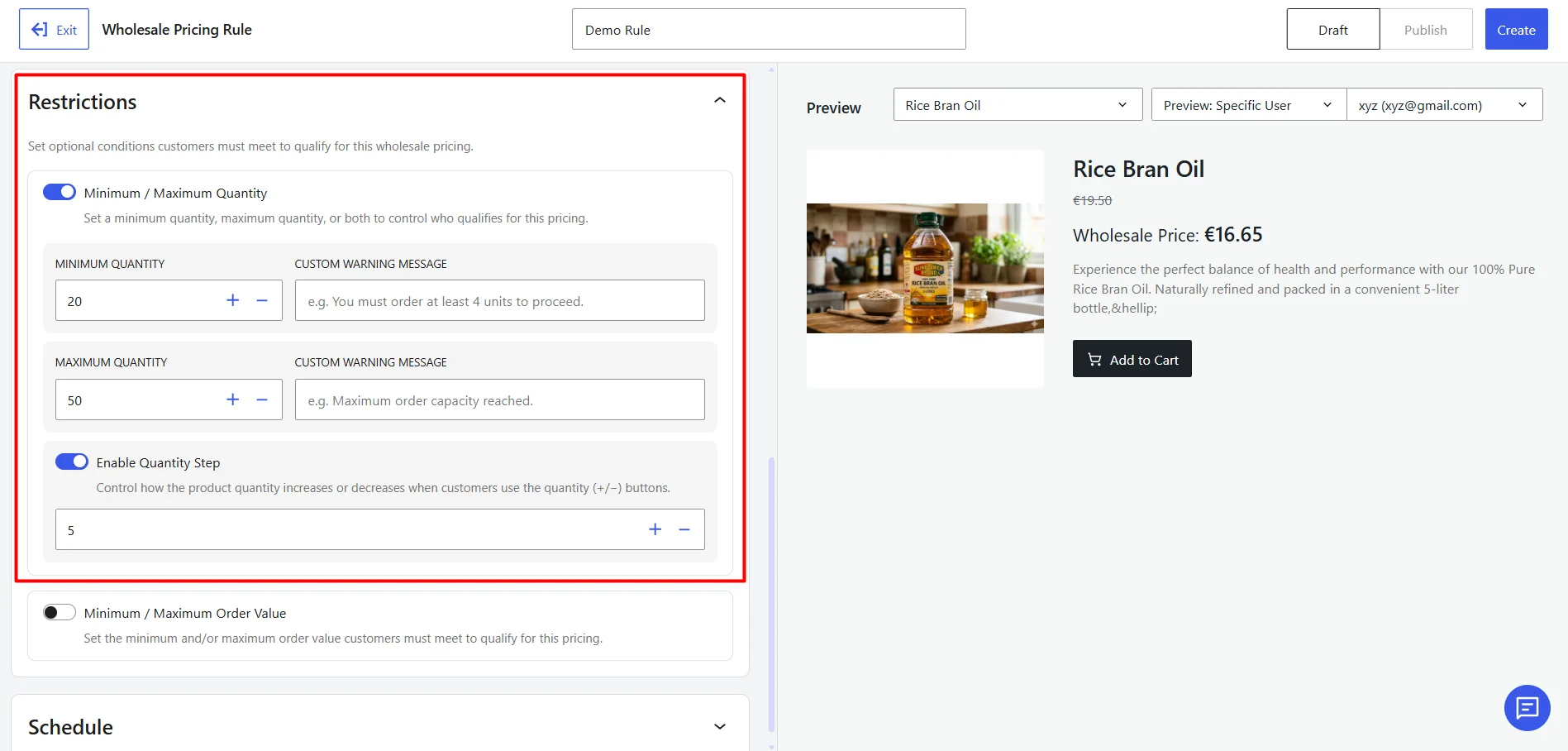
For this option, you can add optional restrictions to control when the wholesale price can be used. They are:
Minimum and Maximum Quantity
Enabling it will limit the number of products customers can purchase. Here you can set:
- Minimum Quantity: Minimum quantity required to activate the discount.
- Maximum Quantity: Maximum quantity allowed under the rule.
- Custom Warning Message: Message displayed when the requirement is not met.
Quantity Step: It controls how quantities increase when customers add items to their cart.
Examples:
- Step of 5 → 5, 10, 15, 20…
- Step of 10 → 10, 20, 30…
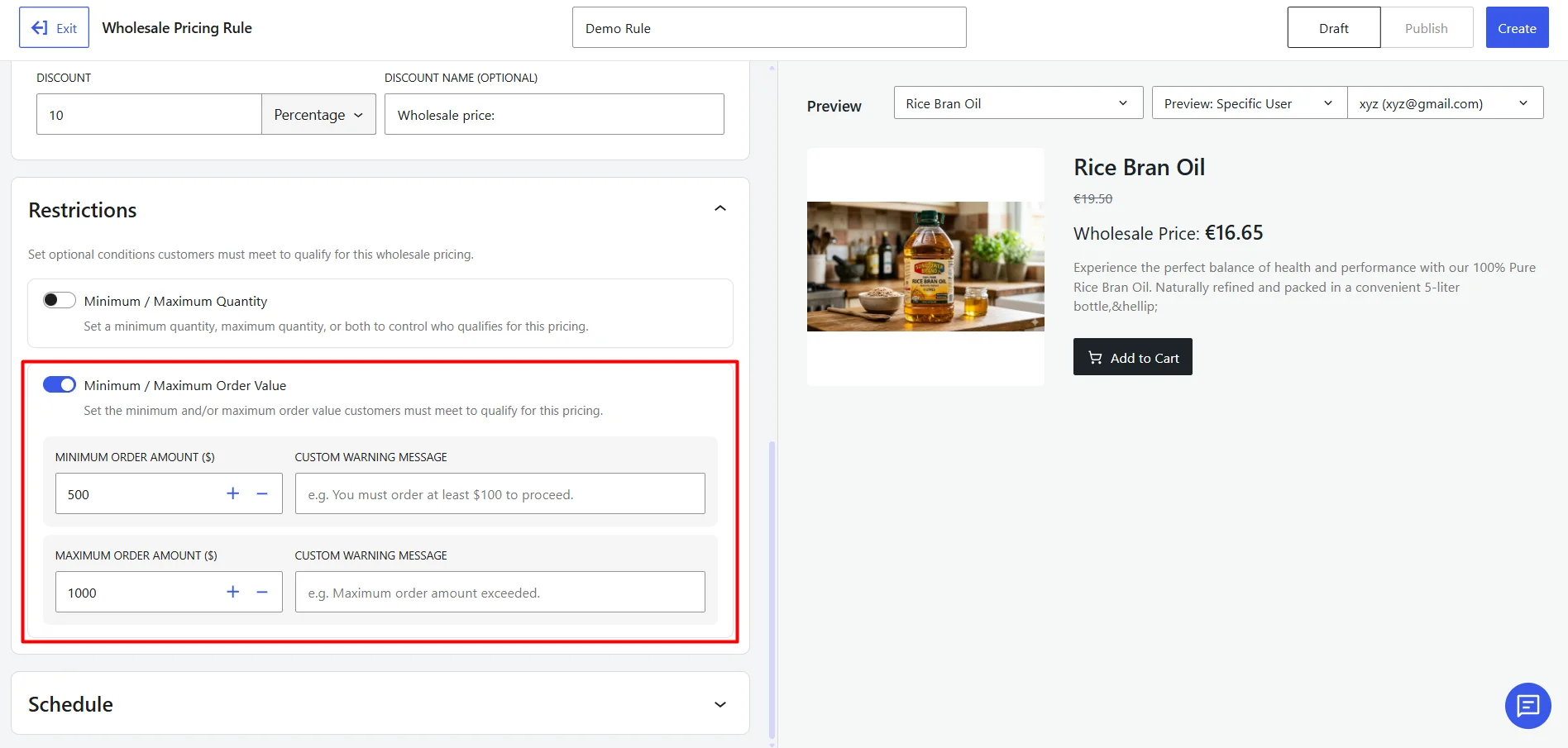
Minimum and Maximum Order Value
Restrict the rule based on cart subtotal.
- Minimum Order Amount: Minimum cart value required.
- Maximum Order Amount: Maximum cart value allowed.
- Custom Warning Message: Message displayed when the requirement is not met.
Option B: Tiered Discount
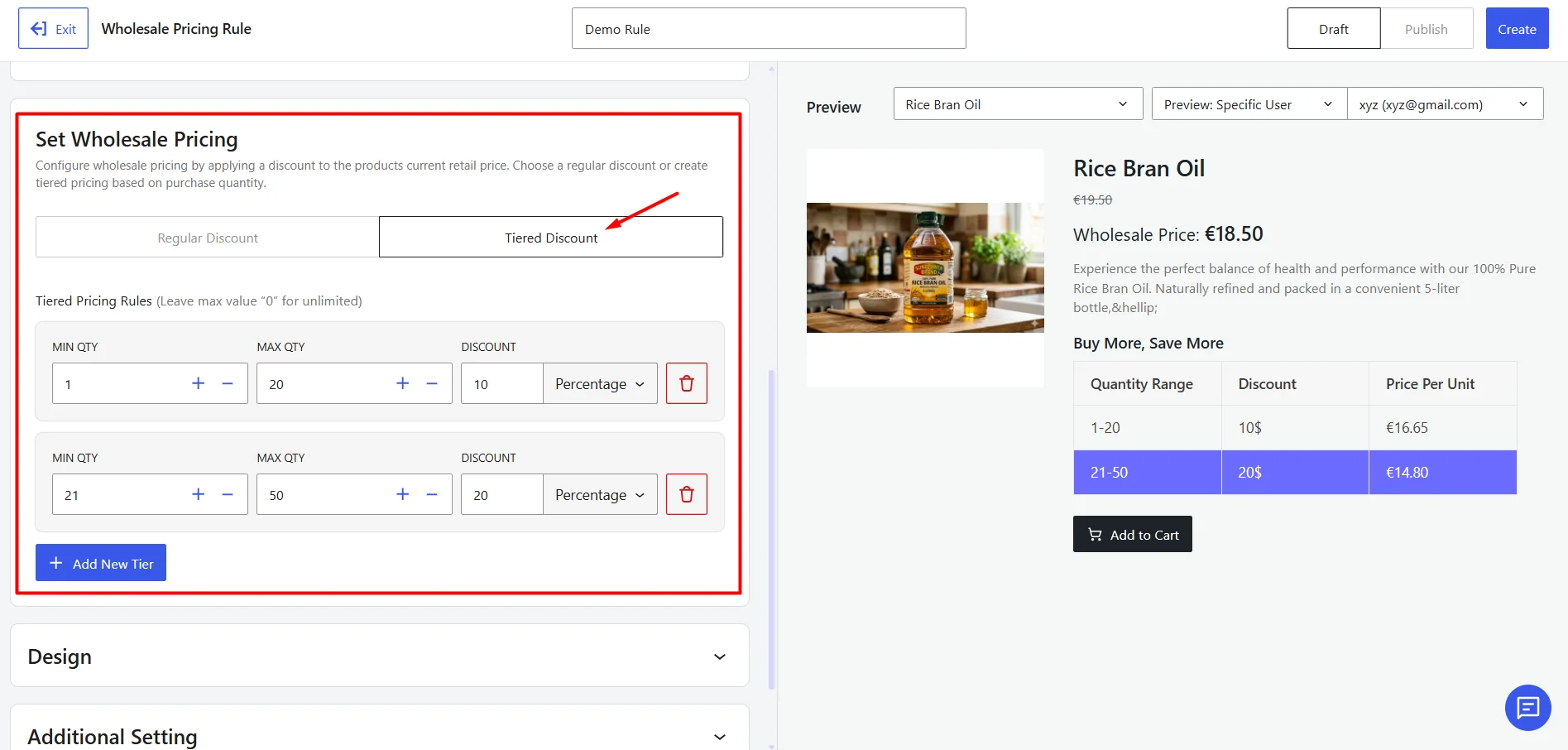
Use this option to offer quantity-based pricing. Each pricing tier contains the following settings:
- Min Qty: Minimum quantity required for the tier.
- Max Qty: Maximum quantity allowed for the tier. Use 0 for unlimited quantity.
- Discount: Discount value applied to the tier. Set any discount type from percentage, amount and fixed value.
Use Add New Tier to create additional pricing levels.
Step 5: Customize Tiered Pricing Display (Optional)
This section is available only when Tiered Discount is selected.
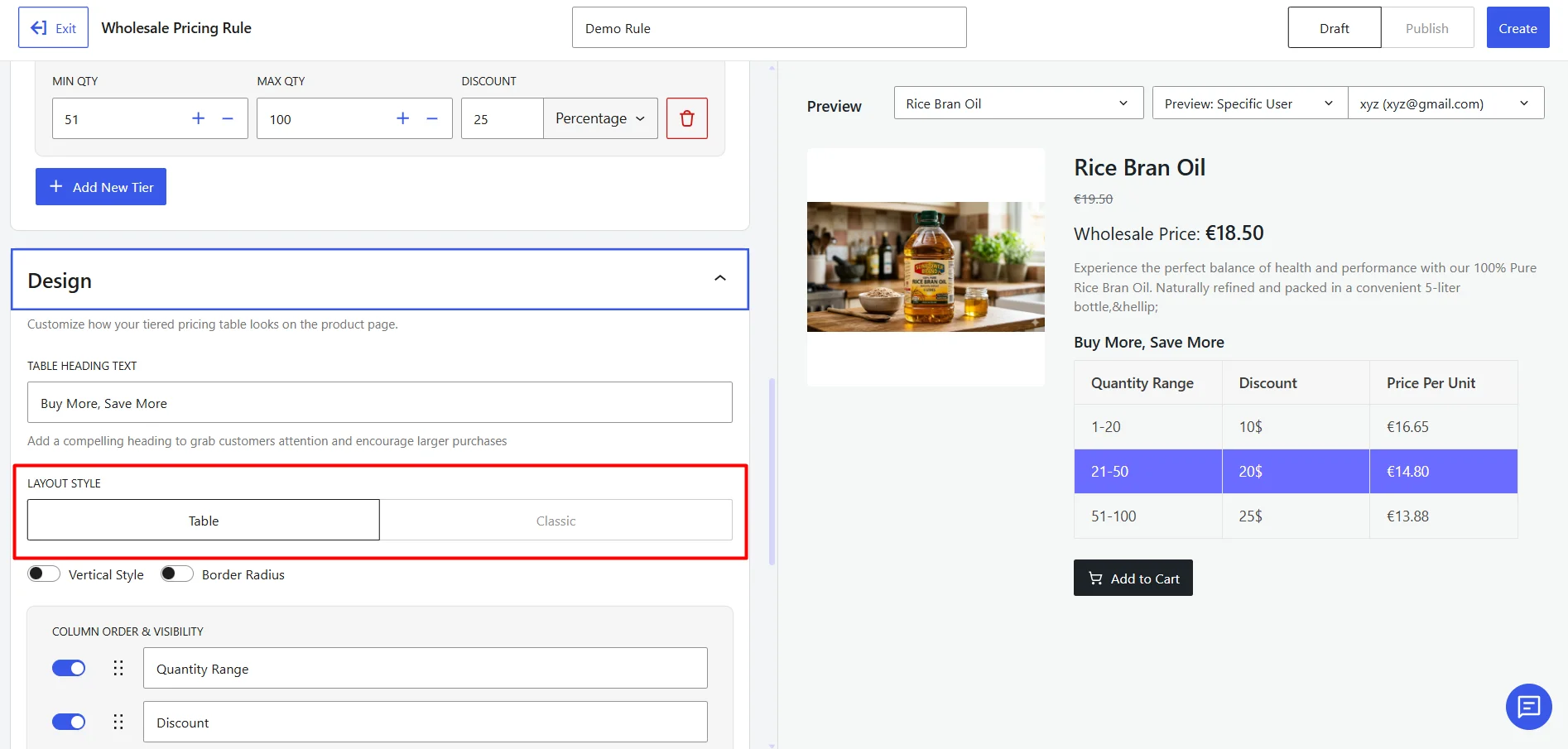
Choose a Layout:
- Table Layout: Displays pricing tiers in a table with configurable columns.
- Classic Layout: Displays pricing tiers in a simplified format.
Design Settings:
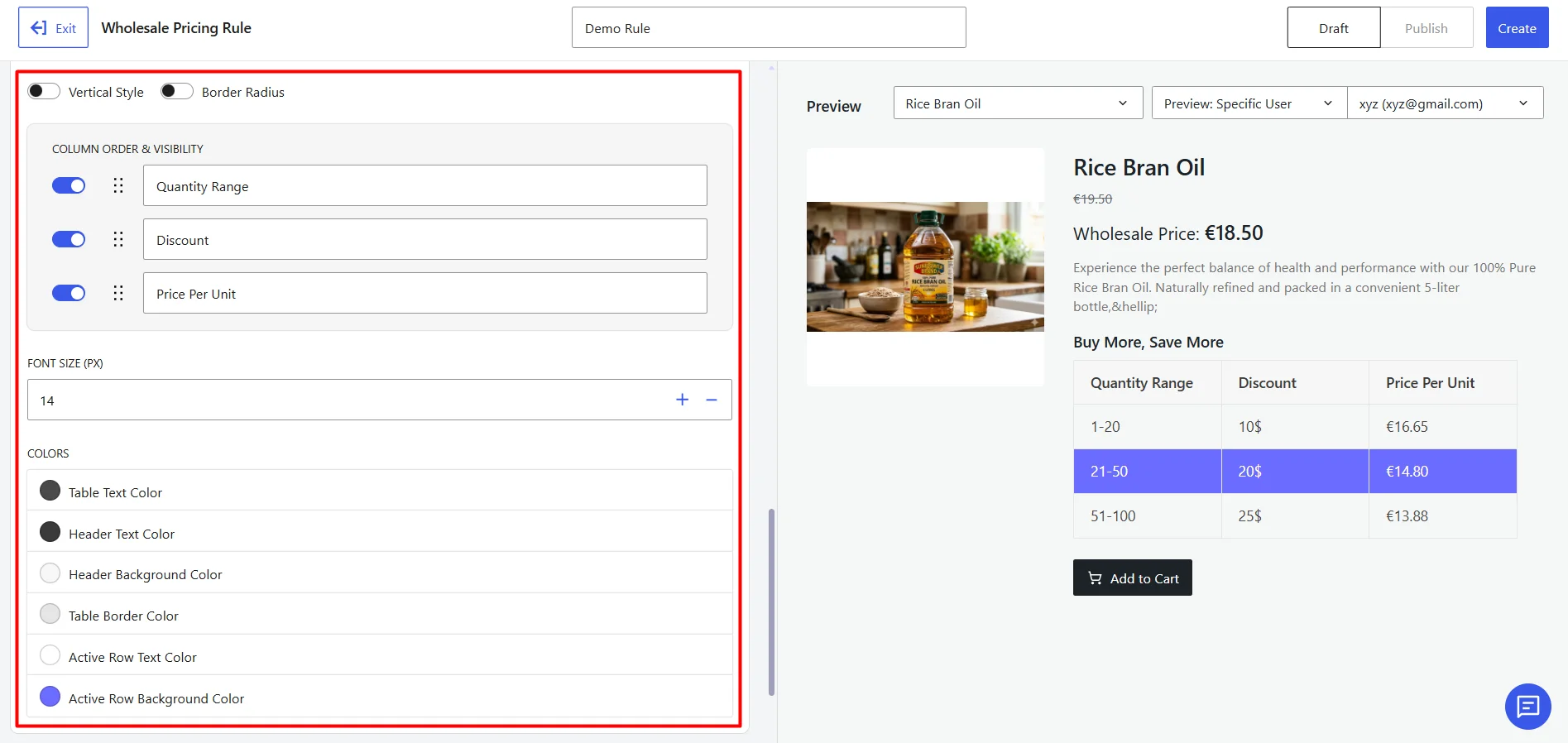
Customize the appearance of the pricing table. Available settings include:
- Heading Text
- Vertical Style
- Border Radius
- Column order and visibility (in table layout)
- Font Size
- Colors Customization
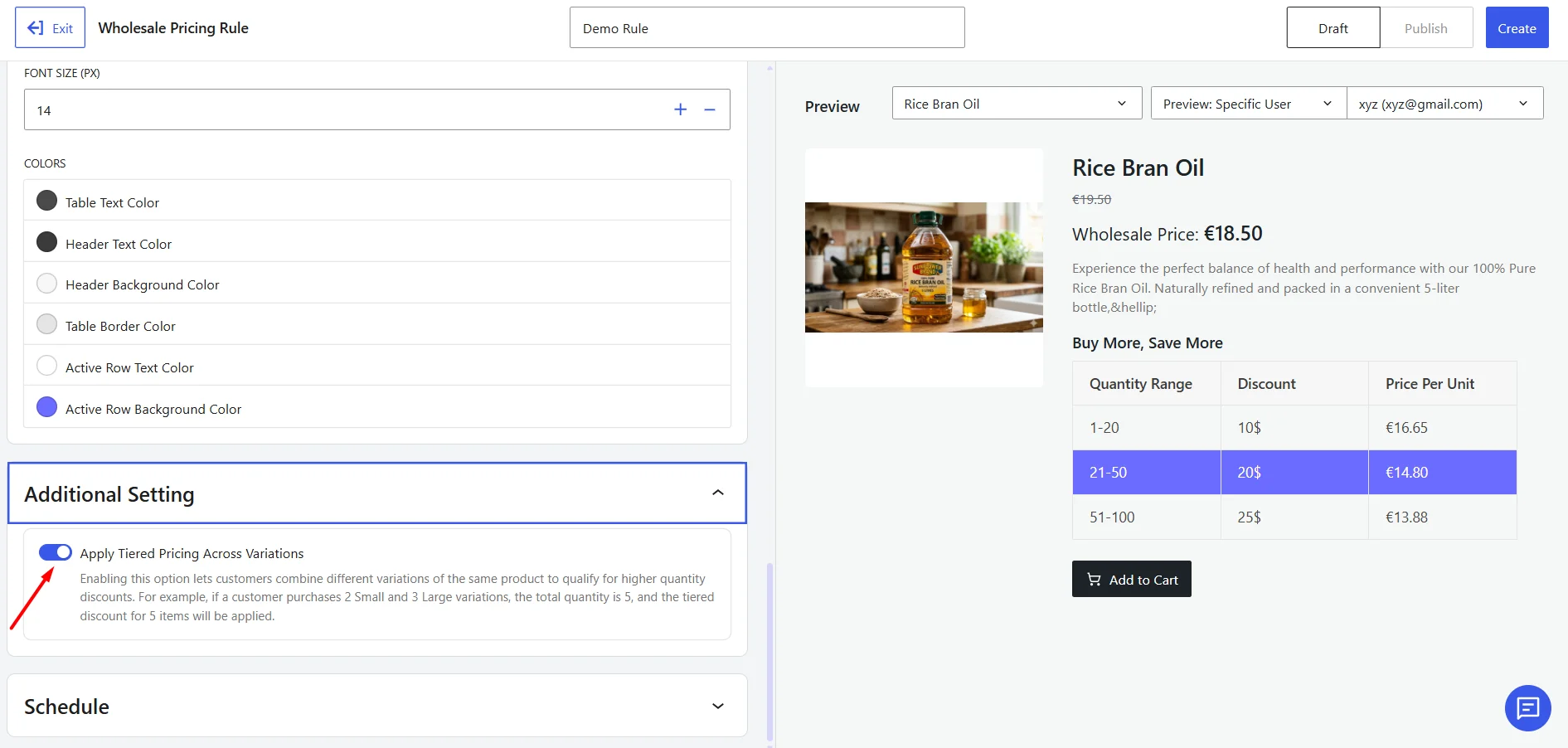
Combined Variation Pricing:
Enable Tiered pricing discount applies to combined variations to calculate quantities across product variations.
For example:
- Blue Shirt × 1
- Red Shirt × 1
Combined quantity = 2
When enabled, WholesaleX uses the combined quantity to determine the applicable pricing tier.
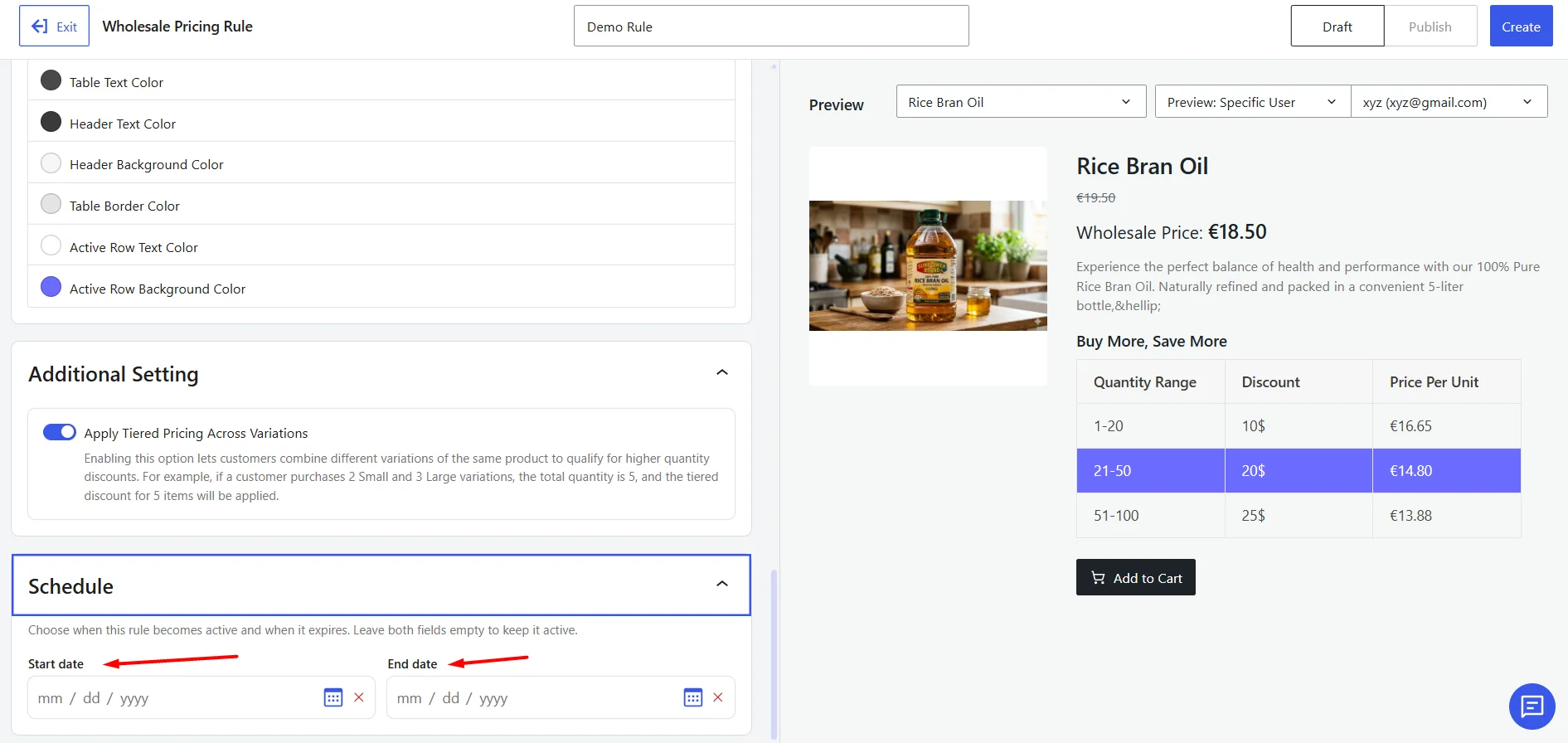
Step 6: Configure Scheduling (Optional)
Use scheduling to control when the wholesale pricing rule becomes active. You can:
- Set a start date and time for the rule.
- Set an end date and time to automatically deactivate the rule.
Step 7: Review and publish the Rule
Use the Preview section to verify how the pricing rule will appear on the storefront before publishing it.
- Select a product from the product dropdown.
- Choose the required user role.
- To check the rule for an individual buyer, select Preview: Specific User and choose the customer account.
Review the preview to confirm that the rule is applied correctly for the selected product and customer. Once everything is correct, publish the rule.
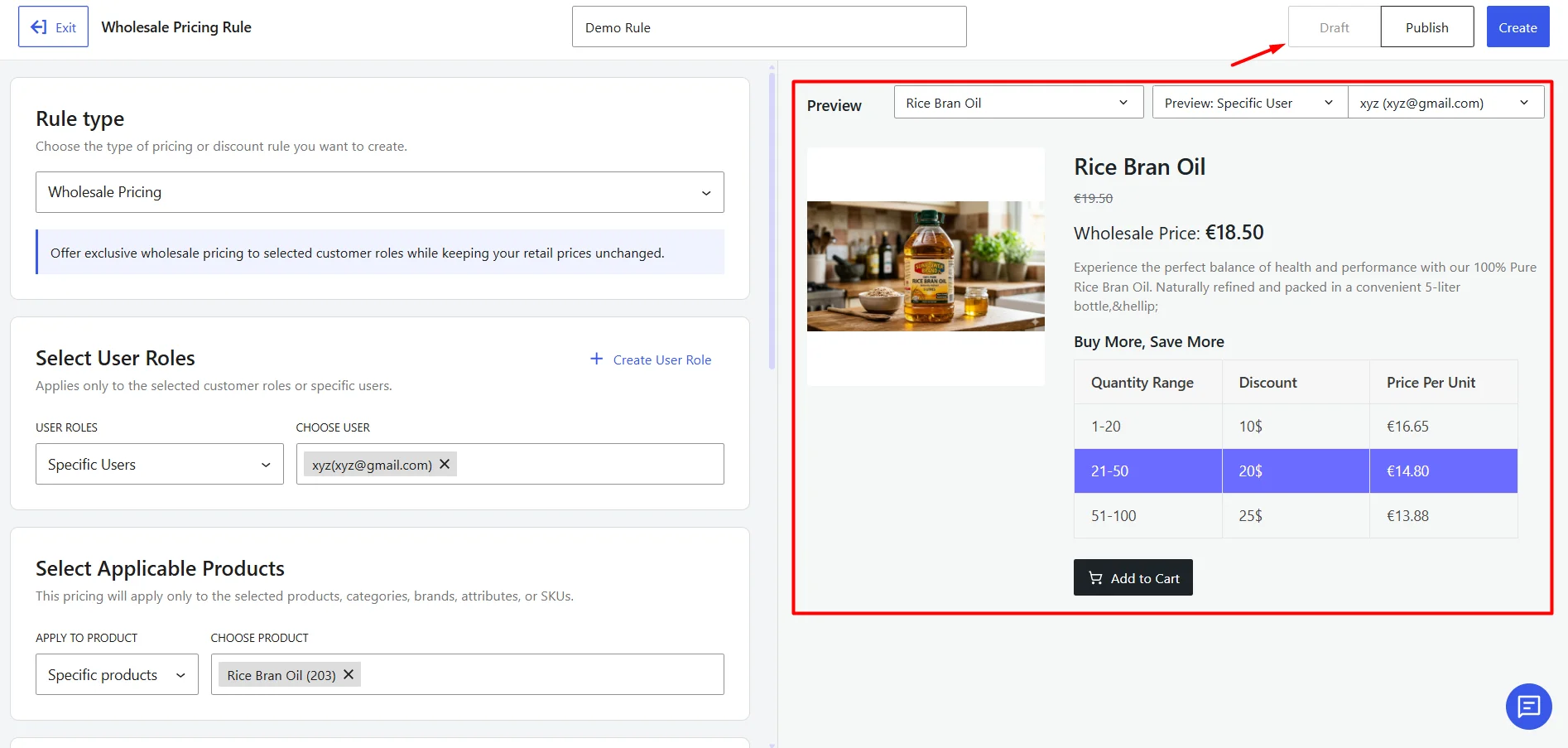
When the configuration is complete:
- Click Draft to save the rule without activating it.
- Click Publish to make the rule live.
- Click Create/Save to update an existing rule.
The wholesale pricing rule is now ready for use.