
User Roles
The User Roles section allows you to create and manage customer groups for your store.
User roles help you segment customers into different groups, allowing you to provide role-based pricing, registration workflows, credit limits, tax settings, and other wholesale-specific benefits.
This page provides a centralized view of all available customer roles, including both default system roles and custom B2B roles.
Create a New Role
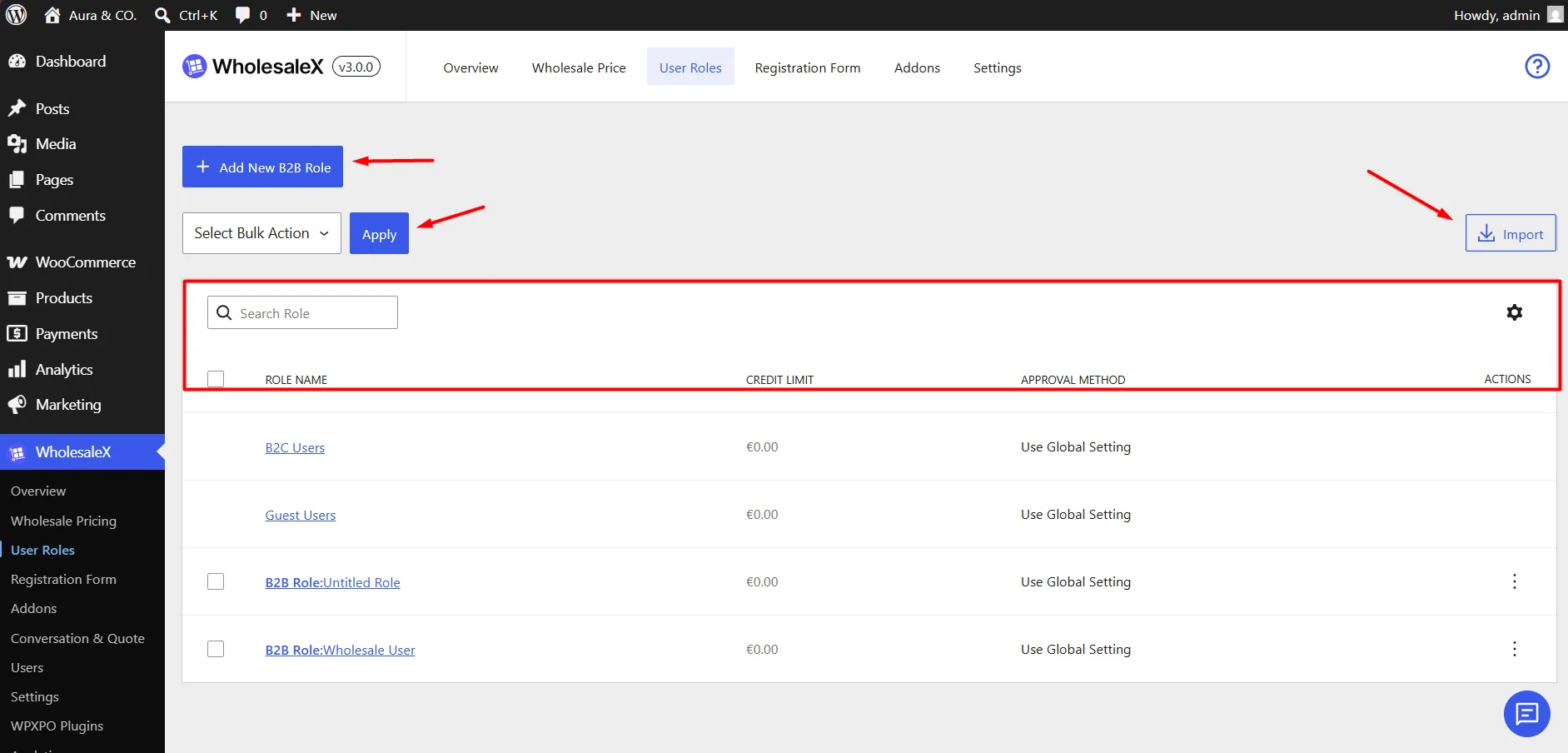
To create a new wholesale customer role, click Add New B2B Role.
This opens the role configuration screen where you can define role-specific settings, permissions and restrictions.
Import Roles
Use the Import button to upload and create roles from an external data source. Imported roles will be added to your existing role list.
Role Management Tools
The toolbar above the table provides several tools for managing large numbers of roles.
Bulk Actions
Use the Bulk Actions dropdown to perform actions on multiple roles at once. You can select multiple B2B roles and delete or export them by applying a bulk action.
Search Roles
Use the Search Role field to quickly locate specific customer roles by role name. The table updates automatically as you type.
Table Settings
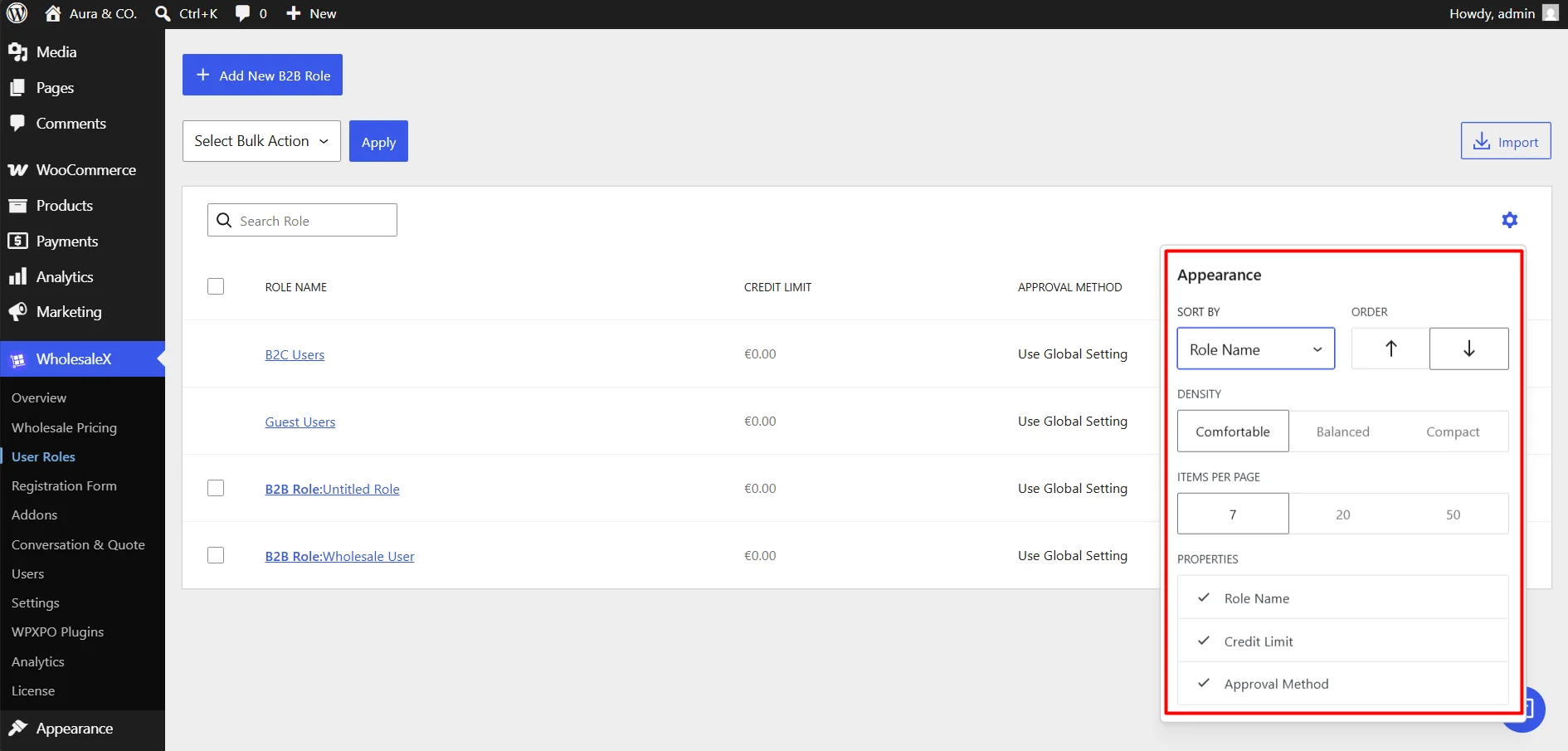
Click the Gear Icon to customize how role information is displayed. You can adjust:
- Column visibility
- Table density
- Sorting options
- Items per page
User Roles Table
The User Roles table displays all available customer roles and their key configuration details.
Table Columns
- Role Name: Displays the role name. Click the role name to open its settings page.
- Credit Limit: Displays the credit limit assigned to the role.
- Approval Method: Shows how registration requests for the role are handled.
- Actions: Provides additional options such as edit, duplicate, or delete.
Default System Roles
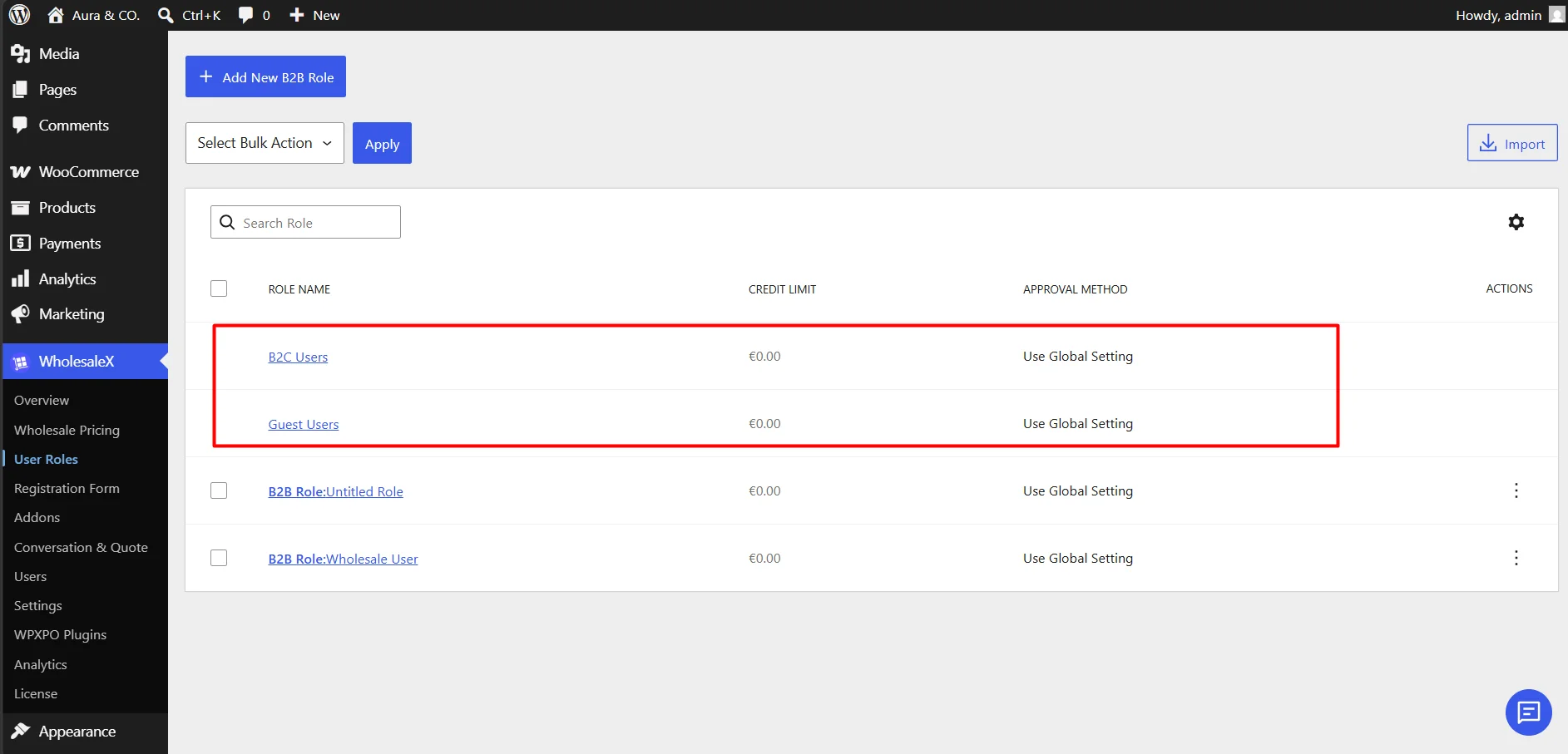
WholesaleX includes built-in system roles such as:
- B2C Users
- Guest Users
These roles are protected and cannot be deleted.
By default, a B2B role is created for demonstration purposes. This role can be deleted or edited if the user needs to.
Next Steps
After creating a role, you can configure additional settings such as:
- General Settings
- Role Restrictions
See the corresponding documentation pages for detailed setup instructions.