
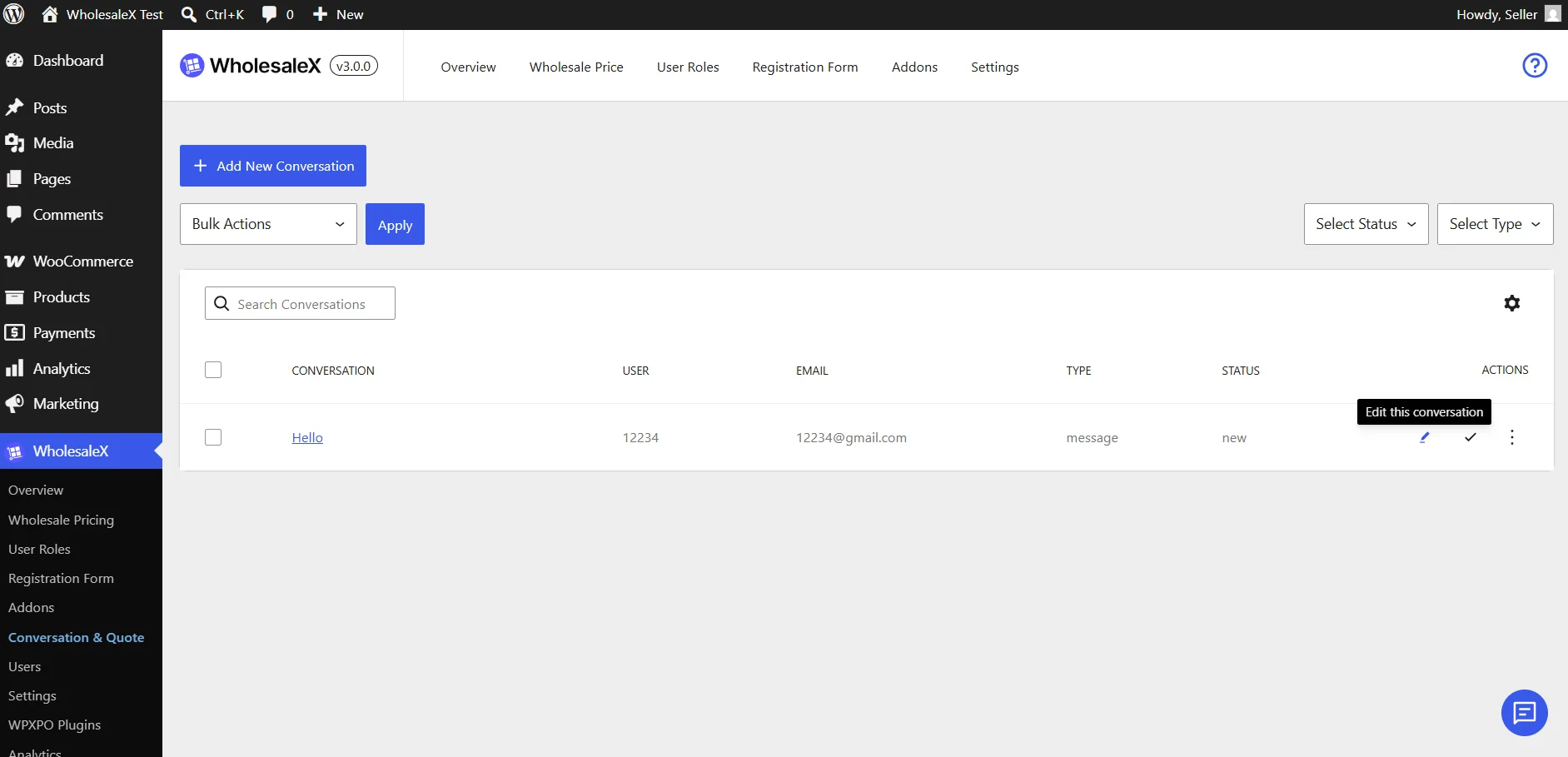
The Conversation & Quote page provides a central location for managing customer messages, product inquiries, and quote requests. From this page, store administrators can find conversations, review their current status, organize the conversation list, and access available management actions.
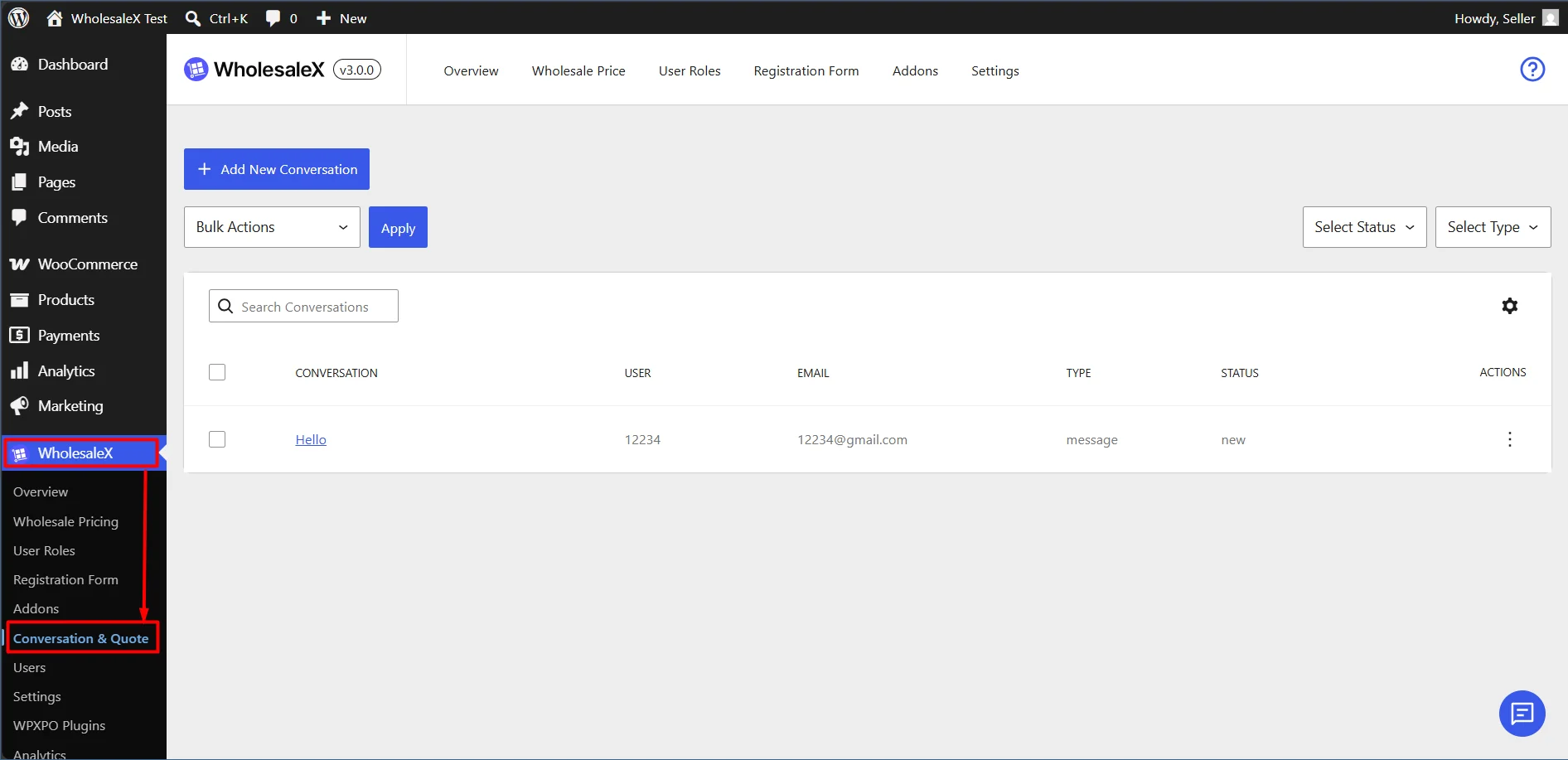
To access the page, navigate to:
WholesaleX → Conversation & Quote
View Conversation Details
The conversation table displays the following information:
- Conversation: The title or subject of the conversation
- User: The customer associated with the conversation
- Email: The customer’s email address
- Type: Whether the conversation is a message, inquiry, or quote request
- Status: The current state of the conversation
- Actions: The available management options
Click the conversation title to open it and view its complete details.
Search and Filter Conversations
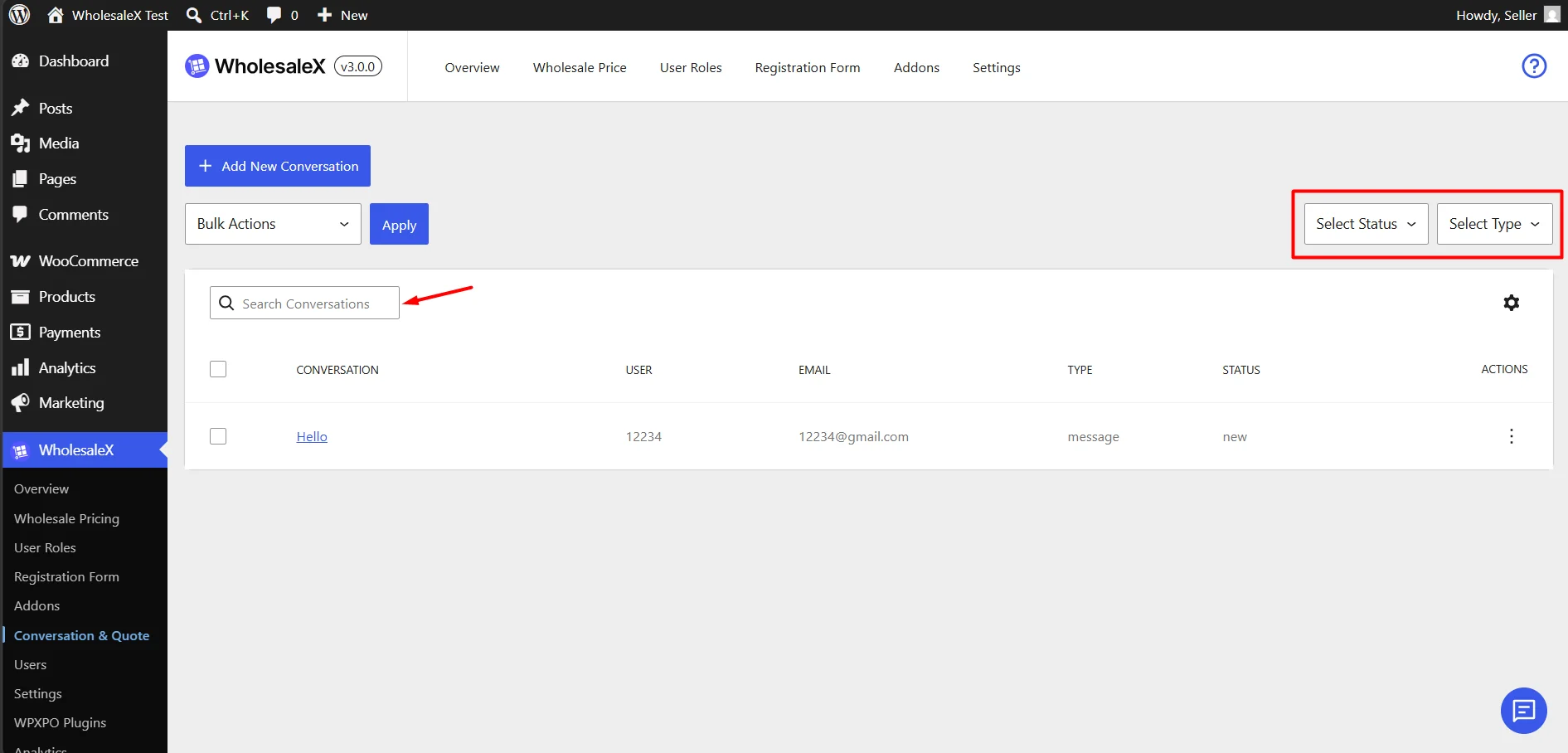
Use the Search Conversations field to find a conversation by entering relevant information.
You can also narrow down the list using:
- Select Status: Displays conversations with the selected status
- Select Type: Filters the list by Inquiry, Message, or Quote
These filters help locate specific customer requests when the store has a large number of conversations.
Customize the Conversation List
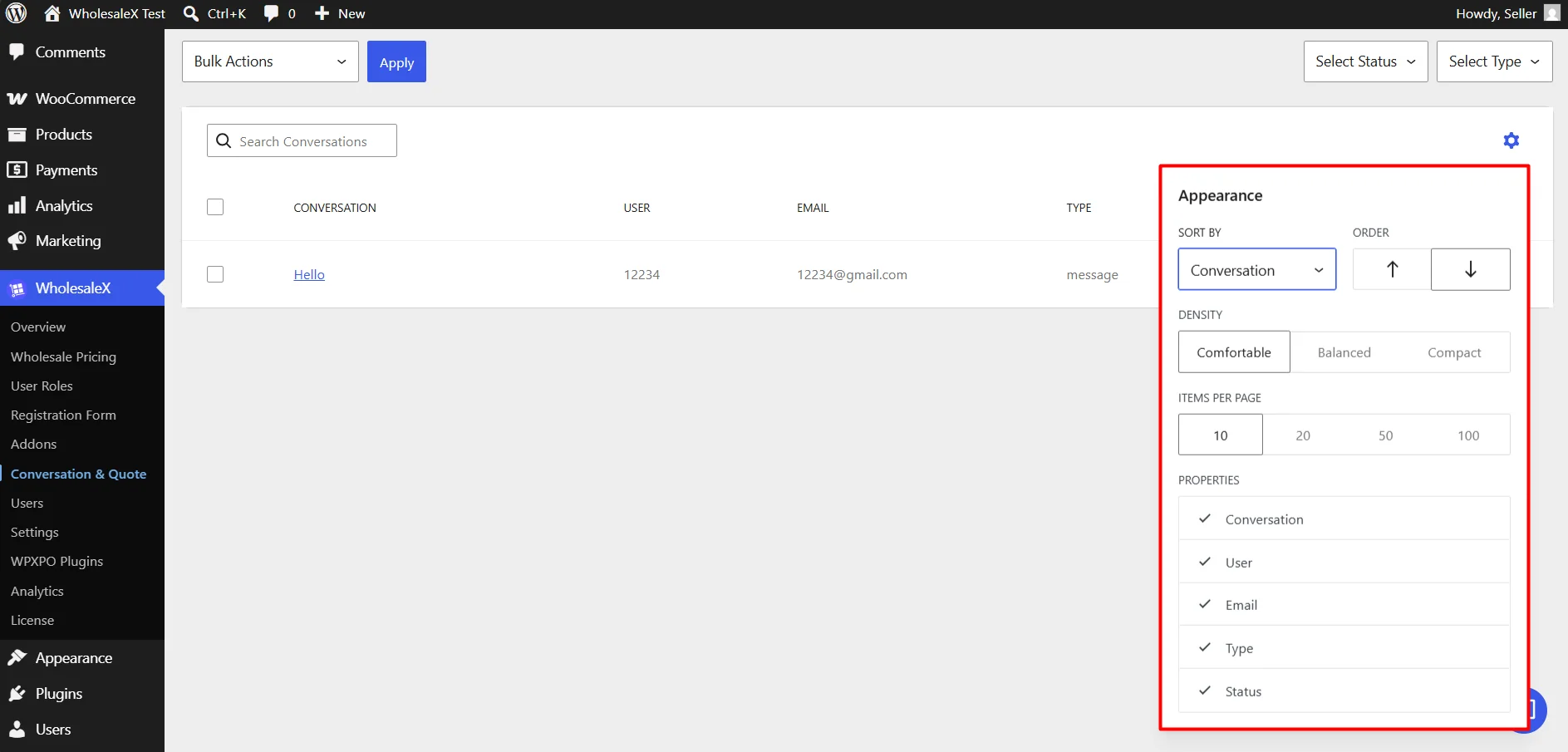
Click the Settings icon above the table to customize how conversations are displayed.
Available options include:
- Sort By: Choose the table property used to arrange conversations
- Order: Display items in ascending or descending order
- Density: Choose a Comfortable, Balanced, or Compact table layout
- Items Per Page: Display 10, 20, 50, or 100 conversations on each page
- Properties: Show or hide individual table columns, including Conversation, User, Email, Type, and Status
These settings only control how the conversation list appears in the admin area.
Manage an Individual Conversation
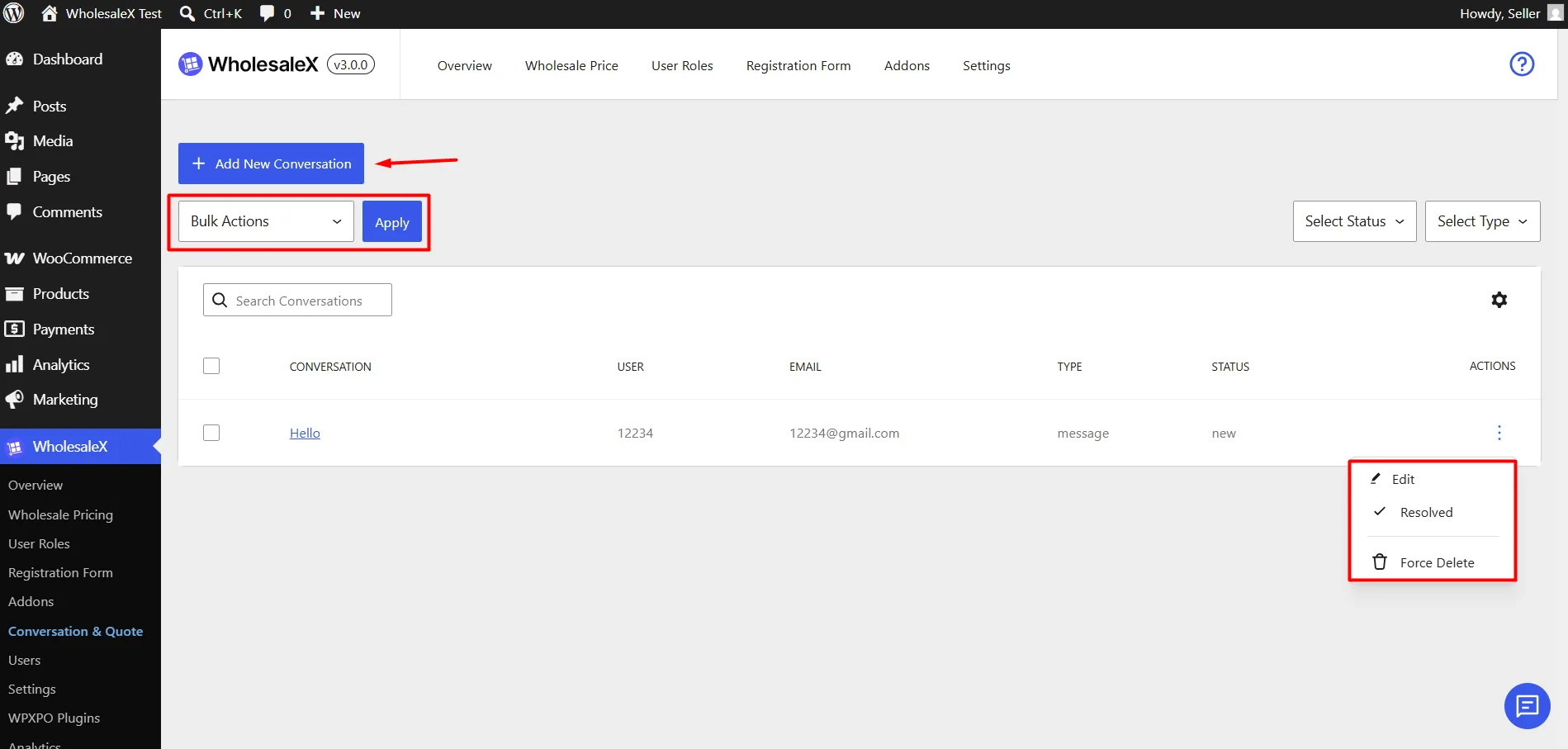
Use the options under the Actions column to manage a conversation.
The available actions include:
- Edit: Open the conversation and review or respond to the customer
- Resolved: Mark the conversation as resolved
- Force Delete: Permanently remove the conversation
Use Force Delete carefully because the conversation may not be recoverable after permanent deletion.
Use Bulk Actions
To manage multiple conversations at once:
- Select the checkbox beside each conversation.
- Choose an option from the Bulk Actions dropdown.
- Click Apply.
This is useful when updating or removing several conversations together.
Respond to Quotes and Inquiries
WholesaleX allows store administrators and sellers to respond to customer messages, product inquiries, and quote requests from the WordPress dashboard.
Step 1: Open the Conversation
Find the conversation you want to respond to and select Edit from the Actions column.
This opens the Edit Conversation page.
Step 2: Review the Conversation
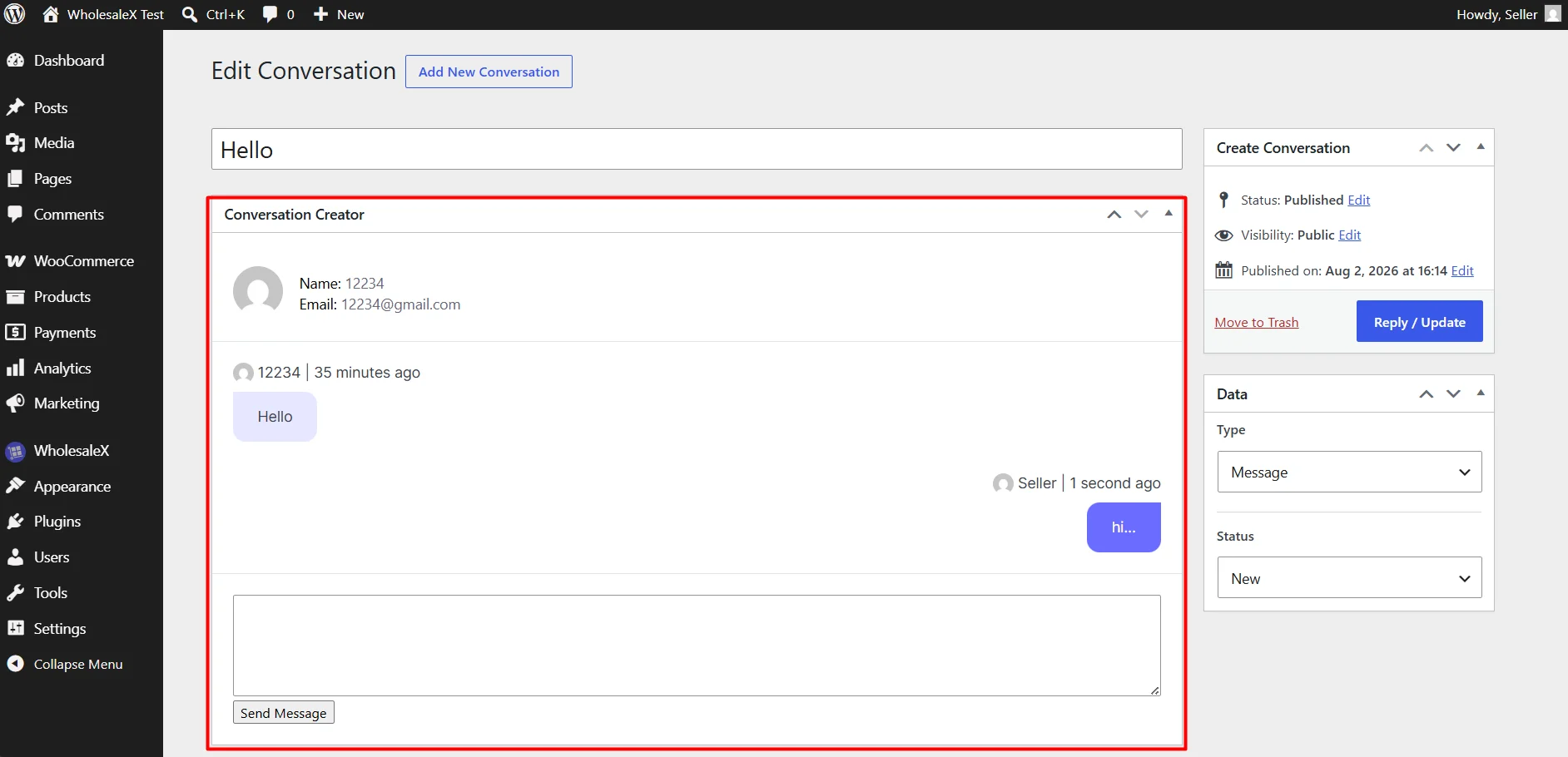
At the top of the page, you can see the conversation title.
The Conversation Creator section displays:
- Customer name
- Customer email address
- Previous messages
- The sender of each message
- The time each message was submitted
Review the conversation history before preparing your response.
Step 3: Send a Reply
Enter your response in the message field below the conversation history.
Click Send Message to submit the reply.
After the message is sent, the page updates and displays the response in the conversation history. Seller responses appear separately from customer messages, along with the sender name and submission time.
Step 4: Update the Conversation Details
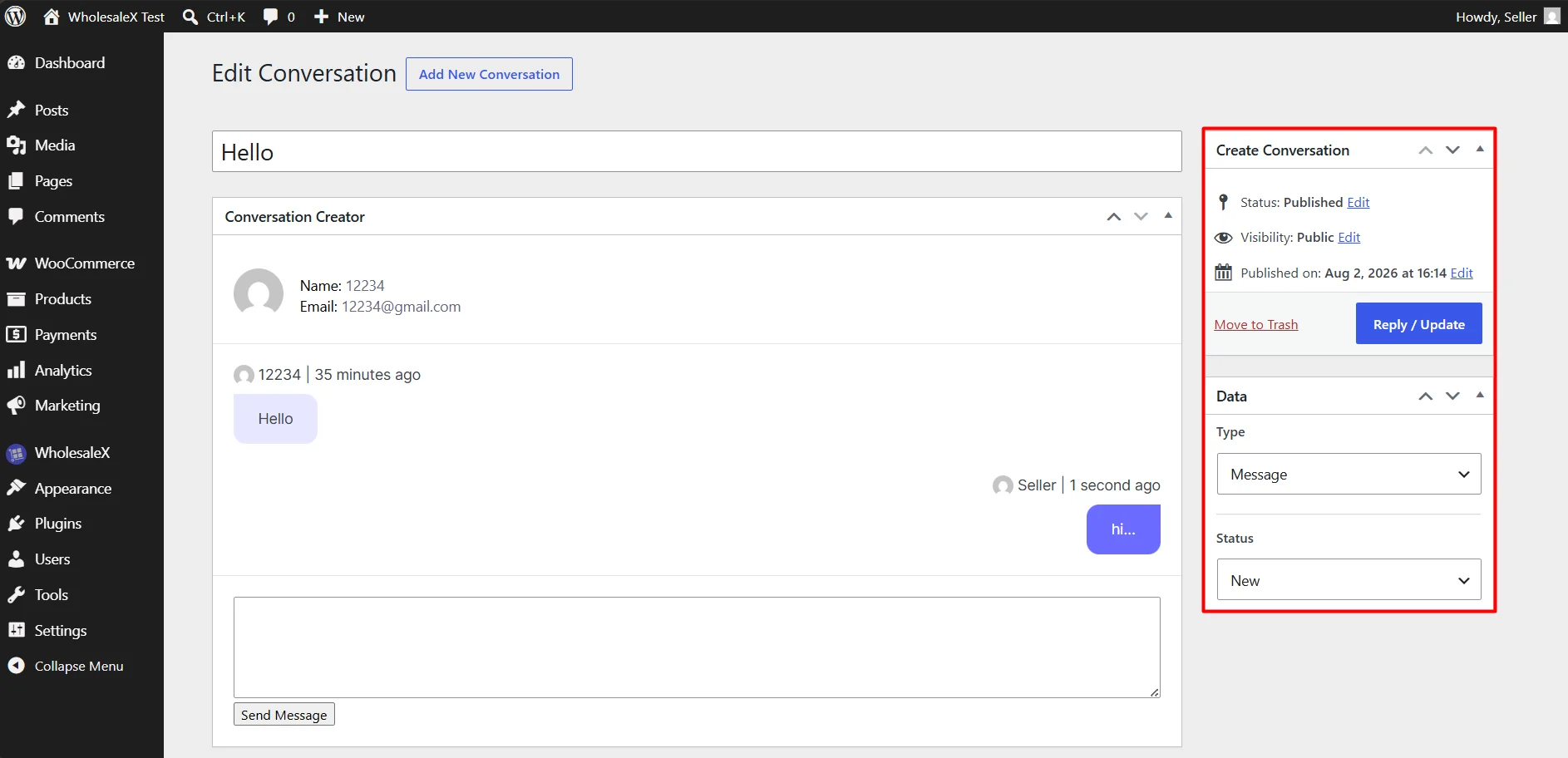
Use the Data section on the right side of the page to review or change the conversation:
- Type: Identifies the conversation as a message, inquiry, or quote request.
- Status: Indicates the current state of the conversation.
Adjust these settings when required to keep the conversation properly categorized and organized.
Step 5: Save Other Changes
Click Reply / Update when you change the conversation title, type, status, visibility, or other conversation details.
The Send Message button submits the written reply, while Reply / Update saves changes made to the conversation record and its settings.
You can also select Move to Trash to remove the conversation. Use this option carefully if the conversation may still be needed for future reference.