
The Password field allows customers to create a password during registration. The Confirm Password field asks them to enter the same password again to prevent typing mistakes.
Both fields should normally be used together. The customer can complete registration only when the two entered passwords match, and the password satisfies the configured strength requirements.
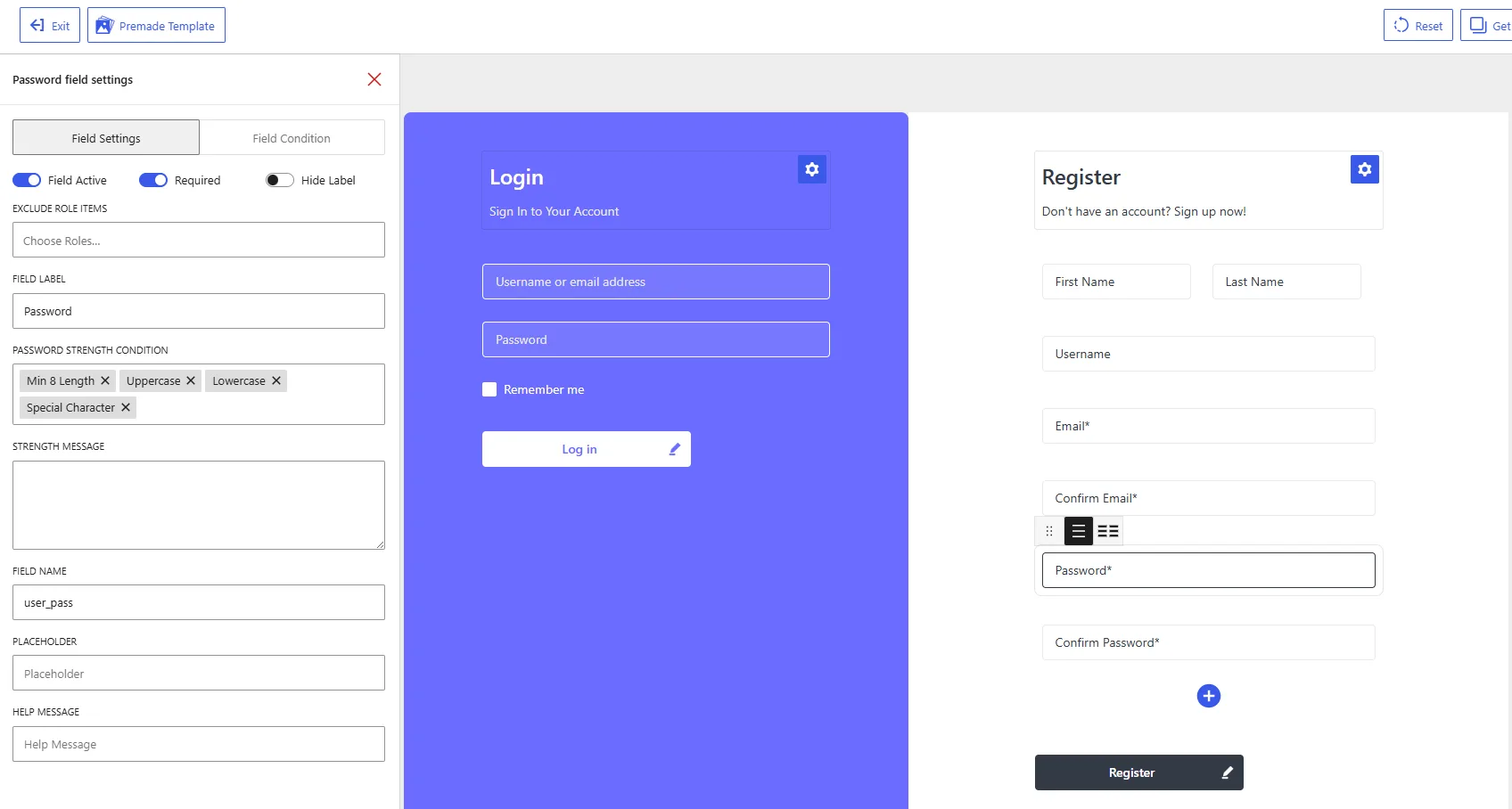
Password field settings in the WholesaleX Registration Form Builder.
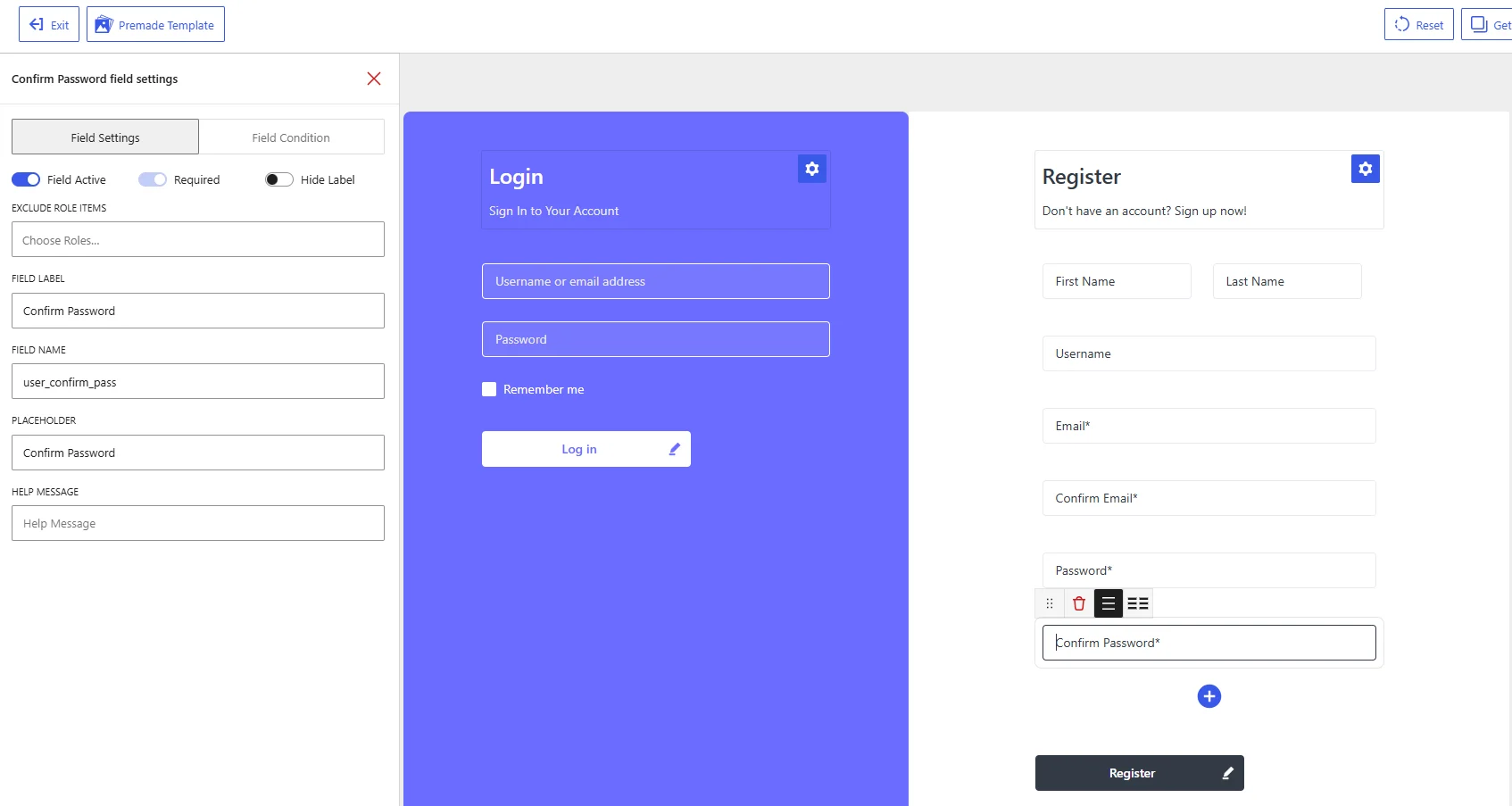
Confirm Password field settings in the WholesaleX Registration Form Builder.
How the Fields Work Together
The customer creates a password in the Password field and repeats it in the Confirm Password field.
The Password field controls the password-strength requirements. The Confirm Password field verifies that the customer entered the intended password correctly.
Common Field Settings
The following settings are available for both fields.
Field Active
Enable Field Active to display the selected field on the registration form.
For a registration form that allows customers to create their own passwords, keep both the Password and Confirm Password fields active.
Disable these fields only when passwords are generated or sent to customers through another account-creation process.
Required
Enable Required to prevent customers from submitting the registration form without completing the field.
The Password field should remain required when customers create their own account credentials. When the Confirm Password field is active, it should also remain required so the password can be verified before registration.
Hide Label
Enable Hide Label to remove the visible field label from the registration form.
The placeholder remains visible inside the field until the customer starts typing. Keeping the labels visible helps customers distinguish between the Password and Confirm Password fields.
Exclude Role Items
Use Exclude Role Items to hide the selected field from particular user roles.
Click Choose Roles and select the roles that should not see the field. Leave this setting empty to display it for all applicable users.
Avoid excluding either field unless passwords are created automatically for the selected roles.
Field Label
The Field Label controls the text displayed for each field.
The default labels are:
| Field | Default label |
|---|---|
| Password | Password |
| Confirm Password | Confirm Password |
You can use more instructional labels, such as Create a Password and Re-enter Your Password, provided that the two fields remain easy to distinguish.
Field Name
The Field Name is the internal identifier used to process the password information.
The default field names are:
| Field | Default field name |
|---|---|
| Password | user_pass |
| Confirm Password | user_confirm_pass |
Keep these values unchanged.
The user_pass field is used for the customer’s account password. The user_confirm_pass field is used to confirm that the second entry matches the original password. Changing these values may prevent the password from being processed or validated correctly.
Placeholder
The Placeholder appears inside the field before the customer enters a password.
Suitable placeholders include:
| Field | Suggested placeholder |
|---|---|
| Password | Enter your password |
| Confirm Password | Re-enter your password |
The Confirm Password field uses Confirm Password as its default placeholder. The Password field can be given a clearer placeholder instead of the generic Placeholder text shown in the builder.
Help Message
Use Help Message to provide instructions below the selected field.
For the Password field:
Use at least 8 characters, including uppercase, lowercase, and special characters.
For the Confirm Password field:
Enter the same password again for confirmation.
Keep the instructions consistent with the password-strength conditions you configure.
Password Strength Settings
The following options are available only for the Password field.
Password Strength Condition
Use Password Strength Condition to define the requirements a customer’s password must meet.
The conditions shown in the field settings are:
- Min 8 Length: Requires the password to contain at least eight characters.
- Uppercase: Requires at least one uppercase letter.
- Lowercase: Requires at least one lowercase letter.
- Special Character: Requires at least one special character.
Remove a condition by clicking the X beside it. Keep only the requirements that should apply to newly created passwords.
A typical configuration is:
Minimum 8 characters
At least one uppercase letter
At least one lowercase letter
At least one special character
Strength Message
Use Strength Message to explain the password requirements to customers.
For example:
Your password must contain at least 8 characters, including one uppercase letter, one lowercase letter, and one special character.
Make sure this message matches the selected Password Strength Conditions. Customers may otherwise receive instructions that do not reflect the actual validation rules.
Recommended Configuration
| Setting | Password | Confirm Password |
|---|---|---|
| Field Active | Enabled | Enabled |
| Required | Enabled | Enabled |
| Hide Label | Disabled | Disabled |
| Exclude Role Items | None | None |
| Field Label | Password | Confirm Password |
| Field Name | user_pass | user_confirm_pass |
| Placeholder | Enter your password | Re-enter your password |
| Help Message | Explain the strength requirements | Explain that both passwords must match |
After configuring both fields, click Save Changes. Test the registration form to confirm that weak passwords are rejected according to the selected conditions and that registration fails when the Password and Confirm Password values do not match.