
The Select Role field adds a dropdown that allows customers to choose an available WholesaleX user role during registration. You can use it when different customer types, such as B2B customers and guest customers, can register through the same form.
Select the Select Role field in the registration form preview to open its settings.
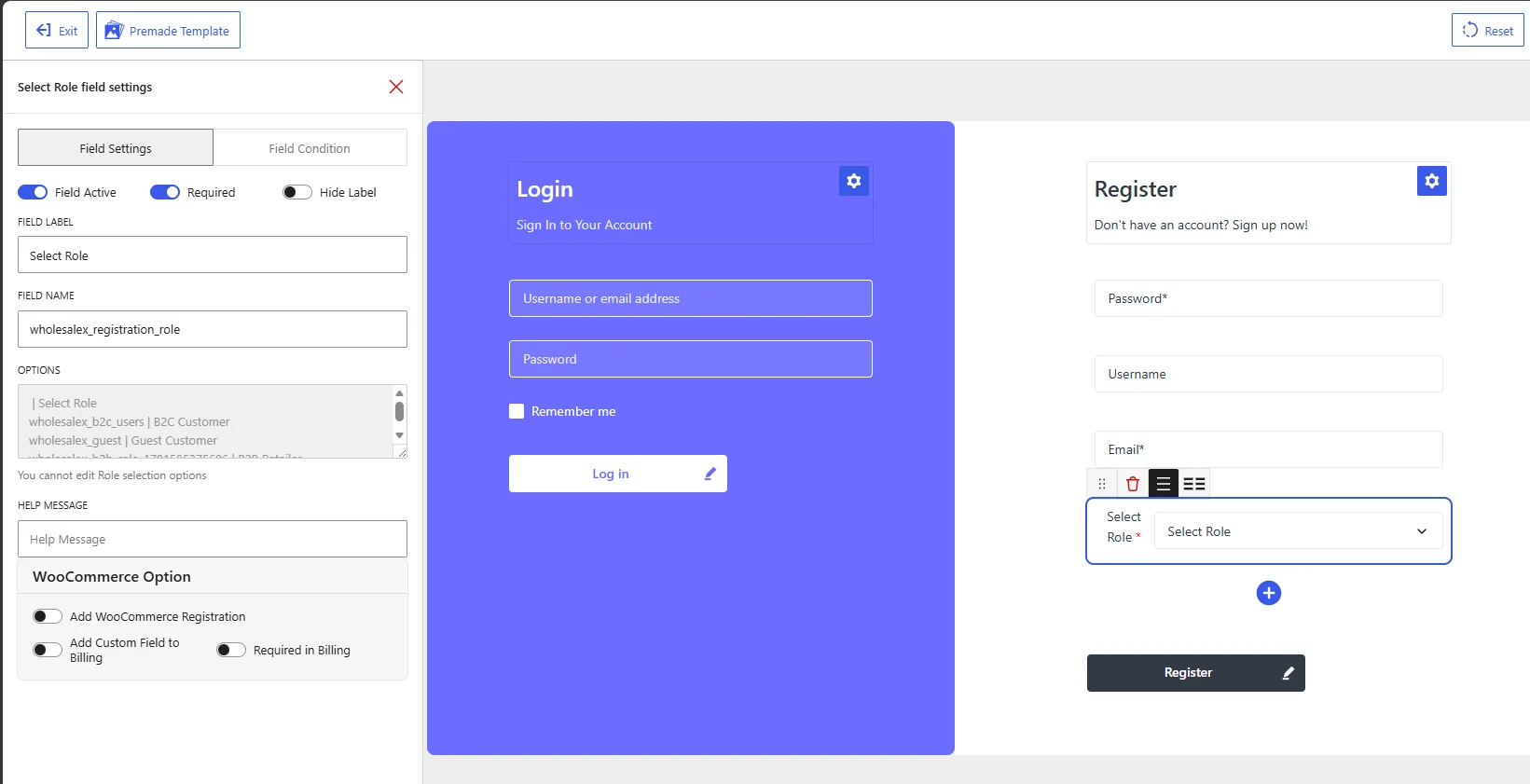
Select Role field settings in the WholesaleX Registration Form Builder.
Available Field Settings
Field Active
Enable Field Active to display the role-selection dropdown on the registration form.
Disable it when customers should not select their own roles. The field remains in the form builder but will not appear on the published form.
Required
Enable Required to prevent customers from submitting the registration form without selecting a role.
This option should normally remain enabled when the form includes the Select Role field. Otherwise, a customer may submit the form without choosing a customer type.
Hide Label
Enable Hide Label to remove the visible field label from the registration form.
The dropdown and its default Select Role option will remain visible. Keep the label displayed when customers need additional context about which role they should choose.
Field Label
The Field Label controls the text displayed beside or above the role-selection dropdown.
The default value is:
Select Role
You can replace it with wording that better matches your registration process, such as:
Customer TypeSelect Account TypeChoose Your RoleRegister As
Use customer-friendly wording rather than internal role terminology whenever possible.
Field Name
The Field Name is the internal identifier WholesaleX uses to process the customer’s selected role.
The default value is:
wholesalex_registration_role
Keep this value unchanged. WholesaleX uses it to identify the selected registration role and apply the appropriate role to the customer’s account.
Changing the field name may prevent the selected role from being processed correctly.
Options
The Options section displays the roles available through the Select Role field.
Each option uses the following structure:
role_key | Role Name
For example:
wholesalex_b2c_users | B2C Customer
wholesalex_guest | Guest Customer
The value on the left is the internal role identifier. The text on the right is the role name shown to the customer.
The first entry acts as the default dropdown prompt:
| Select Role
You cannot edit the role-selection options directly from this field. The list is generated from the available roles configured in WholesaleX. To change which roles appear or how they are named, update the relevant role settings in WholesaleX.
Help Message
Use Help Message to explain which role the customer should select.
Examples:
Select the account type that best describes you.
Choose B2B Customer when registering to purchase products at wholesale prices.
Select the appropriate customer role for your account.
A help message is useful when the role names may not be immediately clear to new customers.
WooCommerce Options
Add WooCommerce Registration
Enable Add WooCommerce Registration to display the Select Role field on the default WooCommerce customer registration form.
Leave it disabled when role selection should only be available through the WholesaleX registration form.
Add Custom Field to Billing
Enable Add Custom Field to Billing to include the role-selection field in the WooCommerce billing section.
This option is generally unnecessary because a customer role is normally selected during account registration rather than during checkout.
Required in Billing
Enable Required in Billing to make role selection mandatory in the WooCommerce billing section.
Use this option only when Add Custom Field to Billing is enabled. In most cases, the customer’s role should already be assigned during registration, so requiring it again during billing is not recommended.
Recommended Configuration
| Setting | Recommended value |
|---|---|
| Field Active | Enabled when customers can choose their role |
| Required | Enabled |
| Hide Label | Disabled |
| Field Label | Select Role or Customer Type |
| Field Name | wholesalex_registration_role |
| Options | Automatically generated from available roles |
| Help Message | Add when customers need help choosing a role |
| Add WooCommerce Registration | Enable only when needed |
| Add Custom Field to Billing | Usually disabled |
| Required in Billing | Usually disabled |
After configuring the field, click Save Changes and test the registration form from the frontend. Confirm that the correct roles appear and that customers cannot submit the form without selecting a role when Required is enabled.