
The Text and Text Area fields collect written information from customers during registration.
Use the Text field for short, single-line responses such as a company name, tax ID, job title, or website address. Use the Text Area field when customers may need to provide a longer response, such as business details, application notes, or additional instructions.
Select either field in the registration form preview to open its settings.
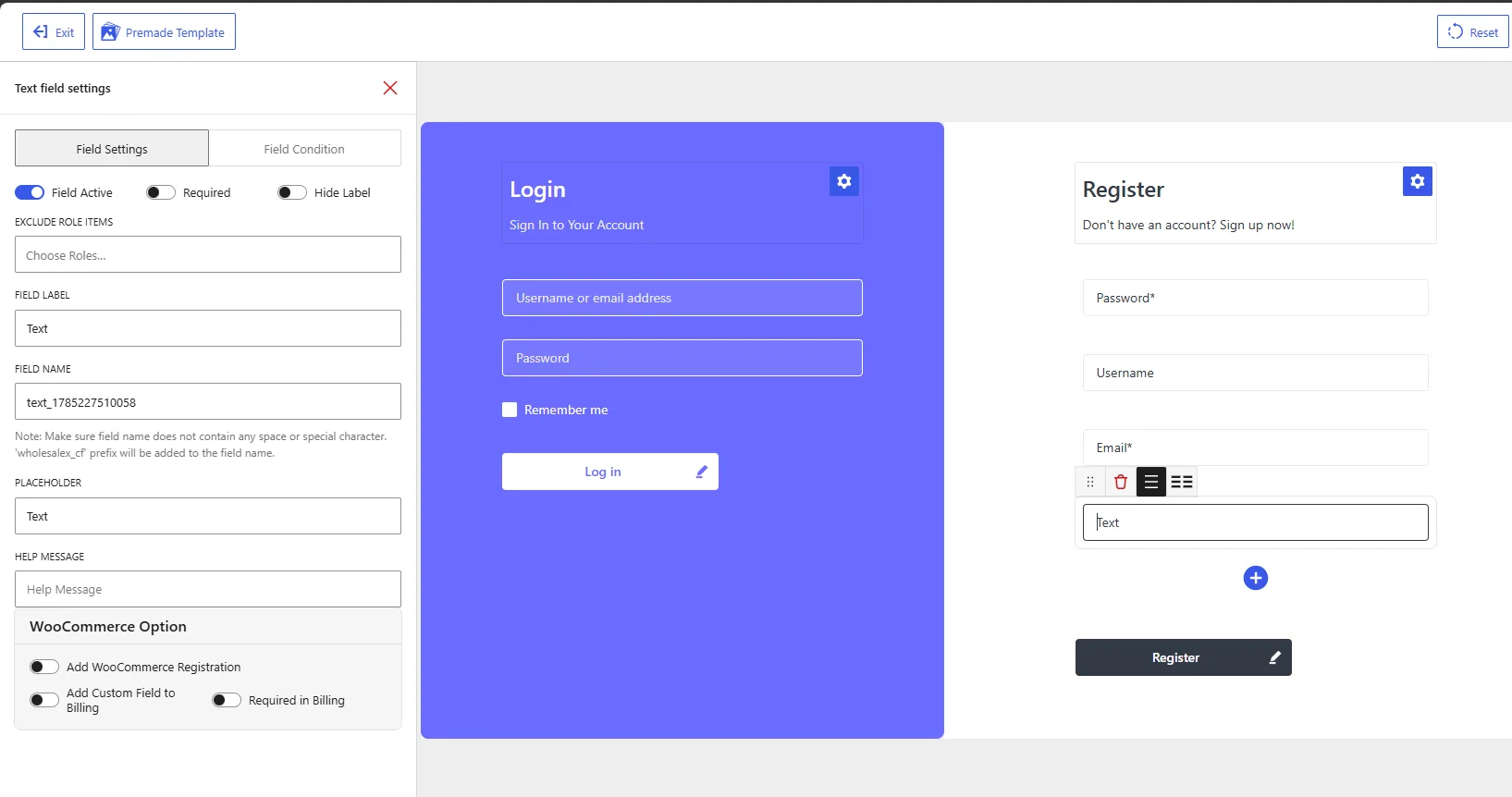
Text field settings in the WholesaleX Registration Form Builder.
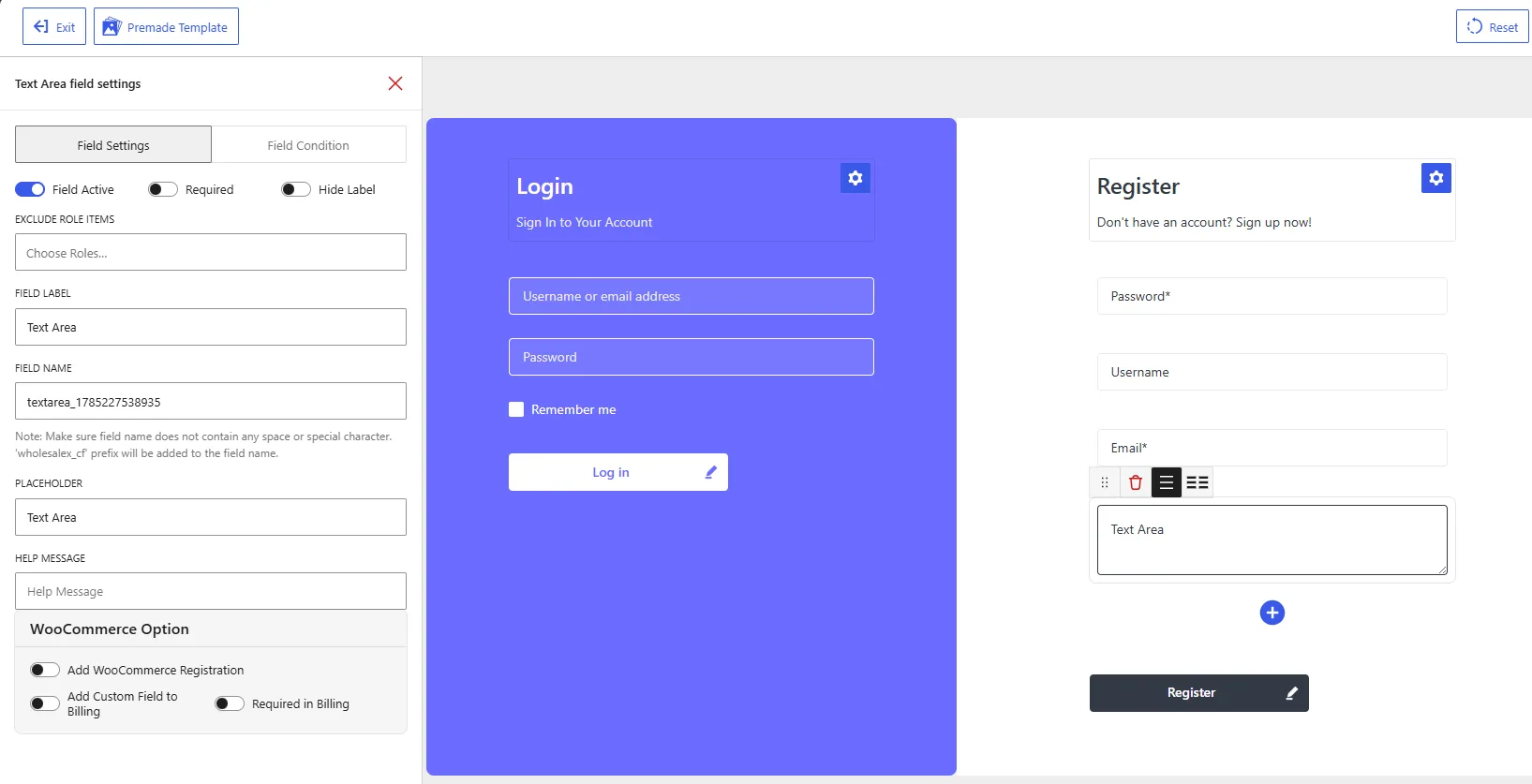
Text Area field settings in the WholesaleX Registration Form Builder.
Difference Between Text and Text Area Fields
Both fields provide the same configuration options, but they accept different types of responses:
| Field | Input type | Suitable for |
|---|---|---|
| Text | Single-line input | Company name, job title, tax number, website, reference number |
| Text Area | Multi-line input | Business description, application notes, special requirements, additional information |
Choose the field based on how much information the customer needs to enter.
Available Field Settings
Field Active
Enable Field Active to display the selected field on the registration form.
Disable it to keep the field in the form builder without showing it on the published form.
Required
Enable Required when customers must complete the field before submitting the registration form.
Leave it disabled when providing the information should be optional.
For example, a Company Name field may be required for wholesale applicants, while an Additional Notes field may remain optional.
Hide Label
Enable Hide Label to remove the visible field label from the registration form.
Customers will then need to understand the field from its placeholder or help message. Keep the label visible when the requested information may not be immediately clear.
Exclude Role Items
Use Exclude Role Items to hide the selected field from specific user roles.
Click Choose Roles and select the roles that should not see the field. Leave this setting empty to display it for all applicable users.
For example, you can collect a business description from wholesale applicants while excluding the field from regular customer roles.
Field Label
The Field Label describes the information customers should enter.
The default labels are:
| Field | Default label |
|---|---|
| Text | Text |
| Text Area | Text Area |
Replace these generic labels with descriptions that match the information you want to collect.
Suitable Text field labels include:
Company NameJob TitleTax Identification NumberBusiness Website
Suitable Text Area field labels include:
Business DescriptionReason for ApplyingAdditional InformationSpecial Requirements
Field Name
The Field Name is the internal identifier WholesaleX uses to store and process the submitted value.
WholesaleX automatically generates unique names similar to:
| Field | Generated field name |
|---|---|
| Text | text_1785227510058 |
| Text Area | textarea_1785227538935 |
You can replace the generated name with a more descriptive value, such as:
company_name
job_title
business_description
additional_information
Do not use spaces or special characters in the field name. Use lowercase letters, numbers, and underscores, and assign a unique name to each custom field.
WholesaleX adds the wholesalex_cf prefix when storing the field as a custom field.
Placeholder
The Placeholder appears inside the input area before the customer starts typing.
The default placeholders are:
| Field | Default placeholder |
|---|---|
| Text | Text |
| Text Area | Text Area |
Replace them with instructions relevant to the field.
For a Text field:
Enter your company nameEnter your job titleEnter your tax identification number
For a Text Area field:
Briefly describe your businessExplain why you are applying for a wholesale accountProvide any additional information
Keep placeholders brief. Use the Help Message setting when customers need more detailed instructions.
Help Message
Use Help Message to clarify what customers should enter.
Text field examples:
Enter the registered name of your business.
Provide your business tax identification number.
Text Area field examples:
Describe your business, primary products, and target customers.
Provide any information that may help us review your wholesale application.
A help message is optional. Add one when the field label and placeholder do not fully explain the requirement.
WooCommerce Options
Add WooCommerce Registration
Enable Add WooCommerce Registration to display the selected field on the default WooCommerce customer registration form.
Leave it disabled when the field should appear only on the WholesaleX registration form.
Add Custom Field to Billing
Enable Add Custom Field to Billing to include the field in the WooCommerce billing section.
Use this option when the collected information is relevant to checkout, billing, order processing, or customer records.
For example, a company reference number may be useful in billing, while a wholesale application description usually is not.
Required in Billing
Enable Required in Billing to make the field mandatory in the WooCommerce billing section.
Use this option together with Add Custom Field to Billing. Leave it disabled when customers should be able to complete checkout without entering the information.
Example Text Field Configuration
For a Company Name field, use the following setup:
| Setting | Recommended value |
|---|---|
| Field Active | Enabled |
| Required | Enabled for business applicants |
| Hide Label | Disabled |
| Exclude Role Items | Exclude non-wholesale roles if needed |
| Field Label | Company Name |
| Field Name | company_name |
| Placeholder | Enter your company name |
| Help Message | Enter the registered name of your business. |
| Add WooCommerce Registration | Enable if needed |
| Add Custom Field to Billing | Enable if the company name is needed for billing |
| Required in Billing | Based on your billing requirements |
Example Text Area Field Configuration
For a Business Description field, use the following setup:
| Setting | Recommended value |
|---|---|
| Field Active | Enabled |
| Required | Based on your approval process |
| Hide Label | Disabled |
| Exclude Role Items | Exclude non-wholesale roles if needed |
| Field Label | Business Description |
| Field Name | business_description |
| Placeholder | Briefly describe your business |
| Help Message | Describe your business, primary products, and target customers. |
| Add WooCommerce Registration | Enable if needed |
| Add Custom Field to Billing | Usually disabled |
| Required in Billing | Usually disabled |
After configuring the fields, click Save Changes and check the frontend registration form to confirm that the Text field accepts a single-line response and the Text Area field provides enough space for longer information.