
The File Upload field allows customers to attach a document or image while submitting the registration form. You can use it to collect business licenses, tax certificates, resale permits, identity documents, or other files required for wholesale account verification.
Select the File Upload field in the registration form preview to open its settings.
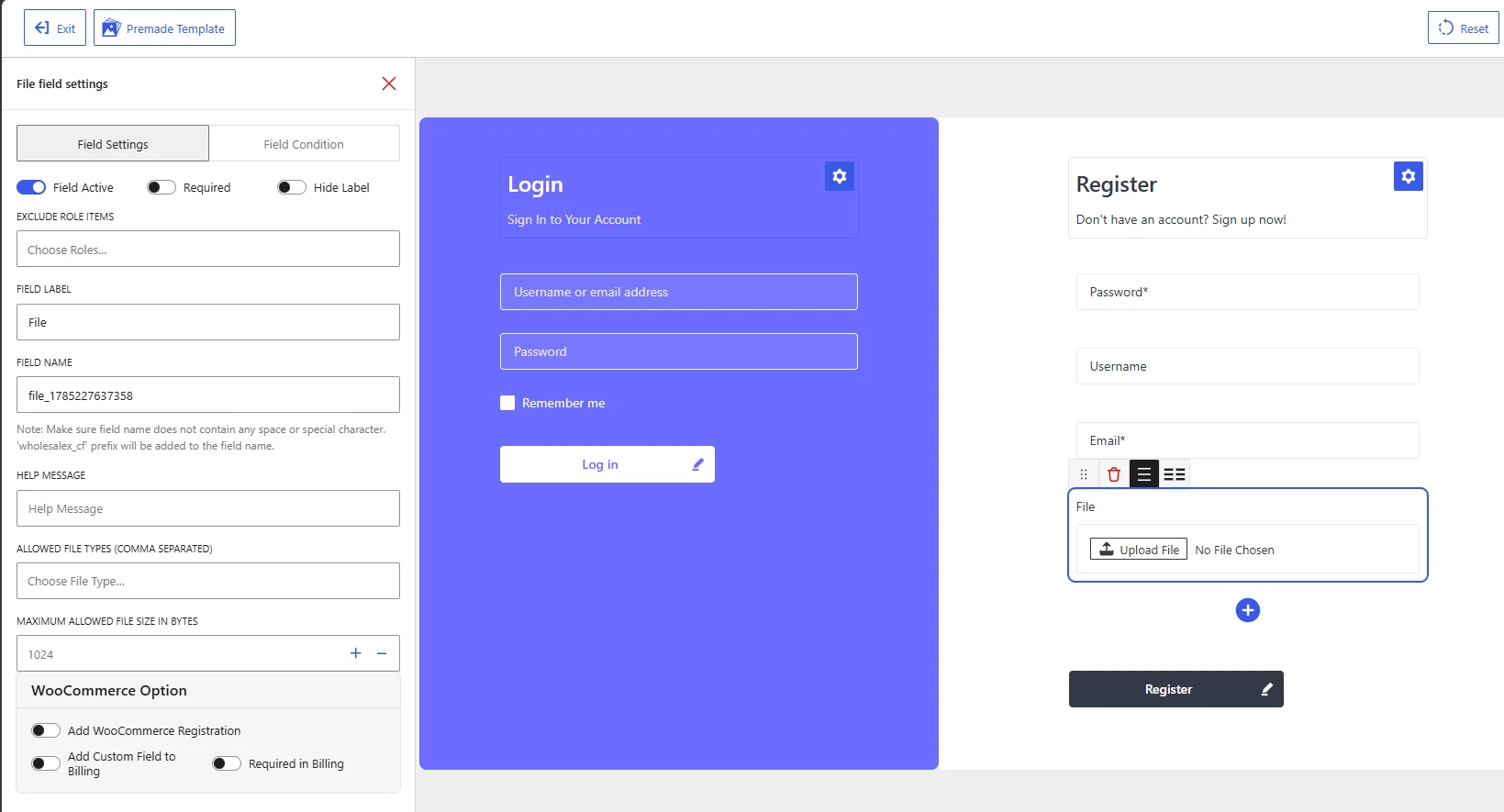
File Upload field settings in the WholesaleX Registration Form Builder.
Available Field Settings
Field Active
Enable Field Active to display the File Upload field on the registration form.
Disable it when you want to keep the field in the builder without allowing customers to upload a file.
Required
Enable Required when customers must upload a file before submitting the registration form.
This setting is useful when a document is necessary for reviewing or approving a wholesale account. Leave it disabled when uploading a file should be optional.
Hide Label
Enable Hide Label to remove the visible field label from the registration form.
Because a file input does not include a standard text placeholder, keeping the label visible is recommended. Use a specific label so customers understand which document they need to upload.
Exclude Role Items
Use Exclude Role Items to hide the File Upload field from selected user roles.
Click Choose Roles and select the roles that should not see the field. Leave the setting empty to display it for all applicable users.
For example, you can request a resale certificate from wholesale customers while excluding the field from regular customer roles.
Field Label
The Field Label identifies the file customers need to upload.
The default label is:
File
Replace it with a more specific label based on the required document, such as:
Business LicenseResale CertificateTax Exemption CertificateCompany Registration DocumentProof of Identity
A precise label helps customers upload the correct file.
Field Name
The Field Name is the internal identifier WholesaleX uses to store and process the uploaded file.
WholesaleX automatically generates a unique field name similar to:
file_1785227637358
You can replace it with a more descriptive value, such as:
business_license
resale_certificate
tax_exemption_document
The field name must not contain spaces or special characters. Use lowercase letters, numbers, and underscores, and assign a unique name to each custom field.
WholesaleX adds the wholesalex_cf prefix to the field name when storing it as a custom field.
Help Message
Use Help Message to explain which document the customer should upload or what requirements the file must meet.
Examples:
Upload a valid copy of your business license.
Upload your resale certificate as a PDF, JPG, or PNG file.
The uploaded document must be clear and show the complete certificate.
Include the permitted formats and maximum size in the help message so customers can prepare an acceptable file before submission.
Allowed File Types
Use Allowed File Types (Comma Separated) to control which file formats customers can upload.
Enter the permitted file types separated by commas. For example:
pdf,jpg,jpeg,png
For document-based uploads, you may use:
pdf,doc,docx
Only allow formats relevant to the document you are collecting. Restricting the accepted formats helps prevent unsupported or unnecessary file uploads.
Maximum Allowed File Size in Bytes
Use Maximum Allowed File Size in Bytes to set the largest file customers can upload. Enter the limit in bytes or adjust the value using the plus and minus controls.
Common file-size values include:
| Maximum size | Value in bytes |
|---|---|
| 100 KB | 102400 |
| 500 KB | 512000 |
| 1 MB | 1048576 |
| 2 MB | 2097152 |
| 5 MB | 5242880 |
Choose a limit large enough for readable documents without allowing unnecessarily large uploads. The effective upload limit may also depend on your WordPress hosting and server configuration.
WooCommerce Options
Add WooCommerce Registration
Enable Add WooCommerce Registration to display the File Upload field on the default WooCommerce customer registration form.
Leave it disabled when customers should upload the document only through the WholesaleX registration form.
Add Custom Field to Billing
Enable Add Custom Field to Billing to add the File Upload field to the WooCommerce billing section.
Use this only when customers need to provide or update the document as part of their billing or checkout information. Verification documents are generally better collected during wholesale registration rather than checkout.
Required in Billing
Enable Required in Billing to make the upload mandatory in the WooCommerce billing section.
Use this option together with Add Custom Field to Billing. Requiring a file during checkout may interrupt the purchase process, so enable it only when the document is necessary for completing the order.
Example Configuration
For a Resale Certificate upload field, you can use the following settings:
| Setting | Recommended value |
|---|---|
| Field Active | Enabled |
| Required | Enabled when required for approval |
| Hide Label | Disabled |
| Exclude Role Items | Exclude roles that do not require verification |
| Field Label | Resale Certificate |
| Field Name | resale_certificate |
| Help Message | Upload your resale certificate as a PDF, JPG, or PNG file. |
| Allowed File Types | pdf,jpg,jpeg,png |
| Maximum Allowed File Size | 2097152 for 2 MB |
| Add WooCommerce Registration | Enable if needed |
| Add Custom Field to Billing | Usually disabled |
| Required in Billing | Usually disabled |
After configuring the field, click Save Changes and test the registration form by uploading both an accepted file and an unsupported file. Confirm that the allowed file types, size limit, and required-field validation work correctly.