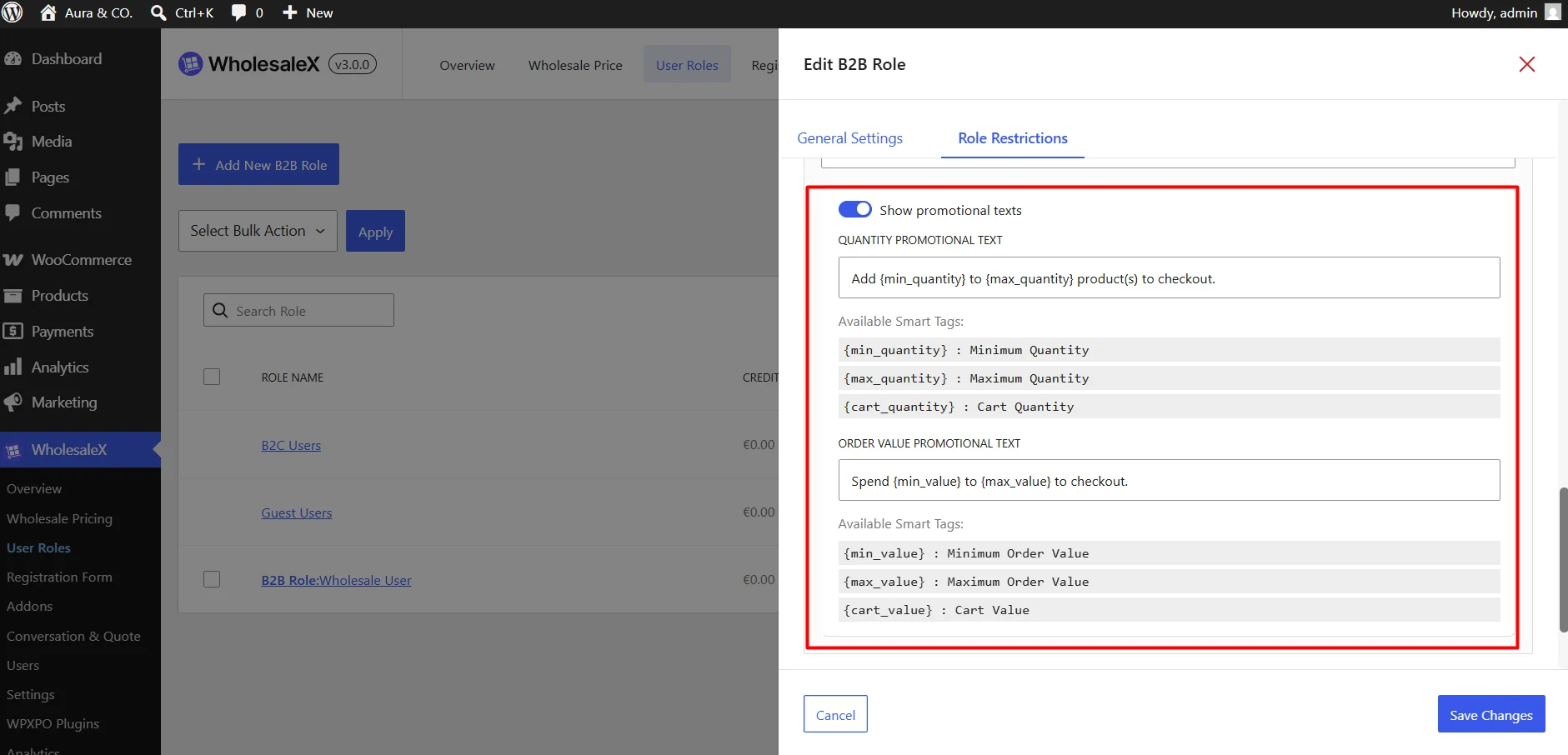
Use these settings to enforce minimum or maximum limits on product quantities and total order values required before checkout.
Filter: Choose the product scope for the restriction. You can choose all products, a specific product, a category or a brand.
Select Products: Choose the products/categories/brands you want. You can exclude a specific product if the option for all products is selected.
Minimum/Maximum Quantity
- Minimum Quantity: Set the lowest number of items required to checkout.
- Maximum Quantity: Set the highest number of items allowed.
- Custom Warning Message: Show a message when the cart does not meet the quantity rule.
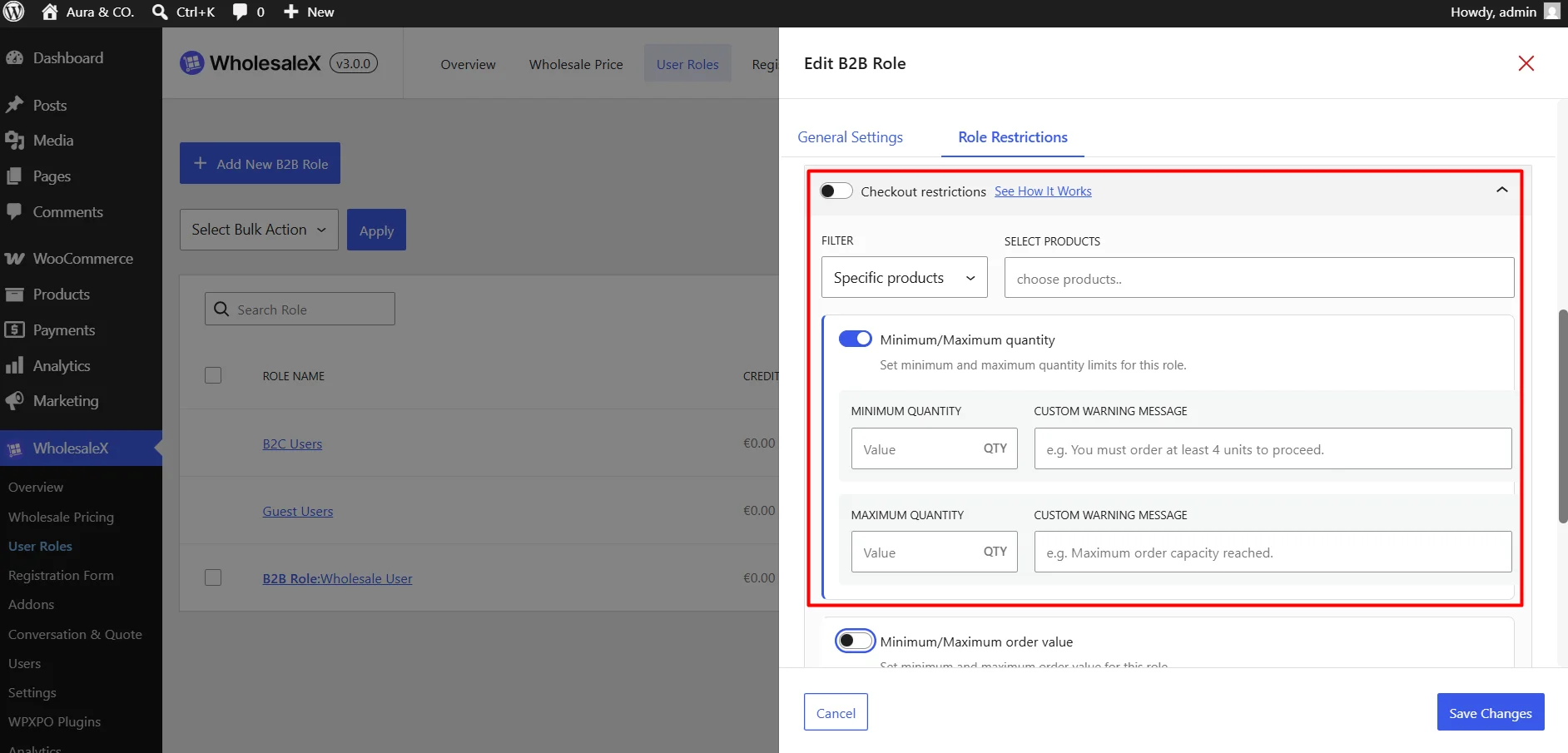
Minimum/Maximum Order Value
- Minimum Order Value: Set the lowest cart value required to place an order.
- Maximum Order Value: Set the highest cart value allowed.
- Custom Warning Message: Show a message when the cart does not meet the order value rule.
Exclude Users from Checkout Restriction: Allow selected users to bypass these checkout limits.
Custom Warning Message: Show a message when checkout is blocked.
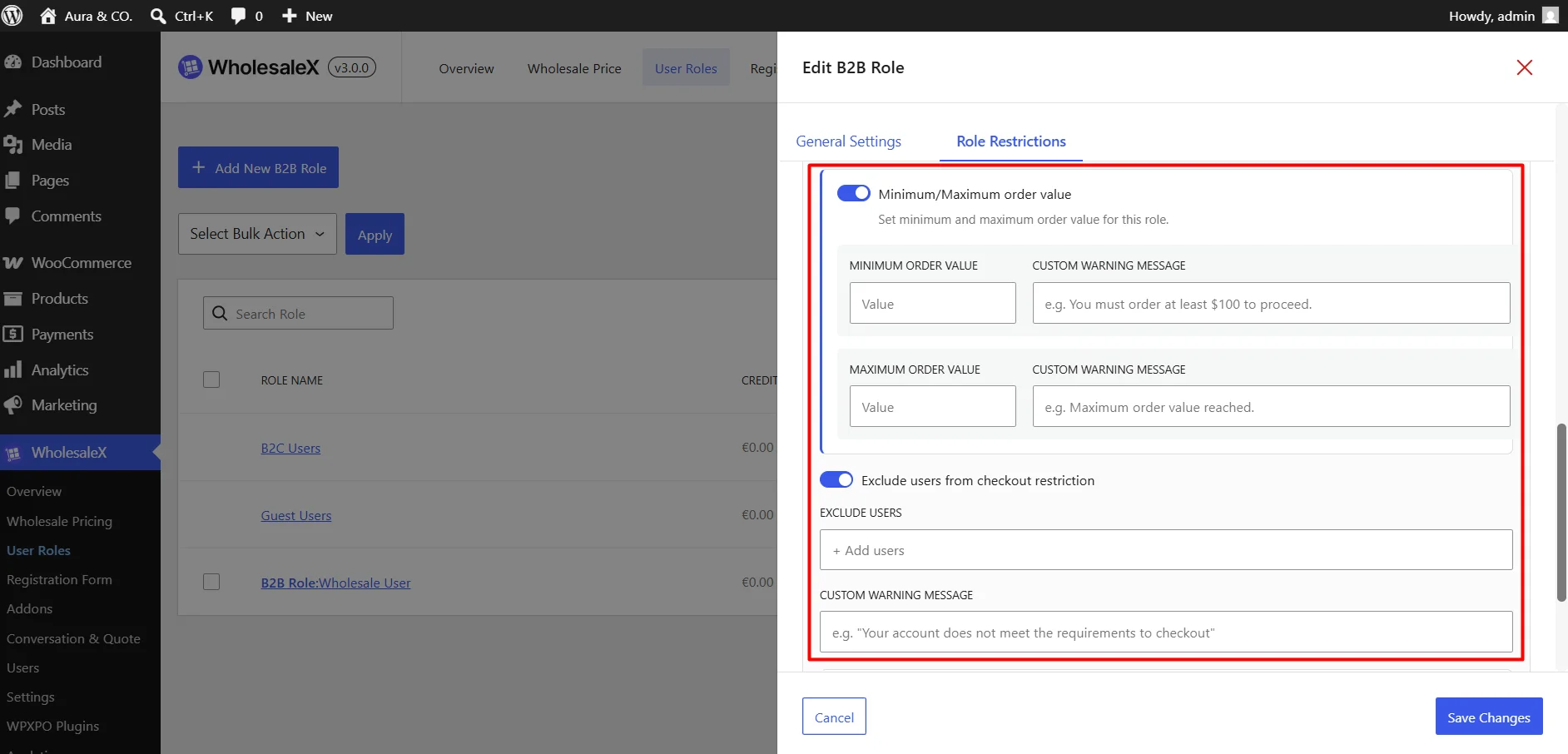
Show Promotional Texts
You can customize two types of messages:
Quantity Promotional Text
Enter the message shown for checkout restrictions based on cart quantity. Example:
Add {min_quantity} to {max_quantity} product(s) to checkout.Available smart tags:
{min_quantity}— Minimum product quantity required{max_quantity}— Maximum product quantity allowed{cart_quantity}— Customer’s current cart quantity
Order Value Promotional Text
Enter the message shown for checkout restrictions based on the cart’s order value. Example:
Spend {min_value} to {max_value} to checkout.Available smart tags:
{min_value}— Minimum order value required{max_value}— Maximum order value allowed{cart_value}— Customer’s current cart value
WholesaleX replaces these smart tags with the applicable restriction and cart values automatically.