
The General Settings tab allows you to configure the basic information, registration workflow, pricing display preferences, payment methods, and shipping method settings for a B2B role.
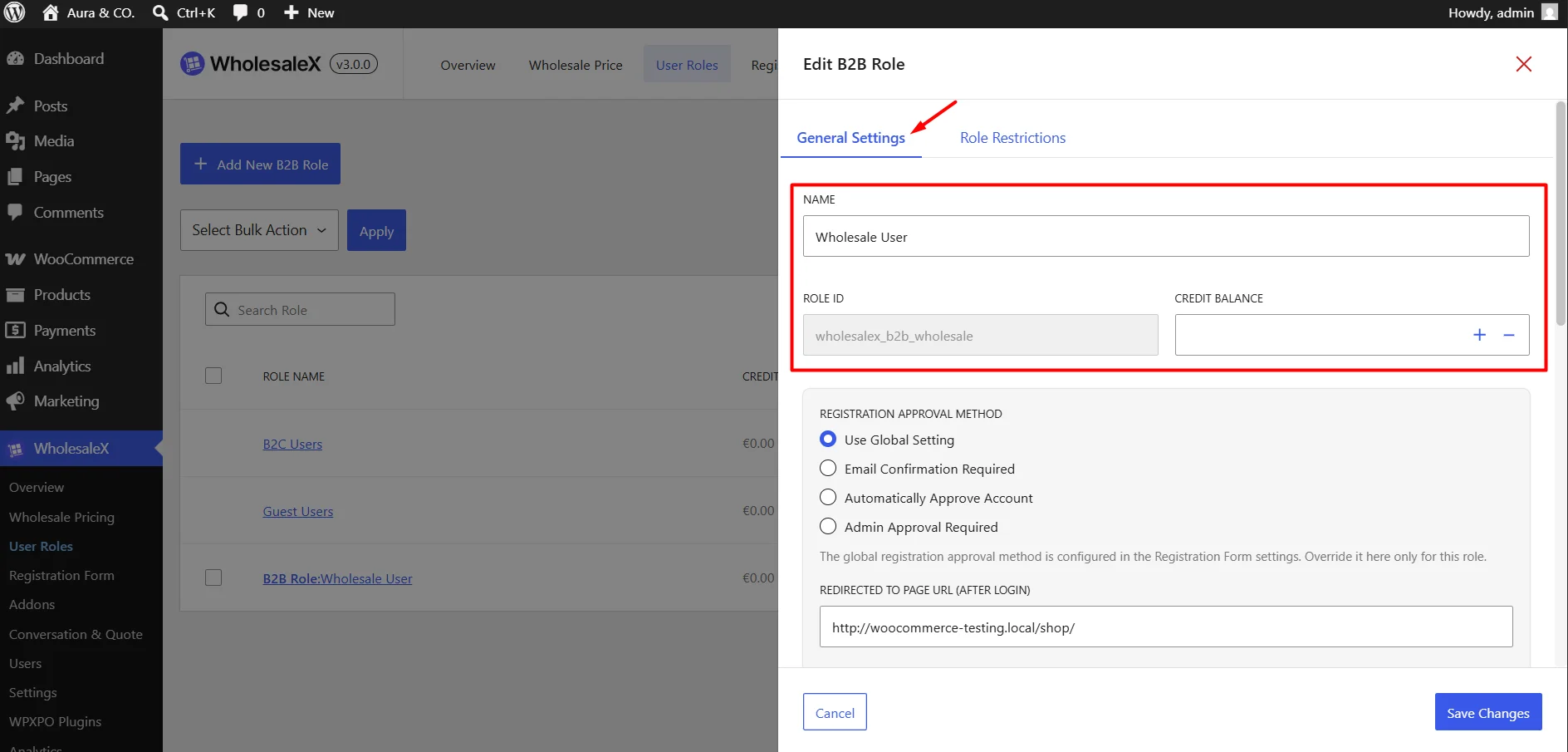
Step 1: Set the Role Informations
- Name: Enter a name for the B2B role. This name is used throughout WholesaleX to identify the customer group.
- Role ID: The unique identifier assigned to the role. This value is generated automatically and cannot be edited.
- Credit Balance: Assign a credit limit to customers belonging to this role. Customers can use this credit balance when placing orders, depending on your store configuration.
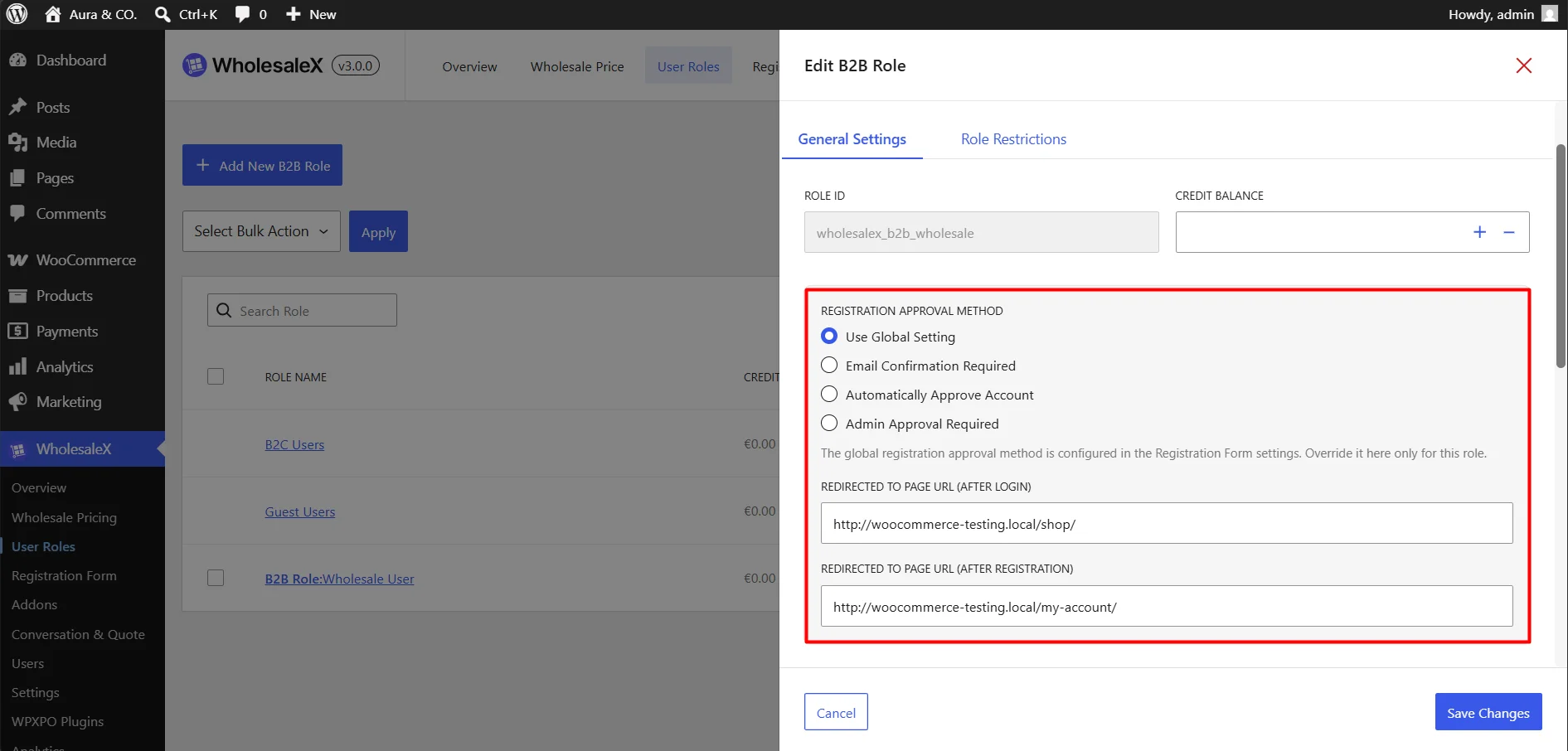
Step 2: Set Registration Approval Settings
Choose how new registration requests for this role should be handled.
Available options include:
- Use Global Setting: Uses the default registration approval method configured in WooCommerce.
- Email Confirmation Required: Users must verify their email address before the account becomes active.
- Automatically Approve Account: Users receive immediate access after registration.
- Admin Approval Required: Registration requests must be approved manually by the store admin.
Redirect After Login: Specify a URL where users will be redirected after logging in. This can be used to direct customers to a wholesale dashboard, shop page, or custom landing page.
Redirect After Registration: Specify a URL where users will be redirected after completing registration.
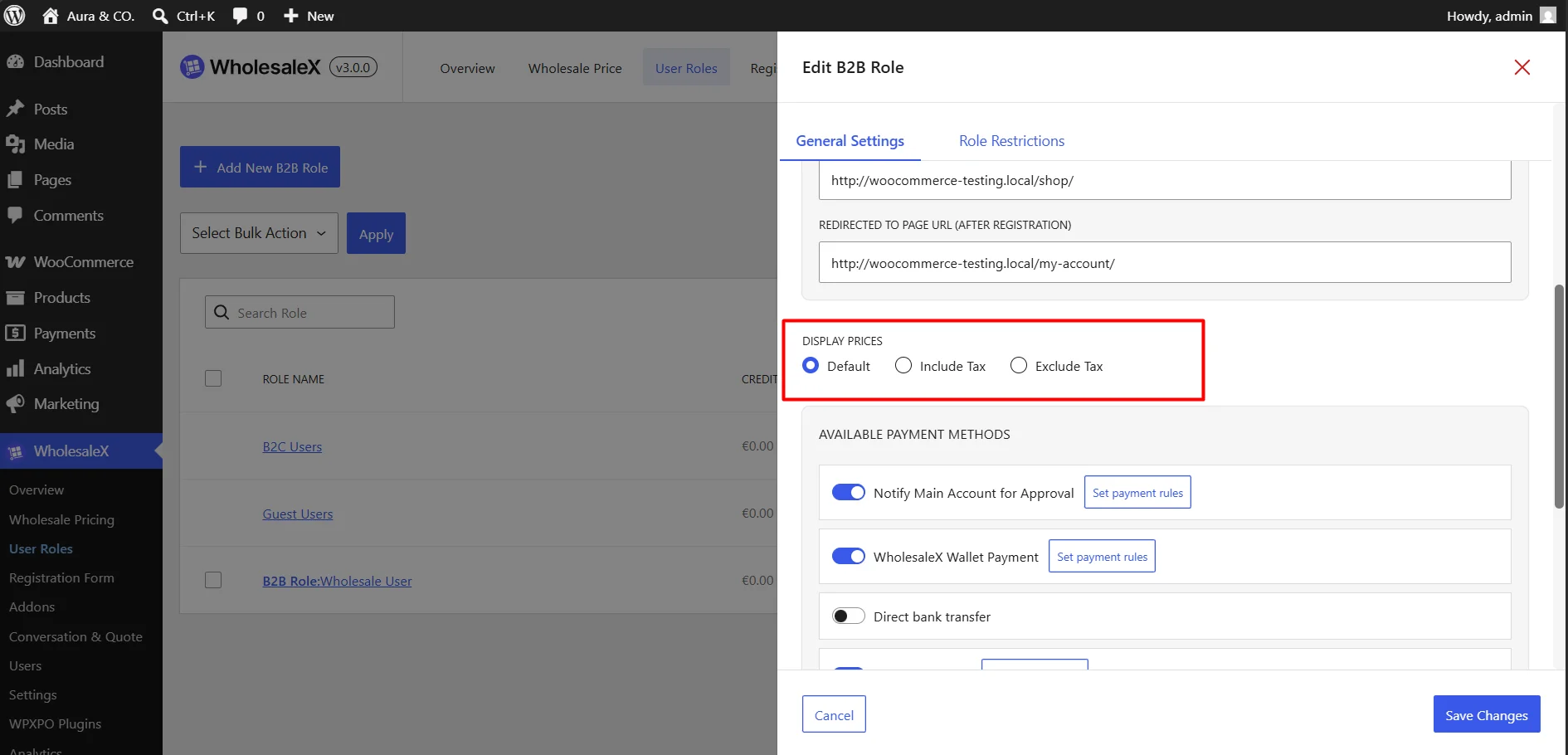
Step 3: Choose Pricing Display
Control how product prices are displayed for this role.
- Default: Uses the store-wide tax display settings.
- Include Tax: Displays prices including tax.
- Exclude Tax: Displays prices excluding tax.
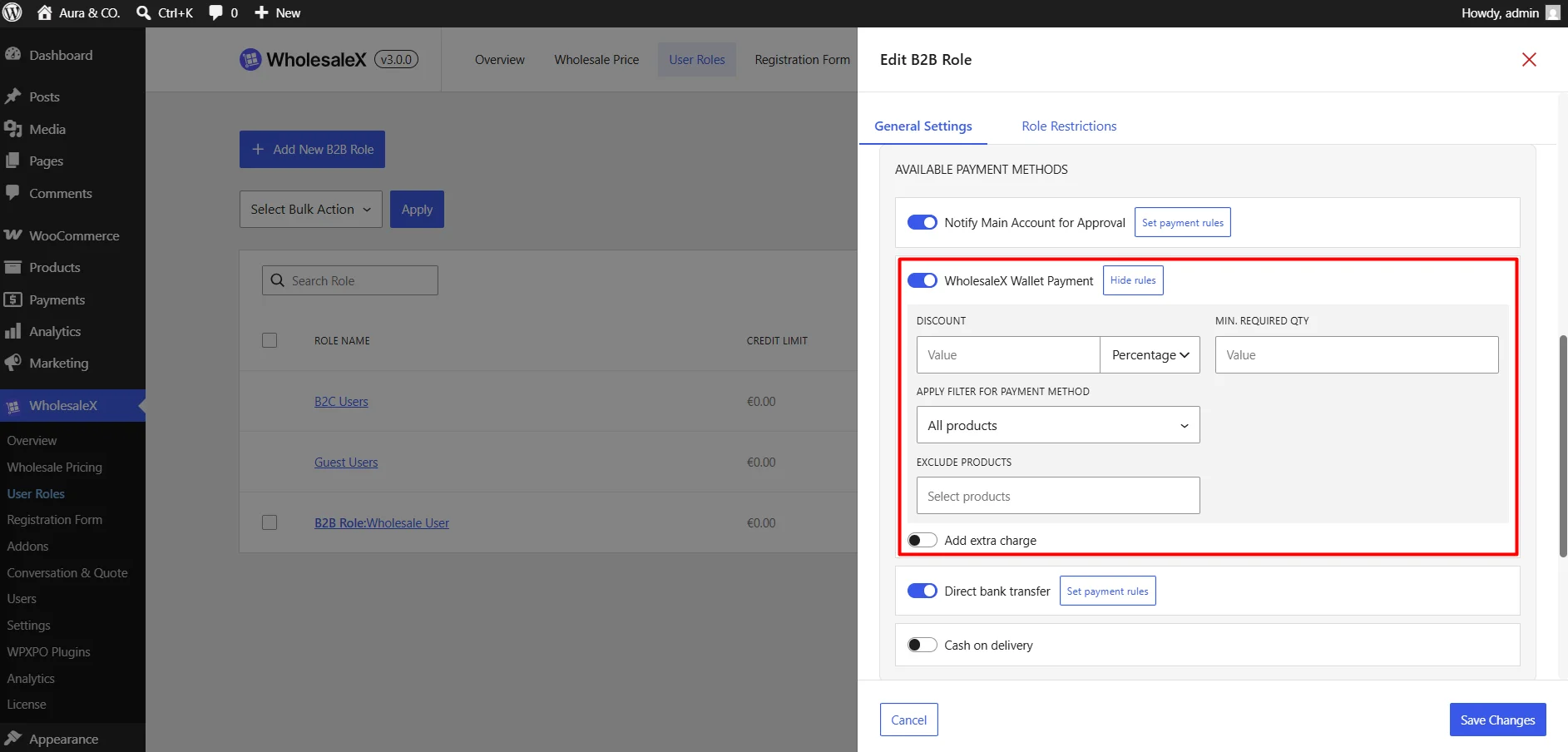
Step 4: Set Up Available Payment Methods
Use these settings to control which payment methods are available for this role. You can enable, disable, or customize payment methods for customers assigned to the role.
- Discount: Apply a discount when customers choose a specific payment method. You can configure the discount as a percentage or an amount
- Minimum Required Quantity: Specify the minimum quantity required before the payment method discount becomes available.
- Apply Filter for Payment Method: Choose which products are eligible for the payment method rule.
- Exclude Products: Select products that should not be eligible for the payment method discount.
- Add Extra Charge: Enable this option to apply an additional fee when customers use a specific payment method. You can configure the charge as either an amount or a percentage.
Step 5: Configure Available Shipping Method
Configure which shipping methods are available for this role and display promotional shipping messages to eligible customers.
- Apply Filter for Shipping Method: Choose which products qualify for the shipping method rule.
- Exclude Products: Select products that should be excluded from the shipping method rule.
- Show Promotional Texts: Enable promotional messages related to shipping offers. Enter the message displayed to customers.
- Show Free Shipping Offer on Popup: Display a promotional popup when customers qualify for the shipping offer. Enter the message displayed inside the popup.
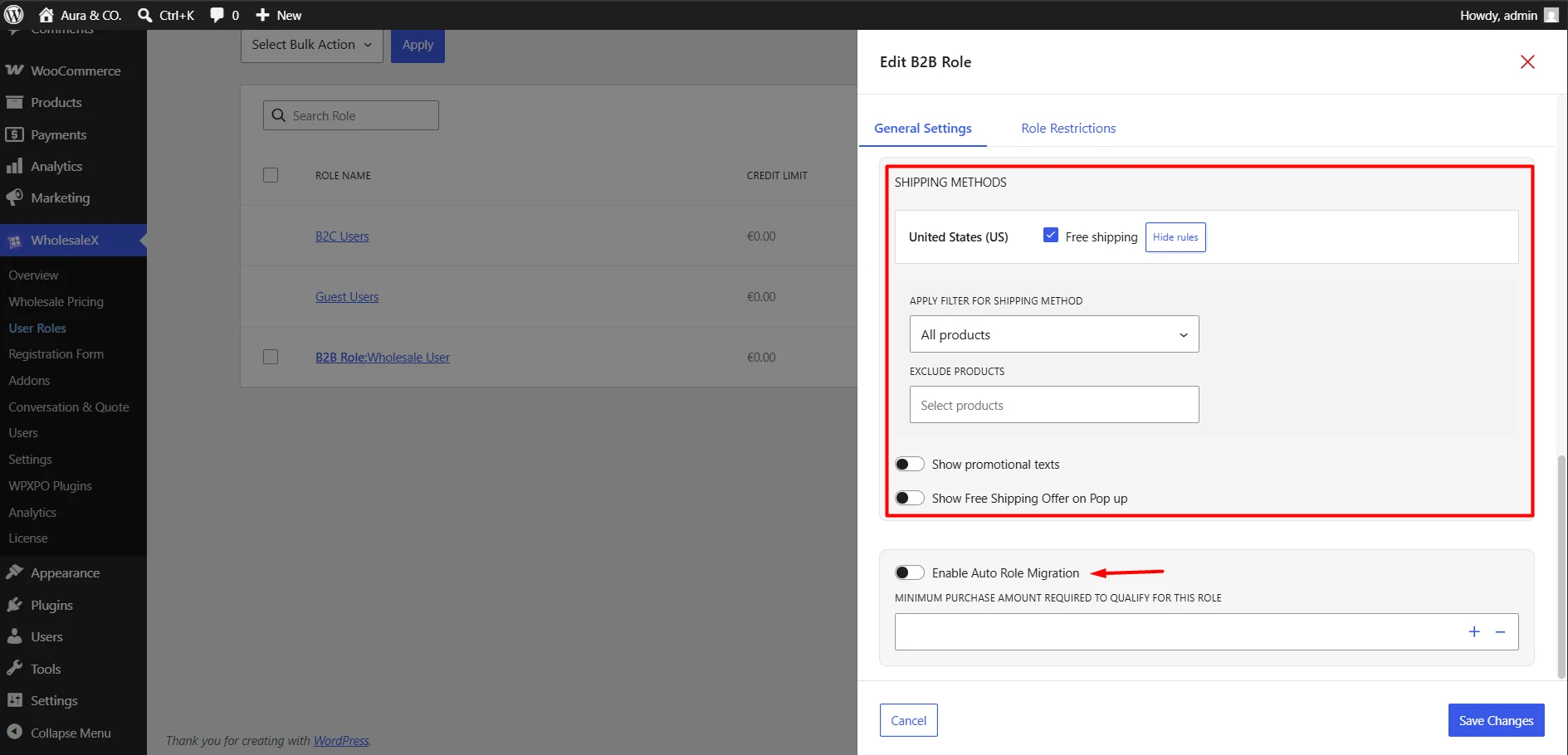
Step 6: Enable Auto Role Migration
Specify the minimum total purchase amount a customer must reach before they become eligible for automatic assignment to this role.
- Minimum Purchase Amount Required to Qualify for this Role: Once the customer meets or exceeds the configured spending threshold, WholesaleX can automatically migrate them to the role when auto role migration is enabled.
You can set additional restrictions and permissions for this role before clicking the Add New Role button. Explore the Role Restrictions from the next tab.