
The Terms and Conditions field adds an agreement checkbox to the registration form. Customers can use it to confirm that they accept your terms, privacy policy, wholesale policy, or another required agreement before registering.
Select the Terms and Conditions field in the registration form preview to open its settings.
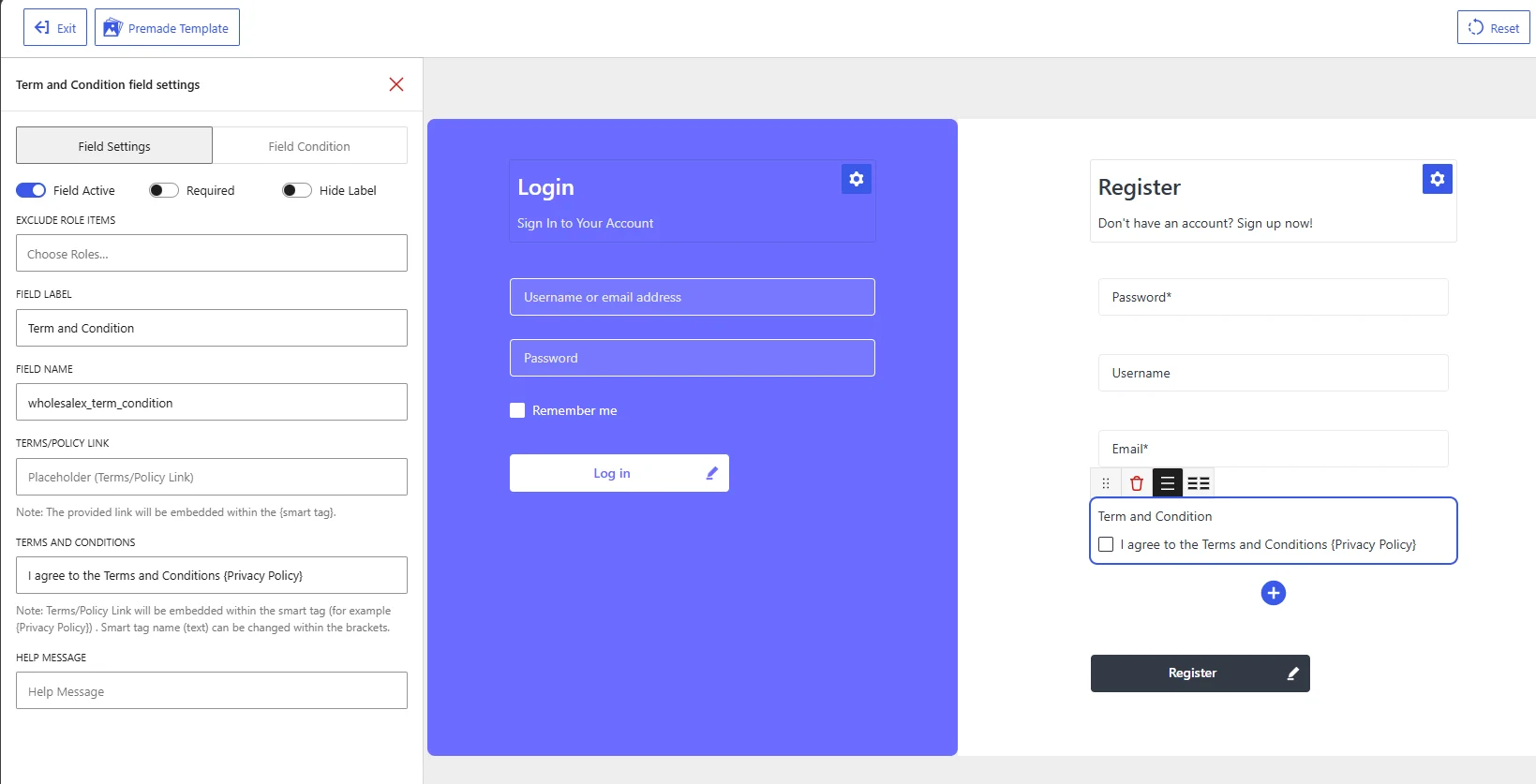
Terms and Conditions field settings in the WholesaleX Registration Form Builder.
Available Field Settings
Field Active
Enable Field Active to display the agreement checkbox on the registration form.
Disable it to keep the field in the builder without showing it on the published form.
Required
Enable Required when customers must accept the agreement before submitting the registration form.
This option should normally be enabled when the field is used to obtain consent for your Terms and Conditions, Privacy Policy, or wholesale account policies.
When disabled, customers can register without selecting the checkbox.
Hide Label
Enable Hide Label to hide the main field label displayed above the agreement checkbox.
The agreement text beside the checkbox will remain visible. You can hide the main label when the agreement text already provides enough context.
Exclude Role Items
Use Exclude Role Items to hide the field from selected user roles.
Click Choose Roles and select the roles that should not see the agreement checkbox. Leave the setting empty to display it for all applicable users.
Avoid excluding a role when accepting the linked policy is mandatory for every customer who registers under that role.
Field Label
The Field Label is the heading displayed above the agreement checkbox.
The default label is:
Term and Condition
You can replace it with a clearer label, such as:
Terms and ConditionsPolicy AgreementWholesale TermsTerms of Service
The field label is separate from the agreement text displayed beside the checkbox.
Field Name
The Field Name is the internal identifier used to process the customer’s response.
The default field name is:
wholesalex_term_condition
Keep this value unchanged unless you have a specific technical reason to modify it. Changing the field name may affect how WholesaleX identifies and processes the agreement.
Terms/Policy Link
Enter the complete URL of the page containing your terms or policy.
For example:
https://example.com/privacy-policy/
This link is connected to the smart tag used in the Terms and Conditions text. The linked text becomes clickable on the registration form.
Make sure the page is published and accessible before adding its URL.
Terms and Conditions
Use this field to write the agreement text displayed beside the checkbox.
The default text is:
I agree to the Terms and Conditions {Privacy Policy}
Text inside curly brackets acts as a smart tag. The URL entered in Terms/Policy Link will be applied to that text.
For example:
I have read and agree to the {Wholesale Terms and Conditions}
In this example, Wholesale Terms and Conditions becomes the clickable text.
You can change the text inside the brackets to match the linked page:
I agree to the {Privacy Policy}
I accept the {Wholesale Account Policy}
I have read and agree to the {Terms of Service}
Use only one clear agreement statement so customers understand what they are accepting.
Help Message
Use Help Message to provide additional information below the field.
Examples:
You must accept the policy before submitting your registration.
Review the wholesale terms before creating your account.
The agreement explains the requirements for maintaining a wholesale account.
A help message is optional. Add one when customers need more context than the agreement text provides.
Example Configuration
For a standard Terms and Conditions agreement, use the following setup:
| Setting | Recommended value |
|---|---|
| Field Active | Enabled |
| Required | Enabled |
| Hide Label | Based on your form design |
| Exclude Role Items | None |
| Field Label | Terms and Conditions |
| Field Name | wholesalex_term_condition |
| Terms/Policy Link | URL of your published terms page |
| Terms and Conditions | I have read and agree to the {Terms and Conditions} |
| Help Message | Optional |
After configuring the field, click Save Changes. Open the registration form on the frontend and confirm that the policy text is linked correctly and that the form cannot be submitted without accepting the agreement when Required is enabled.