
The Website field collects a customer’s website address during registration. It is useful for reviewing wholesale applications, verifying business information, or learning more about a customer’s company.
Select the Website field in the registration form preview to open its settings.
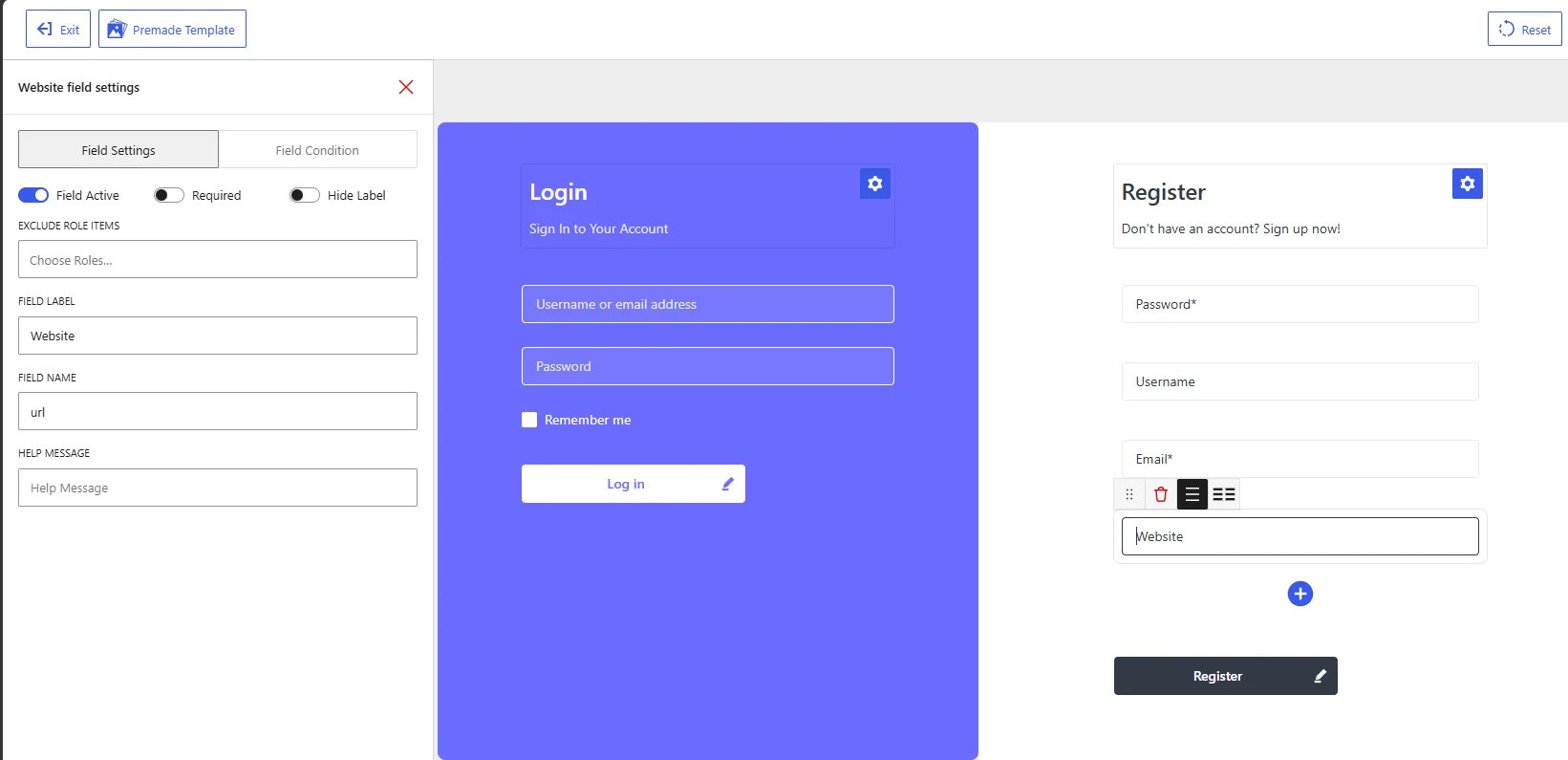
Website field settings in the WholesaleX Registration Form Builder.
Available Field Settings
Field Active
Enable Field Active to display the Website field on the registration form.
Disable it when you do not want customers to provide a website address. The field remains available in the form builder but will not appear on the published form.
Required
Enable Required when customers must provide a website address before submitting the registration form.
Keep it disabled when a website is optional. This may be appropriate because some wholesale applicants operate through marketplaces, social media, or physical stores without maintaining a separate website.
Hide Label
Enable Hide Label to remove the visible Website label from the registration form.
Keep the label visible unless the field’s purpose is already clear from the form design. A visible label helps customers understand that they should enter a website address rather than other business information.
Exclude Role Items
Use Exclude Role Items to hide the Website field from selected user roles.
Click Choose Roles and select the roles that should not see the field. Leave the setting empty to display it for all applicable users.
For example, you can collect website addresses from wholesale applicants while excluding the field from regular customer roles.
Field Label
The Field Label is the text displayed for the field on the registration form.
The default value is:
Website
You can change it to describe the requested website more precisely, such as:
Business WebsiteCompany WebsiteOnline Store URL
Use Business Website when you specifically want the applicant’s company website rather than a personal profile or unrelated page.
Field Name
The Field Name is the internal identifier used to process and store the submitted website address.
The default value is:
url
Keep this value unchanged unless you have a specific technical reason to modify it. Changing the field name may affect how the website address is saved or used by WholesaleX, WordPress, or other integrations.
Help Message
Use Help Message to explain which website address the customer should provide.
Examples:
Enter your business website URL, including https://
Provide the website or online store associated with your business.
If you do not have a business website, leave this field empty.
A help message is especially useful when you want customers to enter the complete URL. For example:
https://example.com
Recommended Configuration
| Setting | Recommended value |
|---|---|
| Field Active | Enabled when website information is needed |
| Required | Usually disabled |
| Hide Label | Disabled |
| Exclude Role Items | Select roles that do not need this field |
| Field Label | Business Website |
| Field Name | url |
| Help Message | Enter your business website URL, including https:// |
After configuring the Website field, click Save Changes and test the registration form on the frontend. Confirm that the field appears for the intended roles and that customers understand which website address to enter.