
The First Name and Last Name fields collect a customer’s name during registration. Since both fields contain the same configuration options, you can set them up using the same process.
Select either field from the registration form preview to open its settings in the left panel.
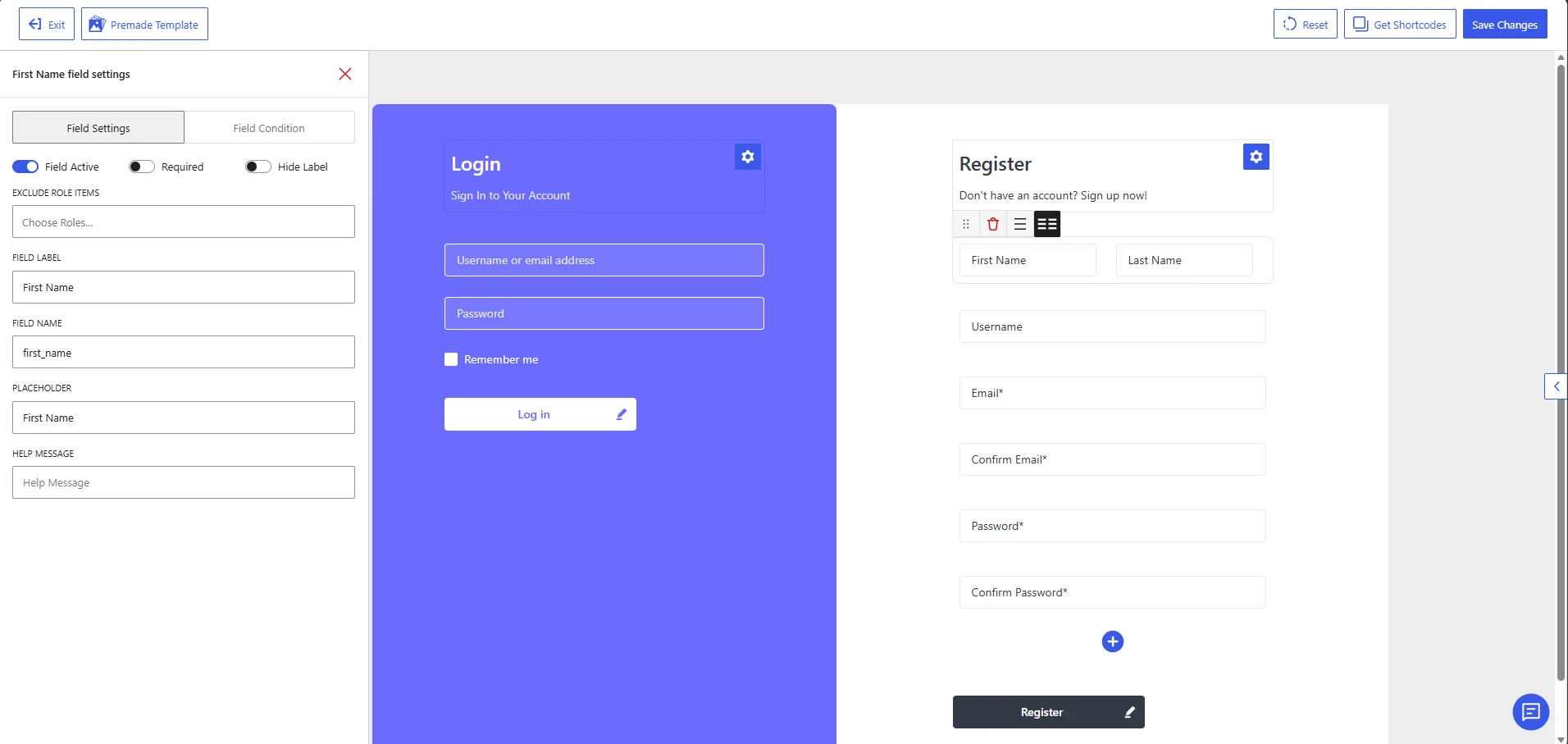
First Name field settings in the WholesaleX Registration Form Builder.
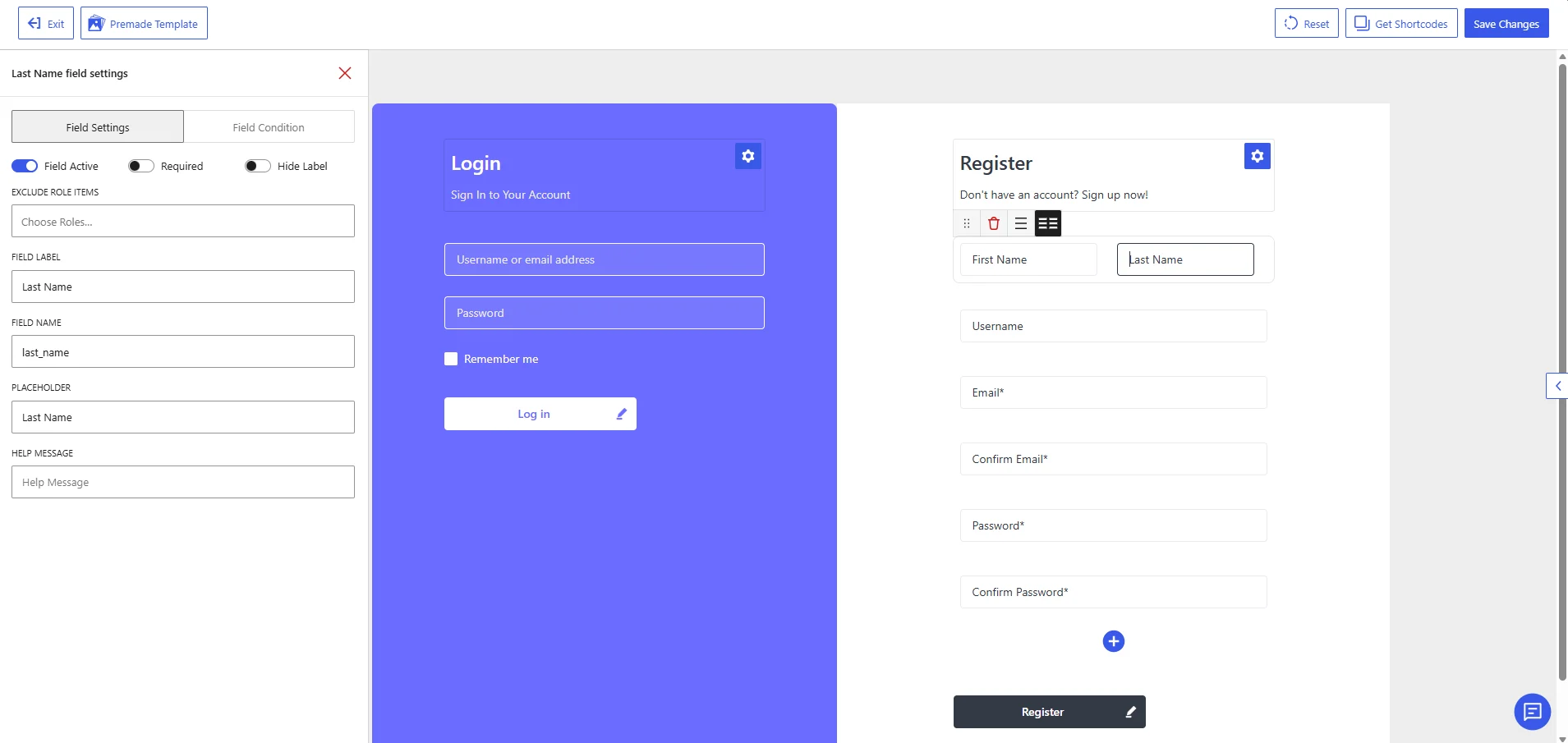
Last Name field settings in the WholesaleX Registration Form Builder.
Available Field Settings
Field Active
Enable Field Active to display the selected name field on the registration form.
Disable it when you do not want customers to provide that information. The field remains in the form builder but will not appear on the published registration form.
Required
Enable Required when customers must complete the field before submitting the registration form.
For example, when the First Name field is required, a customer cannot register without entering a first name. Leave this option disabled when the field should remain optional.
Hide Label
Enable Hide Label to remove the visible field label from the registration form.
The placeholder text will still appear inside the input box. Keep the label visible unless the placeholder clearly identifies the information customers need to enter.
Exclude Role Items
Use Exclude Role Items to hide the selected field from specific user roles.
Click Choose Roles and select the roles that should not see the field. Leave this setting empty when the field should be available to all applicable users.
For example, you can hide a name field from a particular wholesale role when that information is already collected through another field or process.
Field Label
The Field Label is the name displayed for the field on the registration form.
The default labels are:
| Field | Default label |
|---|---|
| First Name | First Name |
| Last Name | Last Name |
You can change these labels to match your registration process, such as Contact First Name or Account Holder’s Last Name.
Field Name
The Field Name is the internal identifier used to process and store the submitted information.
The default field names are:
| Field | Default field name |
|---|---|
| First Name | first_name |
| Last Name | last_name |
Keep these default values to store the information in the corresponding standard WordPress user profile fields.
Change a field name only when you have a specific technical requirement. Modifying it may affect how the submitted data works with WordPress, WholesaleX, custom code, or other plugins.
Placeholder
The Placeholder is the text displayed inside the input box before the customer enters a value.
The default placeholders are:
| Field | Default placeholder |
|---|---|
| First Name | First Name |
| Last Name | Last Name |
You can also use more instructional text, such as:
Enter your first nameEnter your last name
Keep the placeholder brief and clearly related to the requested information.
Help Message
Use the Help Message field to provide additional instructions below the input field.
For example:
Enter the first name of the primary account holder.Enter the last name of the primary account holder.
A help message is optional. Leave it empty when the field label and placeholder already provide enough information.
Recommended Configuration
A standard configuration for both name fields is:
| Setting | First Name | Last Name |
|---|---|---|
| Field Active | Enabled | Enabled |
| Required | Based on your requirements | Based on your requirements |
| Hide Label | Disabled | Disabled |
| Exclude Role Items | None | None |
| Field Label | First Name | Last Name |
| Field Name | first_name | last_name |
| Placeholder | First Name | Last Name |
| Help Message | Optional | Optional |
After configuring both fields, click Save Changes to apply the settings.