
Buy X Get Y (BXGY) rules allow you to reward customers with one or more free products when they purchase a specified quantity of eligible products.
Follow the steps below to create a BXGY rule.
Step 1: Create a New Rule
- Navigate to WholesaleX → Wholesale Price.
- Click Create Wholesale Pricing.
- Enter a descriptive rule title.
- Select BXGY from the Rule Type dropdown.
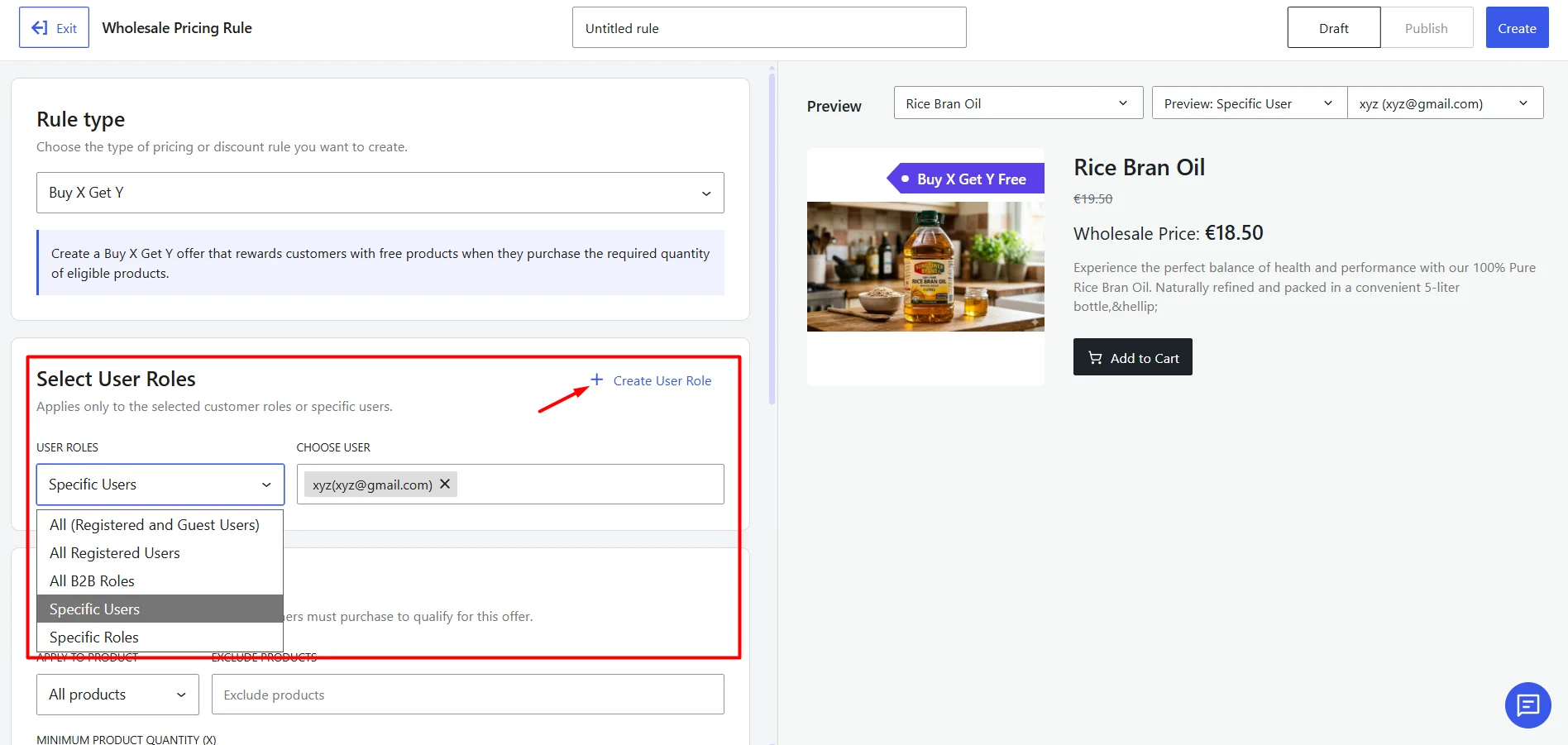
Step 2: Select Customer Roles
Choose which wholesale customers can access the BXGY discount.
- Open the User Roles field.
- Select one or more specific user roles.
- Alternatively, select All B2B Roles to apply the offer to all wholesale customers.
- If needed, click Create User Role to create a new role without leaving the page.
Step 3: Select X & Y Product(s) and Quantity
Choose the products that customers must purchase to qualify for the offer. You can target:
- All Products
- Specific Products
- Specific Categories
- Brands
- Attributes
- SKU
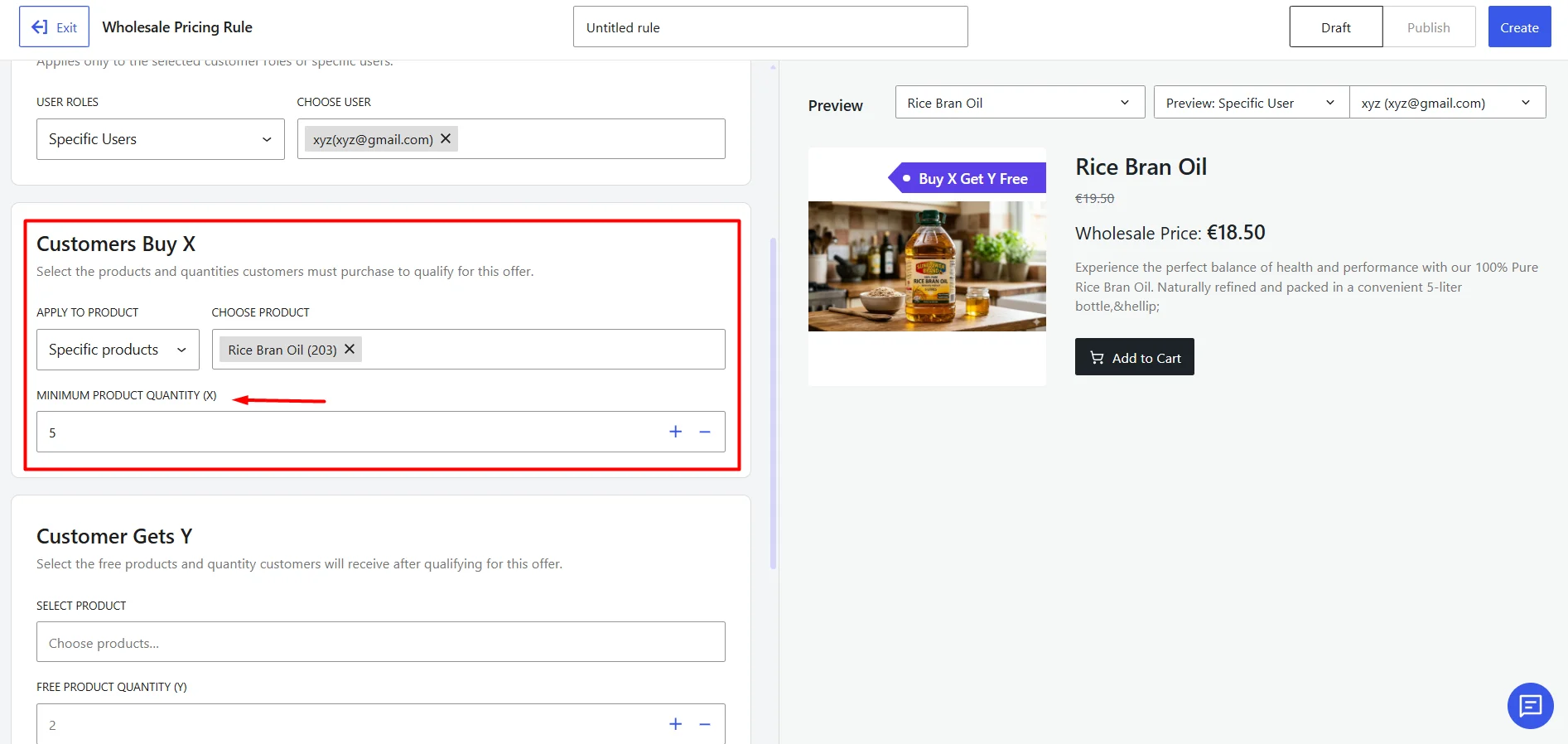
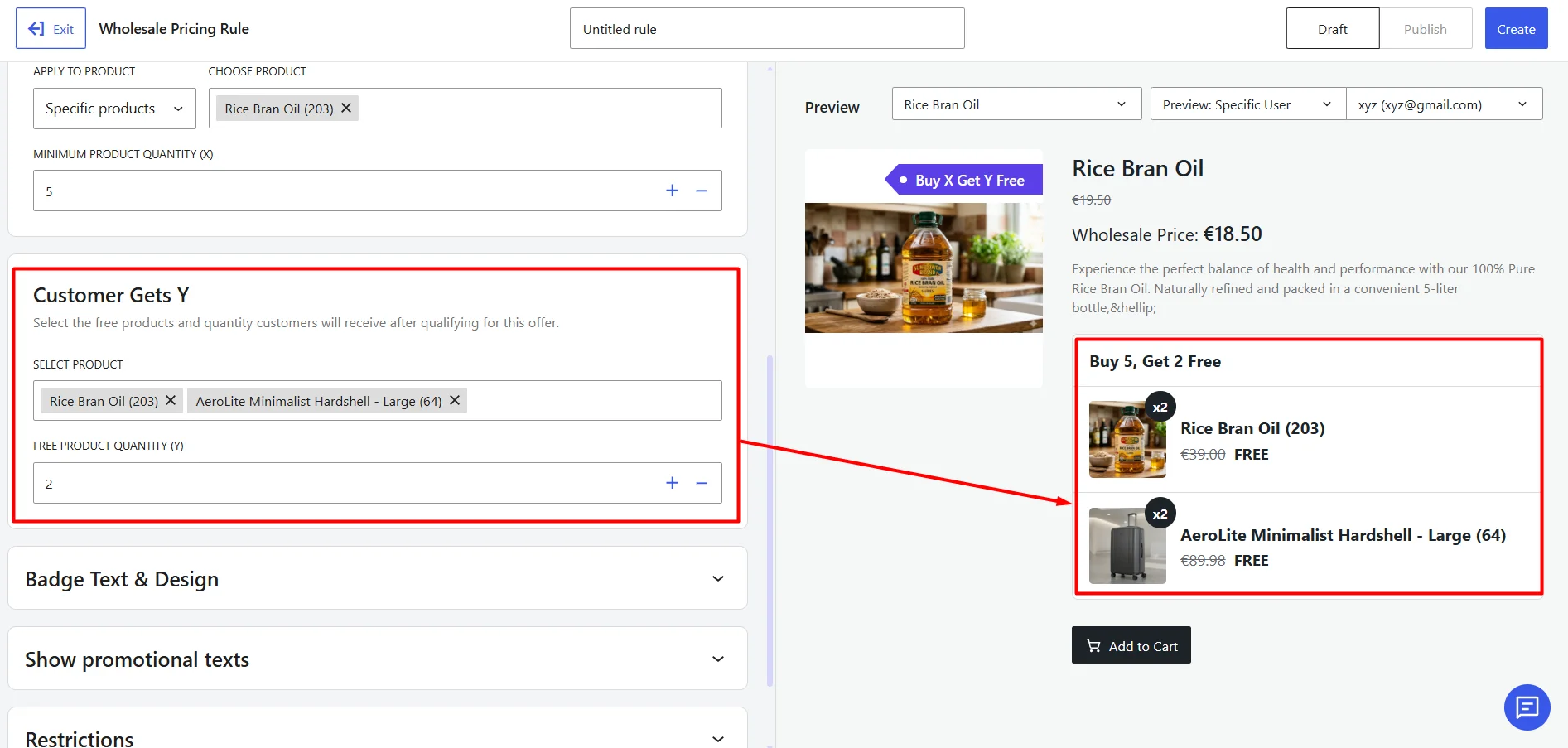
And then set the minimum quantity for this product.
Here, you can set the product(s) you want to give free. You also have to set the quantity of free items here.
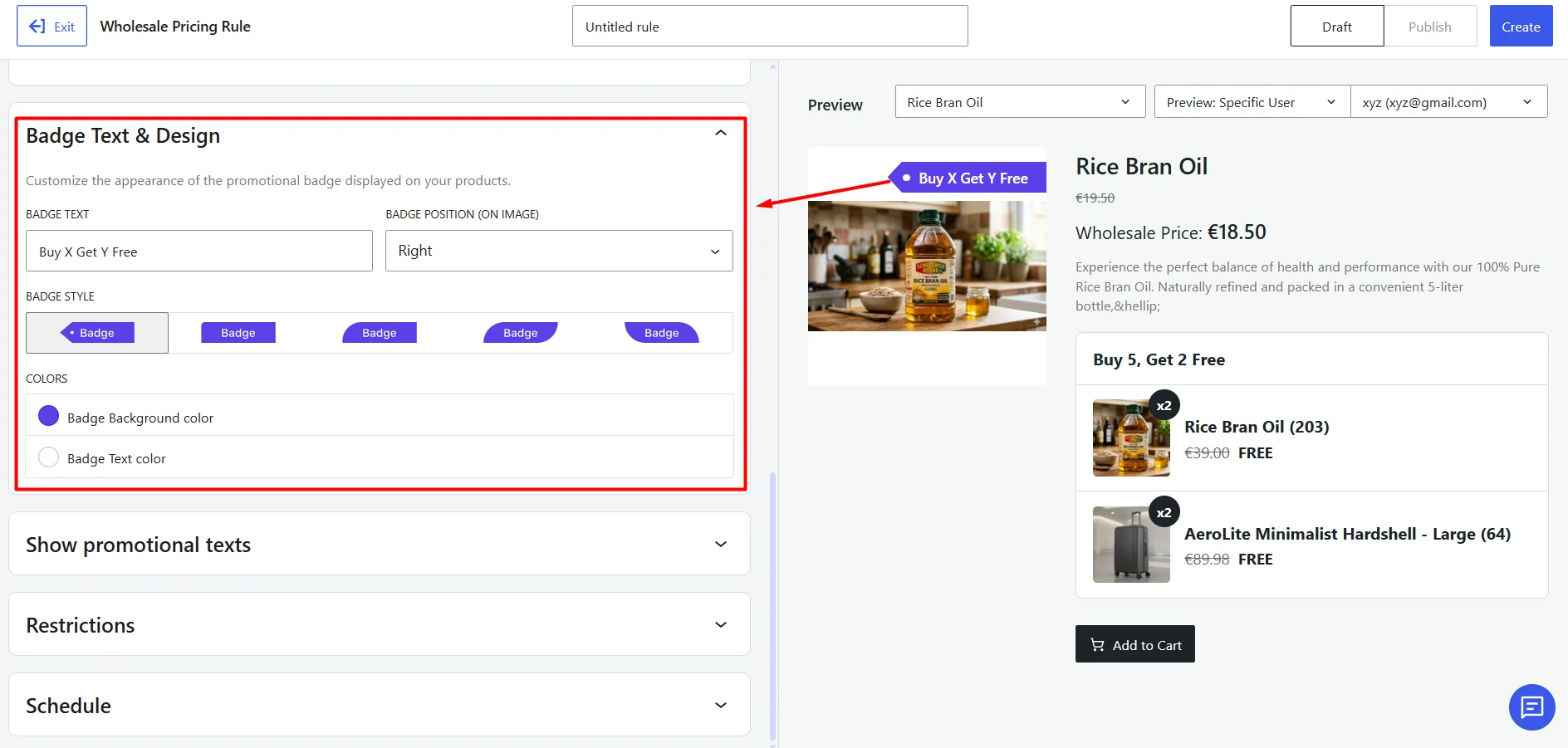
Step 4: Customize the Promotion Badge (Optional)
Use the Design section to control how promotional badges appear on your storefront.
- Badge Position: Choose where the badge should appear on the product image.
- Badge Style: Select one of the available badge styles.
- Badge Colors: Customize the appearance of the badge using:
- Badge Background Color
- Badge Text Color
Step 5: Configure Promotional Texts (Optional)
Open the Show promotional texts section to choose where the Buy X Get Y offer will appear on your store.
Enable the required options:
- Buy X Get Y (Show free item on Product Page): Displays the qualifying offer and the selected free products directly on the product page. Customers can see the required purchase quantity, free-item quantity, product names, and free-item labels before adding the product to the cart.
- Show Badge on Shop & Product Page: Displays the promotional badge on eligible products across both the shop and product pages.
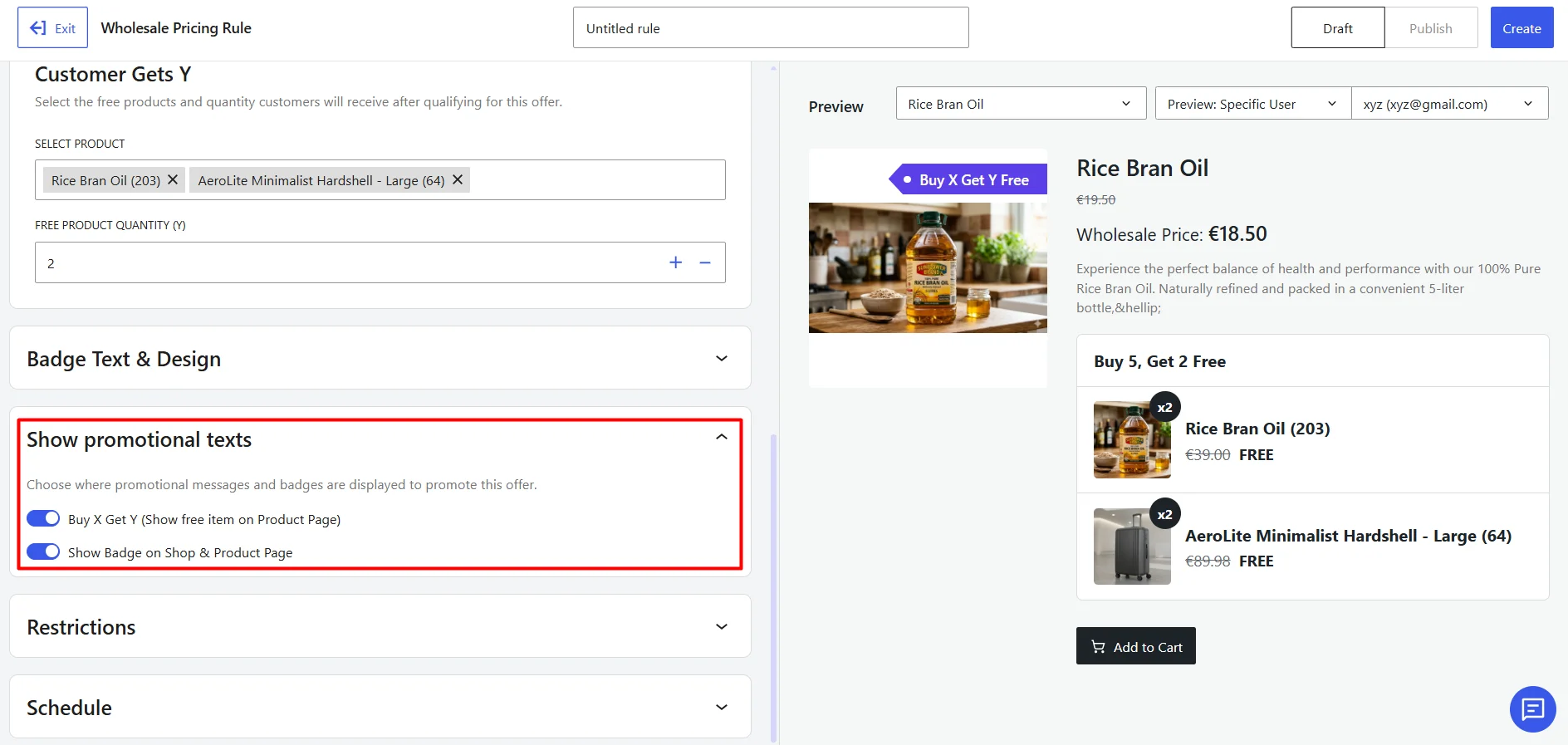
Use the Preview panel to confirm how the offer will appear to the selected customer. The preview updates based on the configured X quantity, Y quantity, selected free products, badge settings, and customer eligibility.
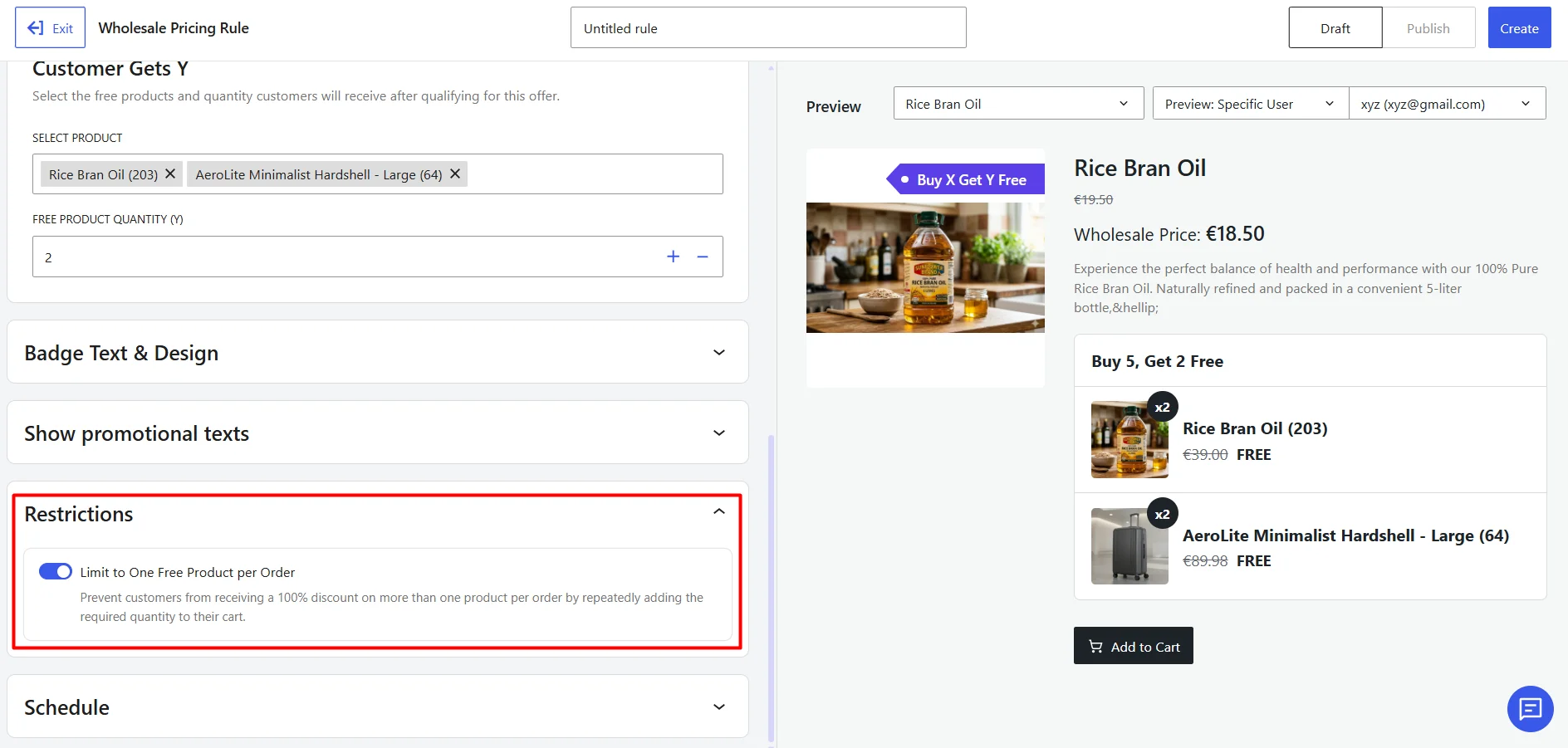
Step 6: Configure Restrictions (Optional)
Use restrictions to control how reward products are distributed.
Restrict to One Free Product Per Order: When enabled:
- Customers can receive the reward only once per order.
- Additional qualifying quantities will not generate additional free products.
When disabled:
- Customers can continue earning additional free products if they meet the qualifying requirements multiple times within the same order.
This setting is useful for preventing excessive reward stacking and controlling inventory usage.
Step 7: Configure Scheduling (Optional)
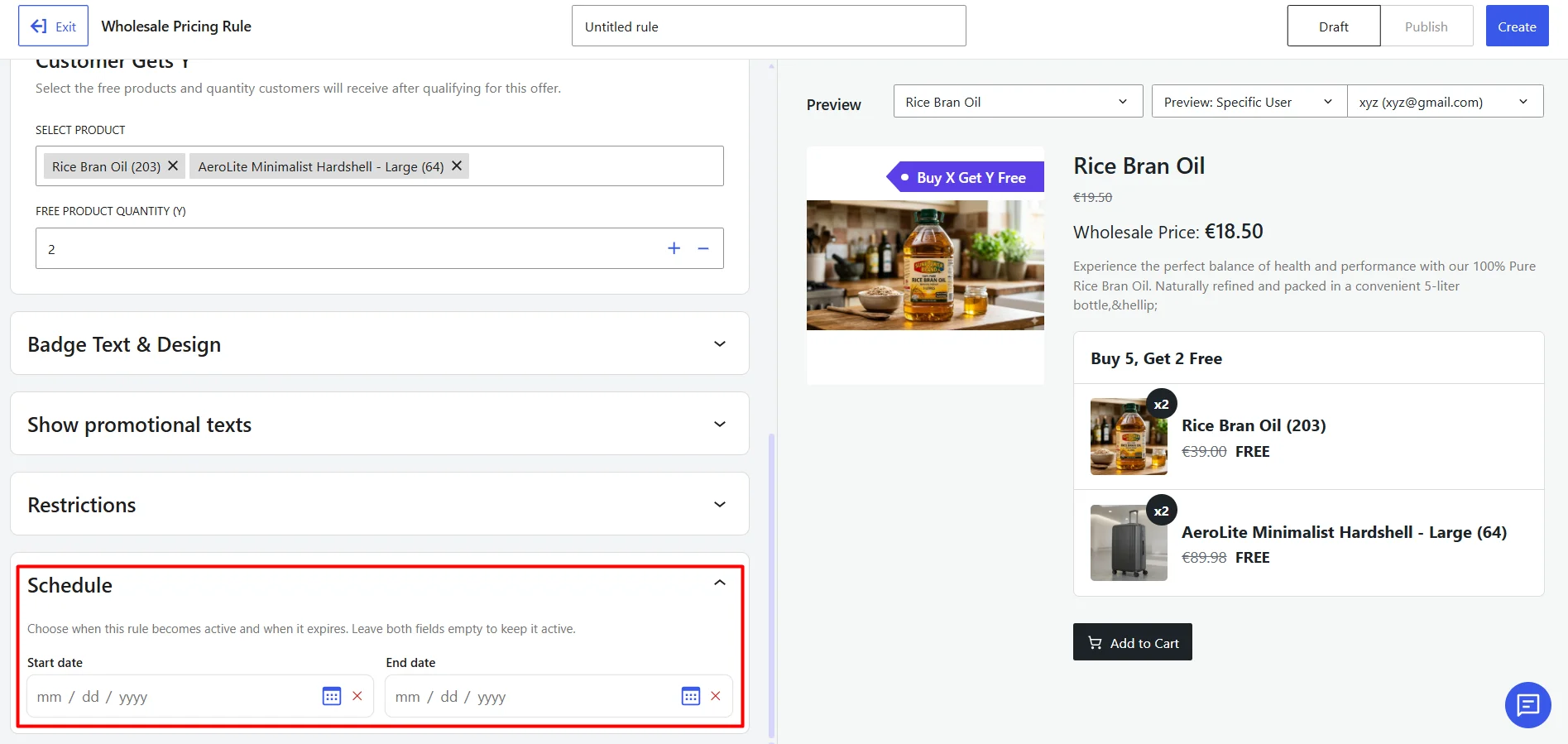
Use scheduling to control when the BXGY discount becomes active.
You can:
- Set a start date and time.
- Set an end date and time.
- Leave the schedule empty to activate the rule immediately after publishing.
Scheduling is useful for limited-time promotions and seasonal campaigns.
Step 8: Review and Publish the Rule
Use the Preview section to verify how the pricing rule will appear on the storefront before publishing it.
- Select a product from the product dropdown.
- Choose the required user role.
- To check the rule for an individual buyer, select Preview: Specific User and choose the customer account.
Review the preview to confirm that the rule is applied correctly for the selected product and customer. Once everything is correct, publish the rule.
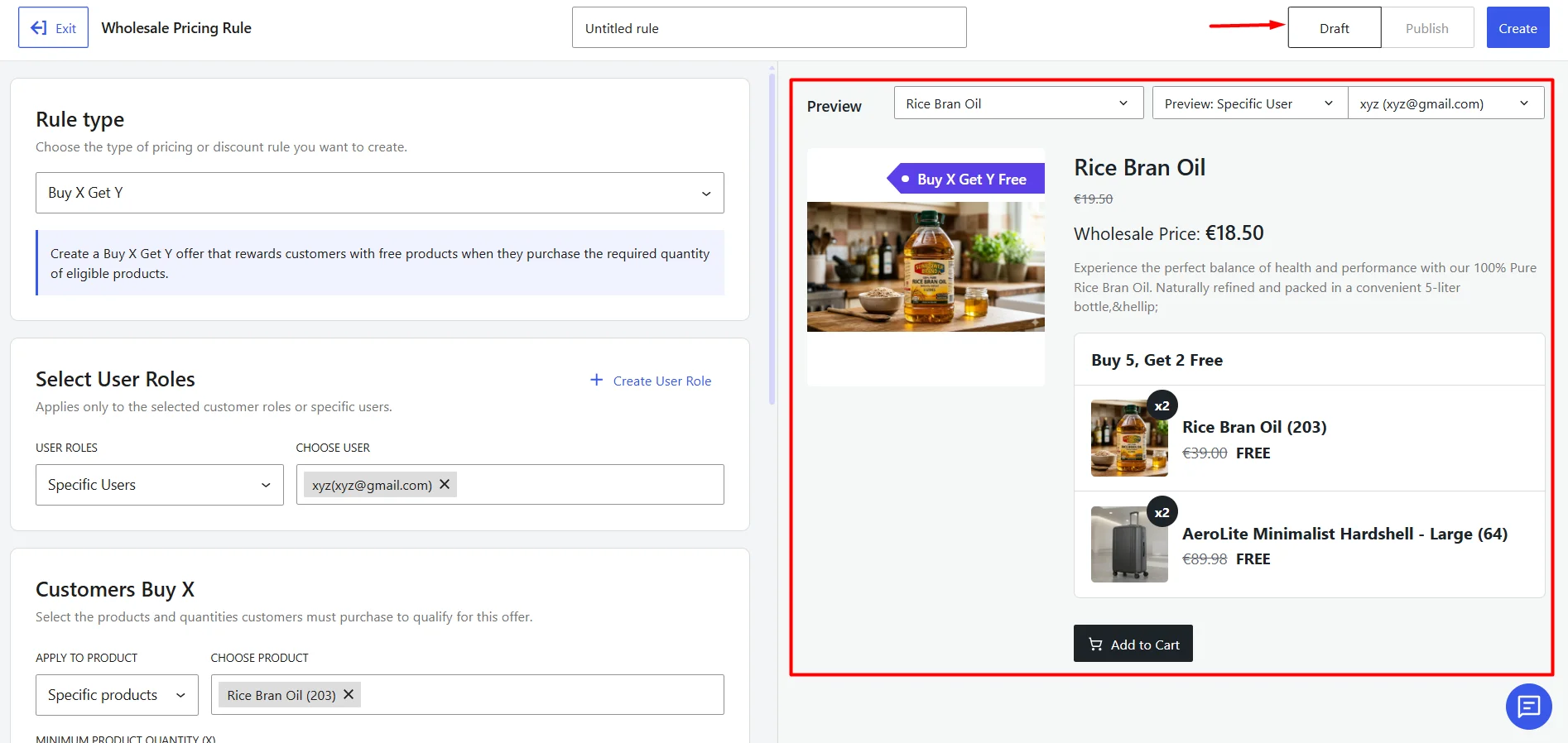
When the configuration is complete:
- Click Draft to save the rule without activating it.
- Click Publish to make the rule live.
- Click Create/Save to update an existing rule.
Your BXGY discount rule is now ready to use.