
The Radio field lets customers select one option from a predefined group. Unlike the Checkbox field, which can accept multiple selections, the Radio field allows only one choice.
You can use it to collect information such as business type, preferred contact method, account purpose, or a Yes/No response.
Select the Radio field in the registration form preview to open its settings.
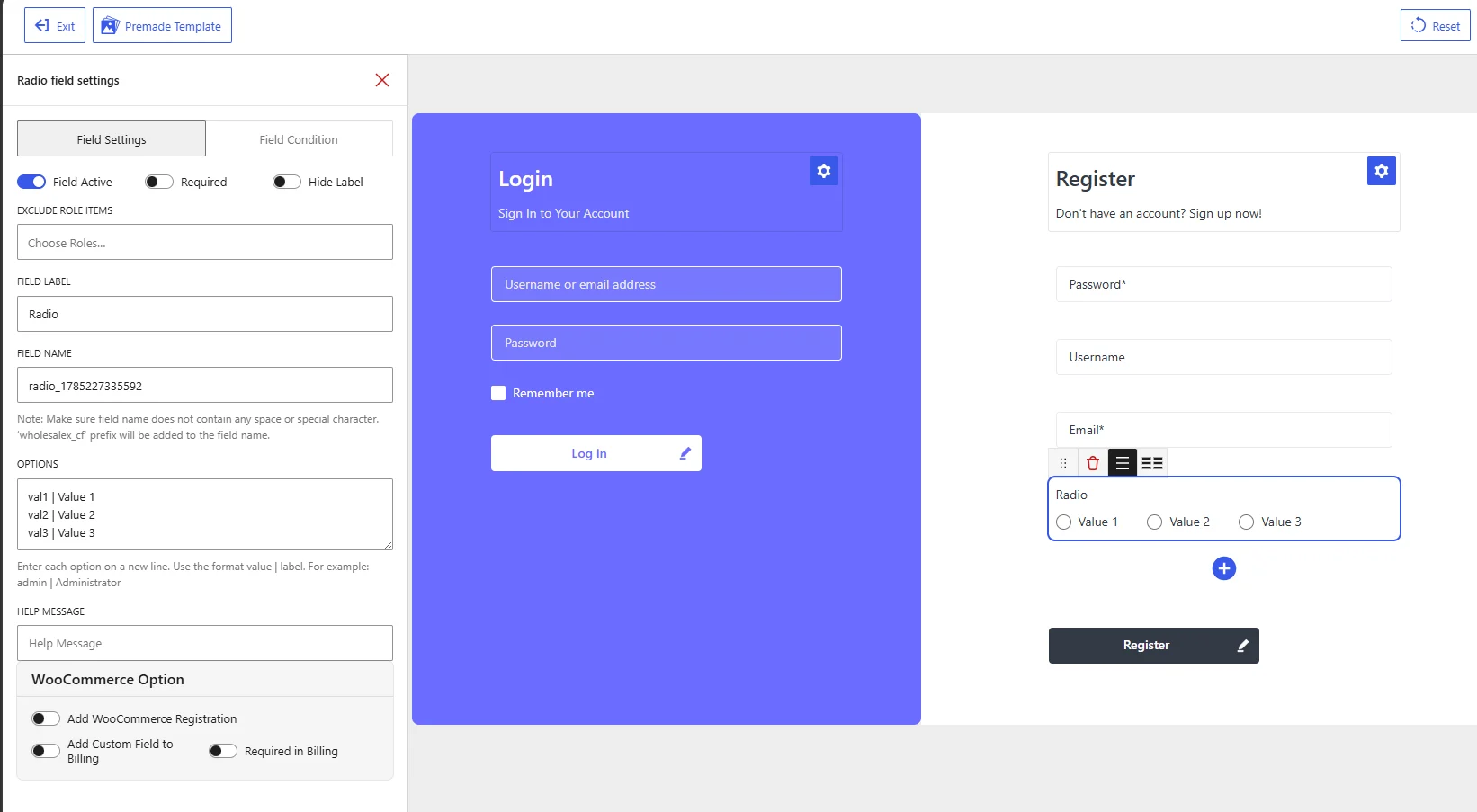
Radio field settings in the WholesaleX Registration Form Builder.
Available Field Settings
Field Active
Enable Field Active to display the Radio field on the registration form.
Disable it to keep the field in the form builder without showing it on the published registration form.
Required
Enable Required when customers must select one of the available options before submitting the form.
Leave it disabled when customers should be allowed to register without making a selection.
Hide Label
Enable Hide Label to hide the main label displayed above the radio options.
The individual option labels will remain visible. Keep the main field label visible when customers need context to understand what the choices represent.
Exclude Role Items
Use Exclude Role Items to hide the Radio field from selected user roles.
Click Choose Roles and select the roles that should not see the field. Leave this setting empty to display the field for all applicable users.
For example, you can ask wholesale applicants whether they operate an online or physical store while hiding the field from regular customer roles.
Field Label
The Field Label describes the choice customers need to make.
The default label is:
Radio
Replace it with a specific question or description, such as:
Business TypePrimary Sales ChannelPreferred Contact MethodDo You Have a Physical Store?Account Purpose
Because customers can select only one option, the label should describe a question that requires a single answer.
Field Name
The Field Name is the internal identifier used to store and process the selected value.
WholesaleX automatically generates a unique field name similar to:
radio_1785227335592
You can replace it with a more descriptive name, such as:
business_type
primary_sales_channel
has_physical_store
The field name must not contain spaces or special characters. Use lowercase letters, numbers, and underscores. Each custom field should have a unique field name.
WholesaleX adds the wholesalex_cf prefix when storing the field as a custom field.
Options
Use the Options box to define the choices displayed in the Radio field.
Enter each option on a separate line using the following format:
value | Label
The value is the internal value saved after the form is submitted. The label is the readable text displayed beside the radio button.
For example, a Primary Sales Channel field could contain:
online | Online Store
physical | Physical Store
both | Both Online and Physical
In this example, selecting Online Store saves online as the field value.
The default options shown in the field are:
val1 | Value 1
val2 | Value 2
val3 | Value 3
Replace these default entries with choices relevant to your registration process. Keep every stored value unique and use underscores instead of spaces when a value contains multiple words.
Help Message
Use Help Message to provide instructions or clarify how customers should choose an option.
Examples:
Select the option that best describes your business.
Choose your primary sales channel.
Select one preferred method of communication.
A help message is optional. Add one when the field label or available options do not provide enough context.
WooCommerce Options
Add WooCommerce Registration
Enable Add WooCommerce Registration to display the Radio field on the default WooCommerce customer registration form.
Leave it disabled when the field should appear only on the WholesaleX registration form.
Add Custom Field to Billing
Enable Add Custom Field to Billing to include the Radio field in the WooCommerce billing section.
Use this option when the selected information is relevant to checkout, billing, order processing, or the customer’s account details.
Required in Billing
Enable Required in Billing to require customers to select an option in the WooCommerce billing section.
Use this setting together with Add Custom Field to Billing. Leave it disabled when customers should be able to complete checkout without selecting an option.
Example Configuration
For a Primary Sales Channel Radio field, use the following configuration:
| Setting | Recommended value |
|---|---|
| Field Active | Enabled |
| Required | Enabled when an answer is necessary |
| Hide Label | Disabled |
| Exclude Role Items | Exclude non-wholesale roles if needed |
| Field Label | Primary Sales Channel |
| Field Name | primary_sales_channel |
| Help Message | Select the channel through which your business primarily sells products. |
| Add WooCommerce Registration | Enable if needed |
| Add Custom Field to Billing | Usually disabled |
| Required in Billing | Usually disabled |
Add these choices to the Options box:
online | Online Store
physical | Physical Store
both | Both Online and Physical
After configuring the field, click Save Changes and check the registration form on the frontend. Confirm that all options appear correctly and that customers can select only one option.