
The Price Display settings allow you to control how wholesale prices are presented across your store. You can customize price labels, manage tax visibility, and determine discount priorities easily from this section.
Wholesale Price Text
Wholesale Price Text for Product Pages: Customize the text that shows before the actual wholesale price on single product pages. The default text is “Wholesale Price:” – which you can change to your liking. For example: “B2B Price:”
Wholesale Price Text for Product Listing Pages: Use this field to customize the text that shows before the actual wholesale price on product listing pages. The default text is “Wholesale Price:” – you can customize it to something like: “Bulk Price:.”
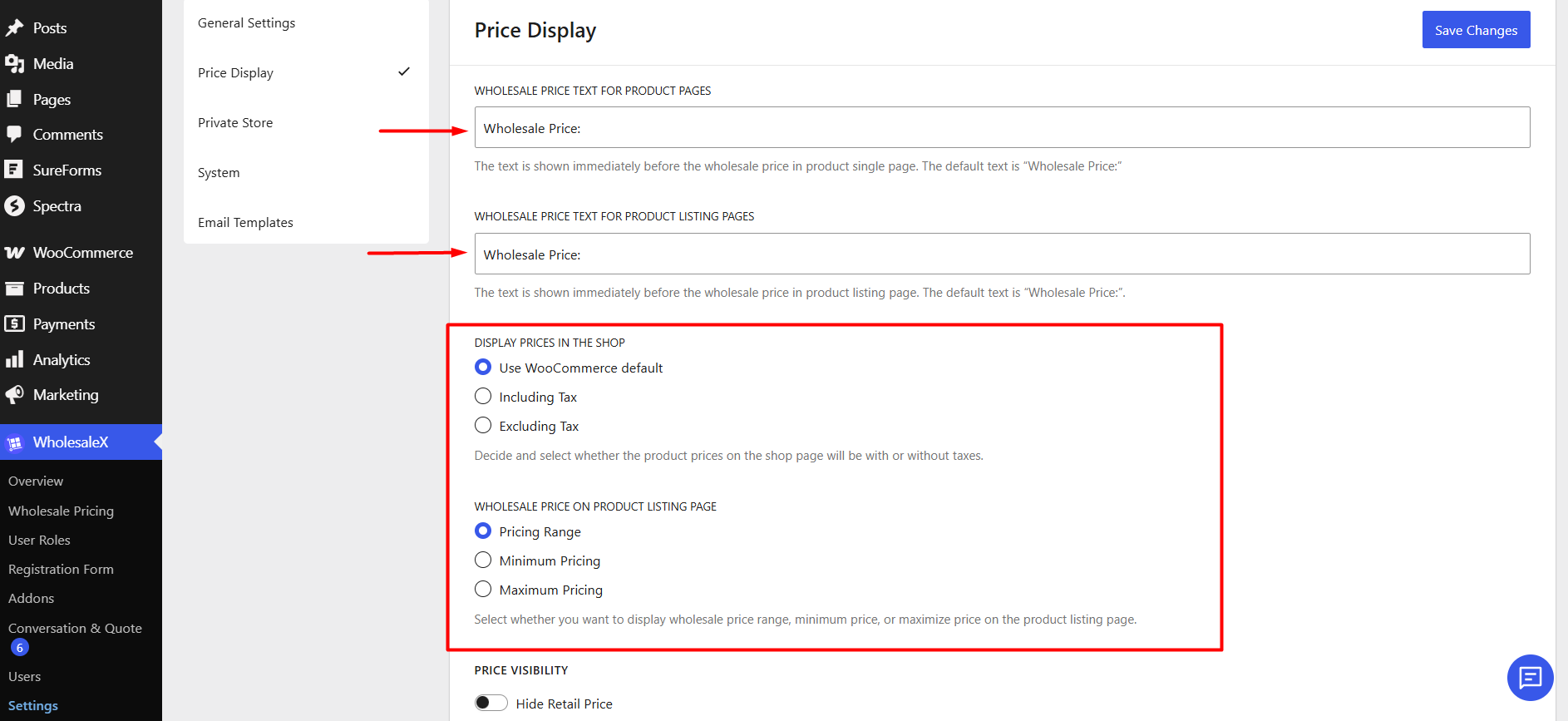
Display Prices in the Shop
Choose how prices are displayed with respect to taxes on shop and archive pages. You can choose between:
Use WooCommerce Default: Uses default settings configured in WooCommerce.
Including Tax: Displays product prices with tax included.
Excluding Tax: Displays product prices without tax.
Wholesale Price on Product Listing Page
This setting controls how wholesale prices appear on product listing pages when multiple wholesale pricing tiers are available.
Pricing Range: Displays the minimum and maximum wholesale price range.
Minimum Pricing: Displays only the lowest available wholesale price.
Maximum Pricing: Displays only the highest wholesale price.
Price Visibility
Easily control which prices are displayed to customers.
Hide Retail Price: When enabled, the regular retail price will be hidden whenever a wholesale price is available.
Hide Wholesale Price: When enabled, wholesale prices will be hidden from product listing pages. It helps prevent wholesale prices from being publicly visible.
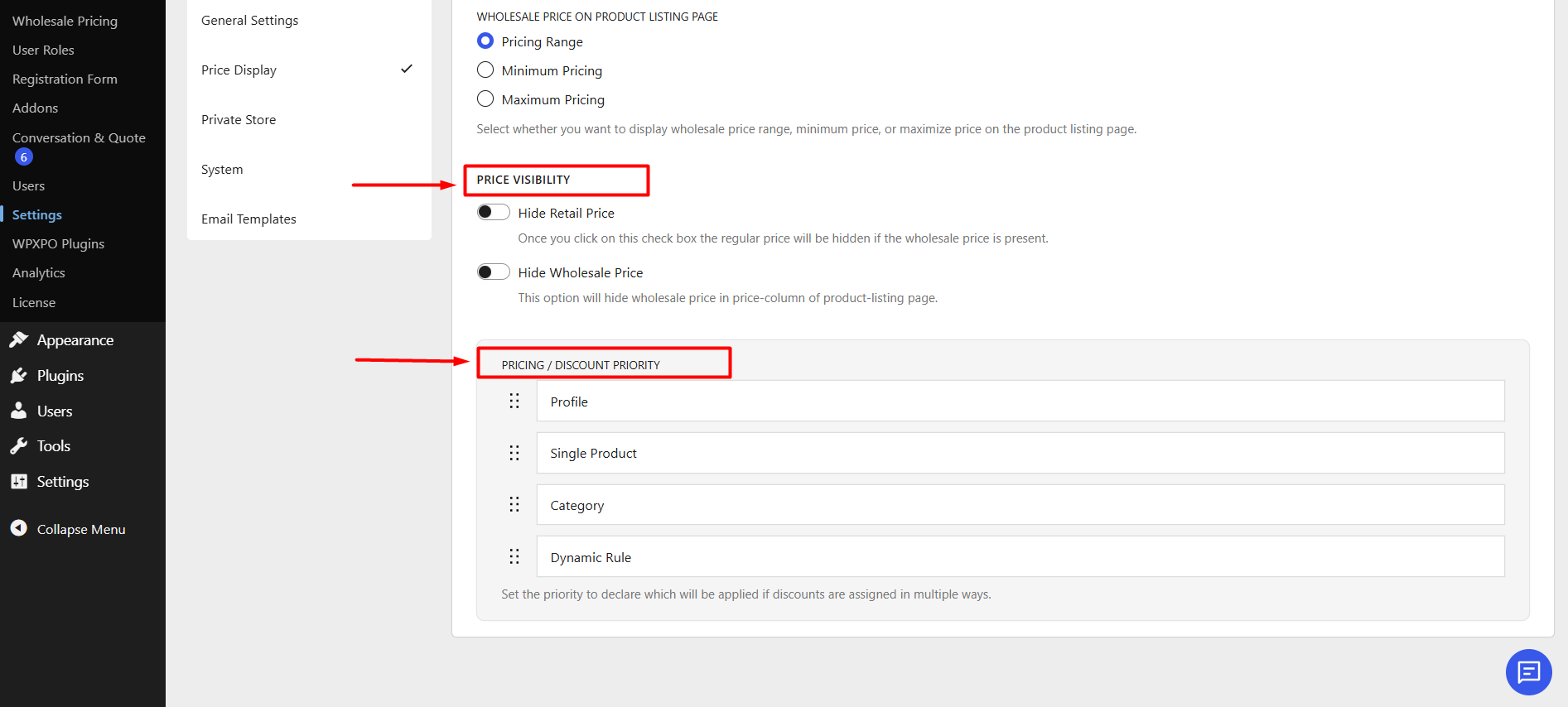
Pricing / Discount Priority
This setting lets you define which pricing rule takes priority when multiple discounts apply to the same product.
Profile: Applies discounts configured through user roles.
Single Product: Applies discounts assigned directly to specific products.
Category: Discounts that are applied at product category level.
Dynamic Rule: Applies discounts generated through dynamic pricing rules and conditions.
How Priority Works
If a product qualifies for multiple discounts at the same time, WholesaleX will apply the discount source that appears highest in the priority list.
Example:
Suppose a product qualifies for:
- 10% discount from a user role (Profile)
- 15% discount from a category rule
- 20% discount from a dynamic rule
If Profile is placed at the top of the priority list, the 10% profile discount will be applied, even though other discounts exist.