
The Users section provides a centralized view of all users registered through WholesaleX. From here, you can search, filter, manage, and update user information, roles, and account statuses.
Filtering Users
Use the filters at the top of the page to quickly find specific users.
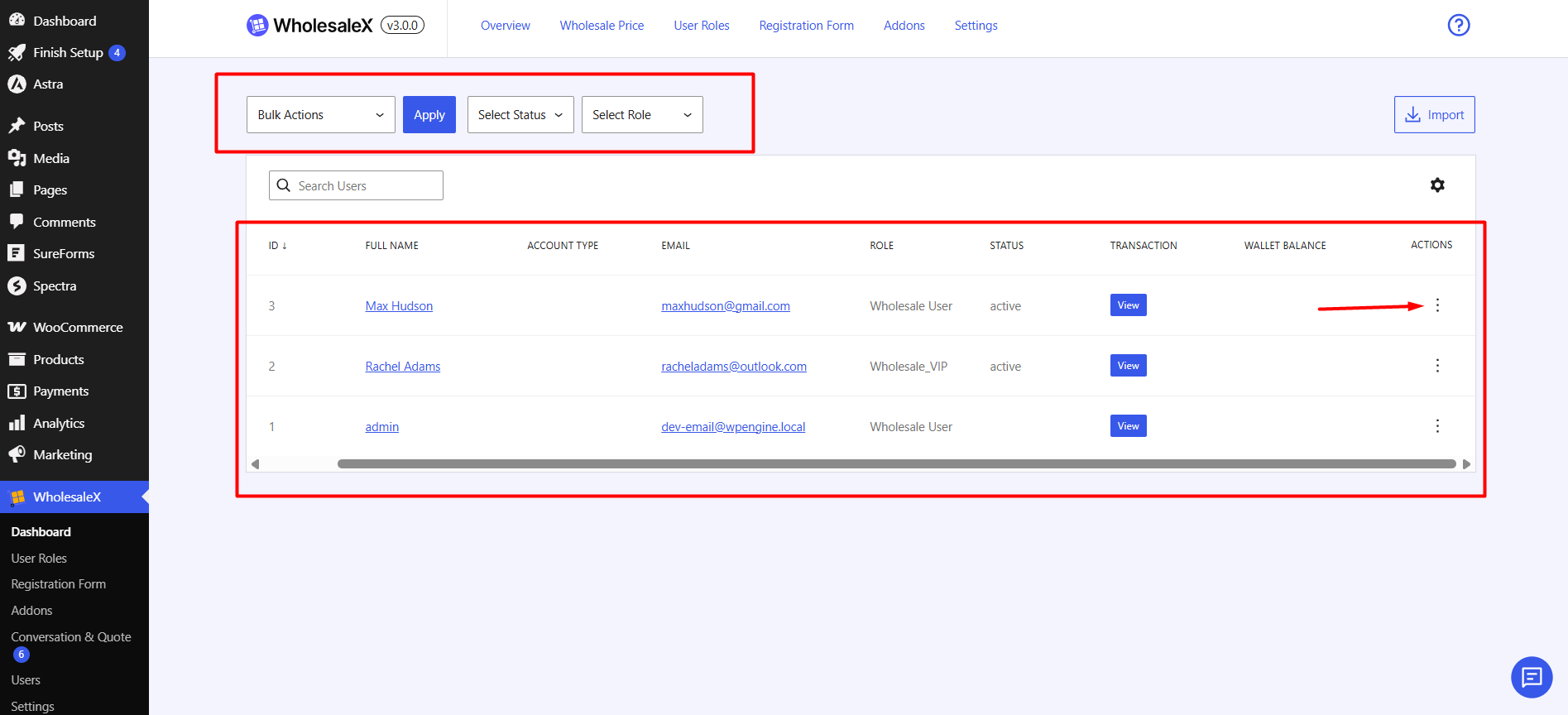
Bulk Actions
Select multiple users and perform actions in bulk.
Status Filter
Filter users based on their account status.
- Active
- Pending
- Reject
- Decline
Role Filter
Filter users by their assigned wholesale role, such as:
- Wholesale User
- Wholesale VIP
User List
The user table displays key information for each registered user.
Available columns include:
- ID
- Full Name
- Account Type
- Role
- Status
- Transaction
- Wallet Balance
- Actions
Use the search field above the table to quickly locate a user by name or email address.
Appearance Settings
Customize how the User Profiles table is displayed.
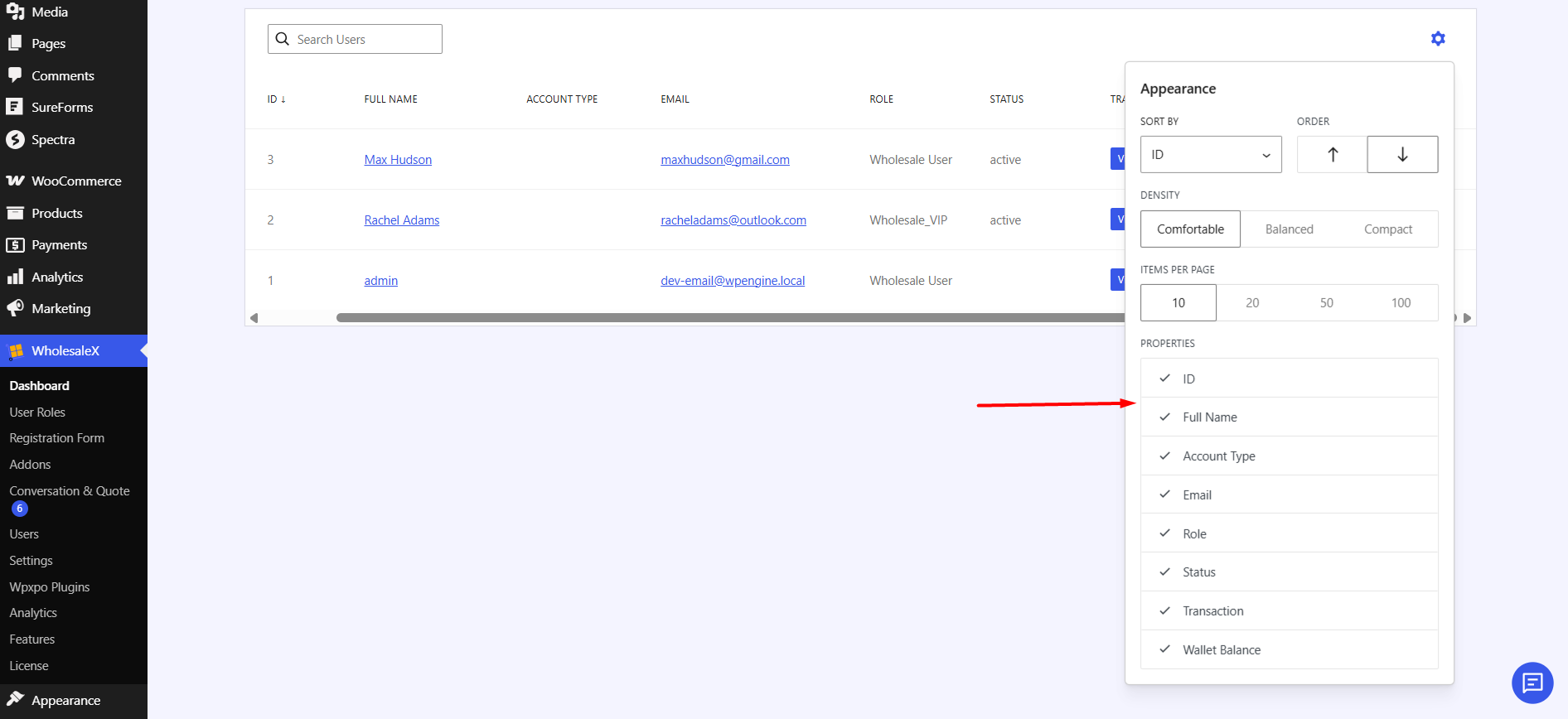
- Sort By – Select the field used for sorting users.
- Order – Choose ascending (↑) or descending (↓) order.
- Density – Adjust table spacing (Comfortable, Balanced, or Compact).
- Items Per Page – Set how many users appear on each page.
- Properties – Show or hide table columns such as ID, Name, Email, Role, Status, Transaction, and Wallet Balance.
Importing Users
Use the Import button to bulk import users into WholesaleX using a CSV file.
Drag and drop a CSV file into the upload area or click Click to upload to select a file from your device.
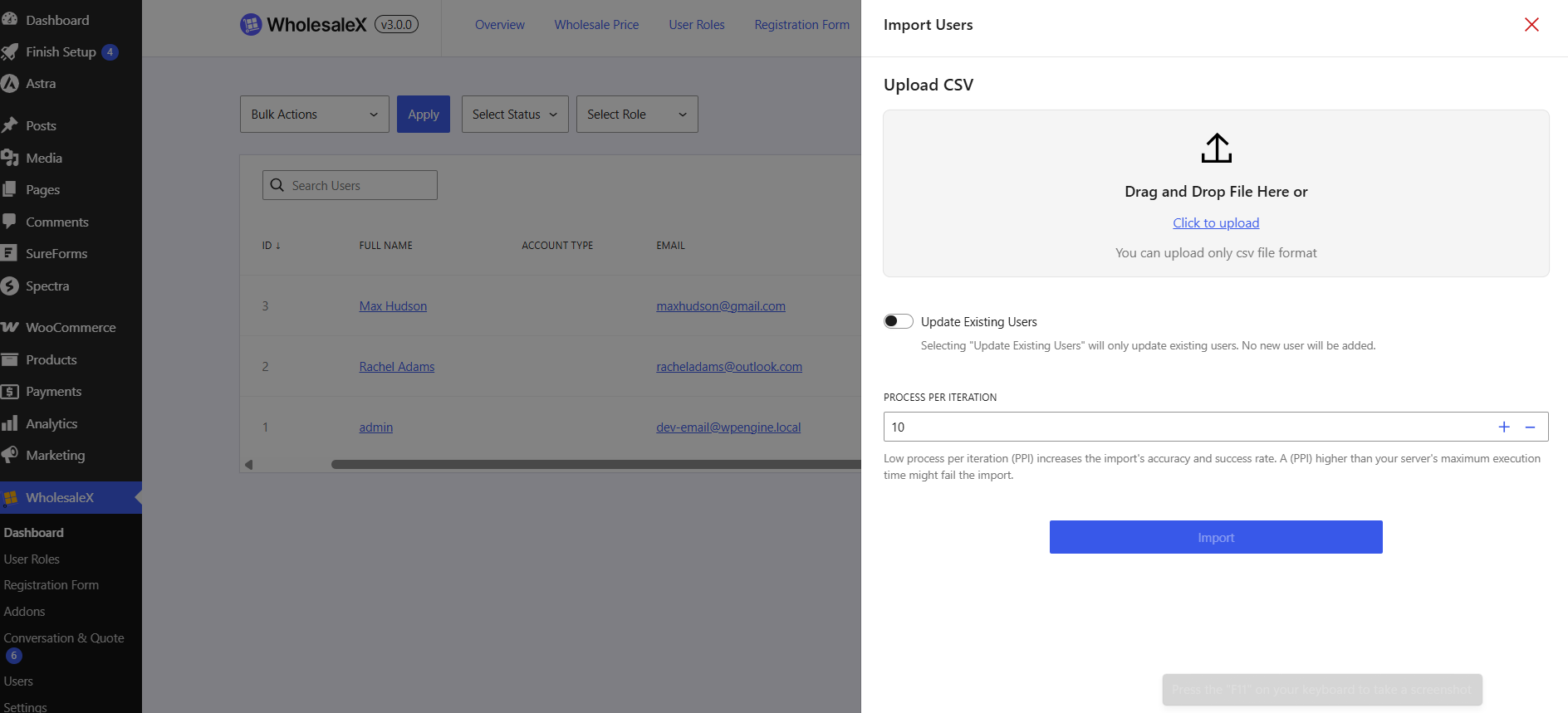
Update Existing Users
Enable Update Existing Users if you want to update information for users that already exist in your store.
- Enabled: Updates matching existing users only.
- Disabled: Imports users as new records.
Process Per Iteration
Set the number of users processed during each import cycle.
A lower value can improve import reliability on servers with limited resources, while a higher value may speed up the import process.
Note: After uploading the CSV file, you have to map the CSV file. At the end, hit the Run the Importer button to complete the procedure.
Editing User Profile Settings
Click Edit User from the User Profiles table to open the default WordPress user profile page. Here, you’ll find additional WholesaleX Profile Settings for that specific user.
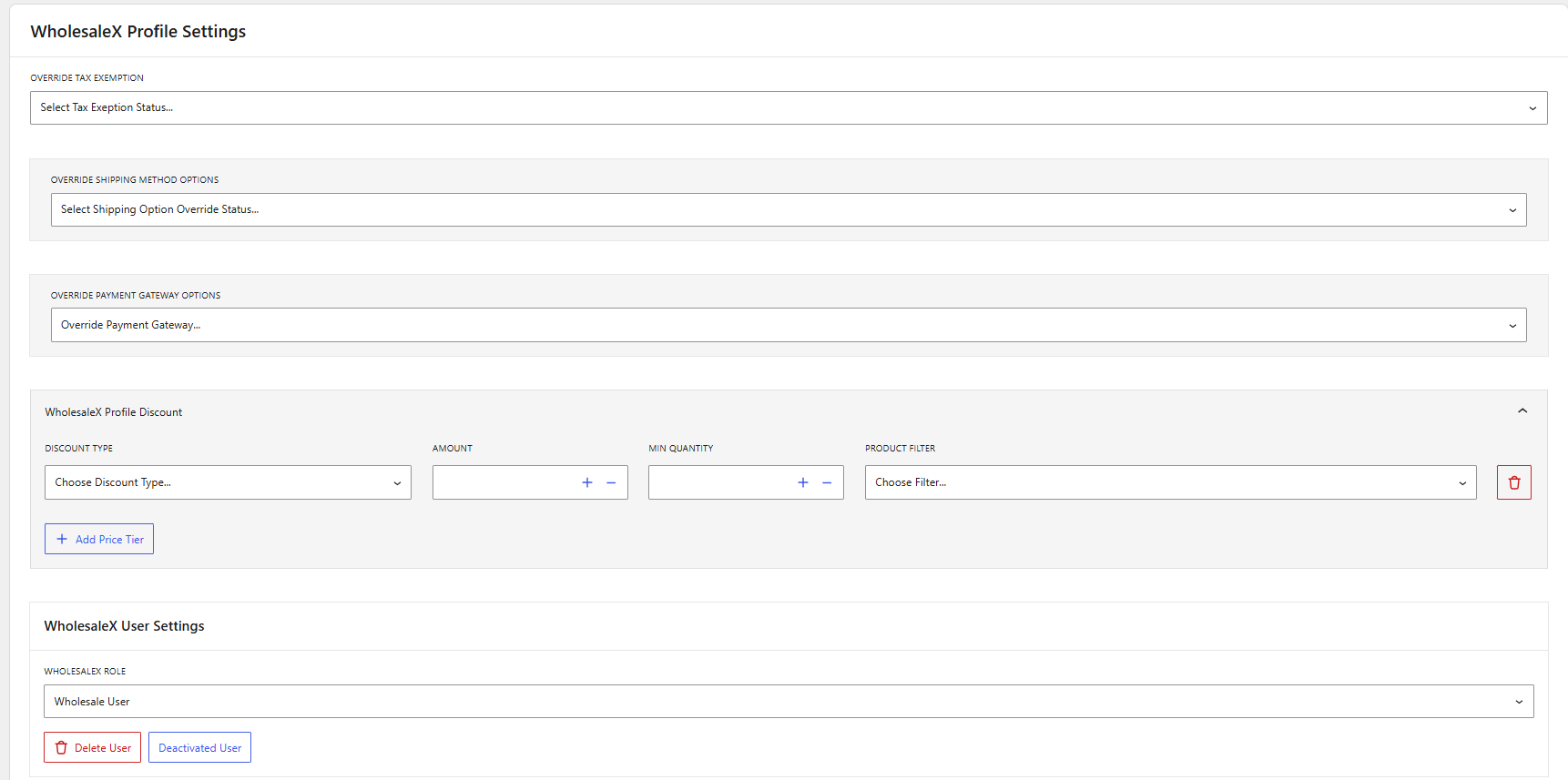
Tax Exemption: You can decide whether this user will be exempted from tax.
Override Shipping Options: This option lets you decide whether or not you want to display shipping options to this user.
Override Payment Gateway Options: You can override payment gateway options for this user.
WholesaleX Profile Discount
This option lets you directly provide a discount to the user. It has the options:
- Discount Type
- Amount
- Minimum Quantity
- Product Filter
Use Add Price Tier to add multiple discount rules.
WholesaleX User Settings
- WholesaleX Role – Assign or change the user’s wholesale role.
- Deactivate User – Disable wholesale access for the user.
- Delete User – Permanently remove the user.